
Appearance
Schedule It Task
Situate Version: 1.6.6 and later
The schedule-it task provides the ability to have one workflow create and schedule another workflow. For example, a user may want to perform a set of actions on a computer and when complete set the computer to reboot during off hours
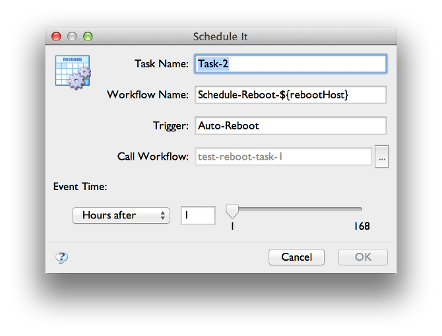
The Workflow Name
The workflow name field is a string used to name the newly created workflow. It can contain a variable as in the example above and will processed through the template engine.
NOTE: Situate will automatically append an instance number to the end of the workflow name to insure that the workflow name is unique.
Trigger
The trigger field will set the trigger name that is used by this newly created workflow. Like the workflow name it can contain a variable and will be processed through the template engine.
The trigger that is created will always be a Schedule Trigger.
Call Workflow
The call workflow field contains the name of the workflow that will be called by the new workflow created. A user selects the workflow to be called by clicking on the button just to right of this field as seen here.
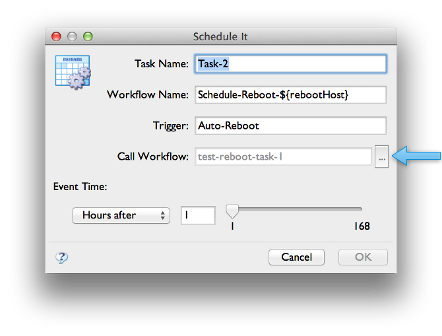
Clicking this button will popup another dialog to allow you to select an existing workflow and trigger. Use the drop-down box to first select the workflow that you would like to be called by your newly created workflow. After selecting the workflow the Trigger Name drop-down will be populated with the available triggers. Select the appropriate trigger of your choice
Finally, if the selected workflow and trigger require parameters to be passed you will need to click on each parameter in the table and enter an appropriate value.
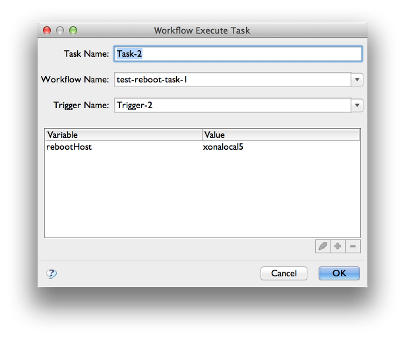
Once this dialog is complete, the "OK" button will be enabled. Clicking the "OK" button will save the information and close the dialog returning you to the initial configuration dialog. The call workflow field should now contain the workflow you just selected.
Event Time
The event time section allows the user to set how far in the future to execute the new workflow after the calling workflow is executed. For example, workflow ABC, which contains a Schedule-it task executes at 9:00 AM. The Schedule-it task will create and submit the new workflow to run 3 hours from now or at 12:00 PM.
Select the Scale
Selecting the drop-down box will allow a user to set how far in the future by number of days, hours or minutes.
Set Duration
A user can either type into the textfield the specific number of days, hours or minutes to execute this workflow or use the slider to select the necessary value.