
Appearance
Customizing the Queue View
The set of columns displayed by the queue view can be customized. To do this, right click on the table headings.
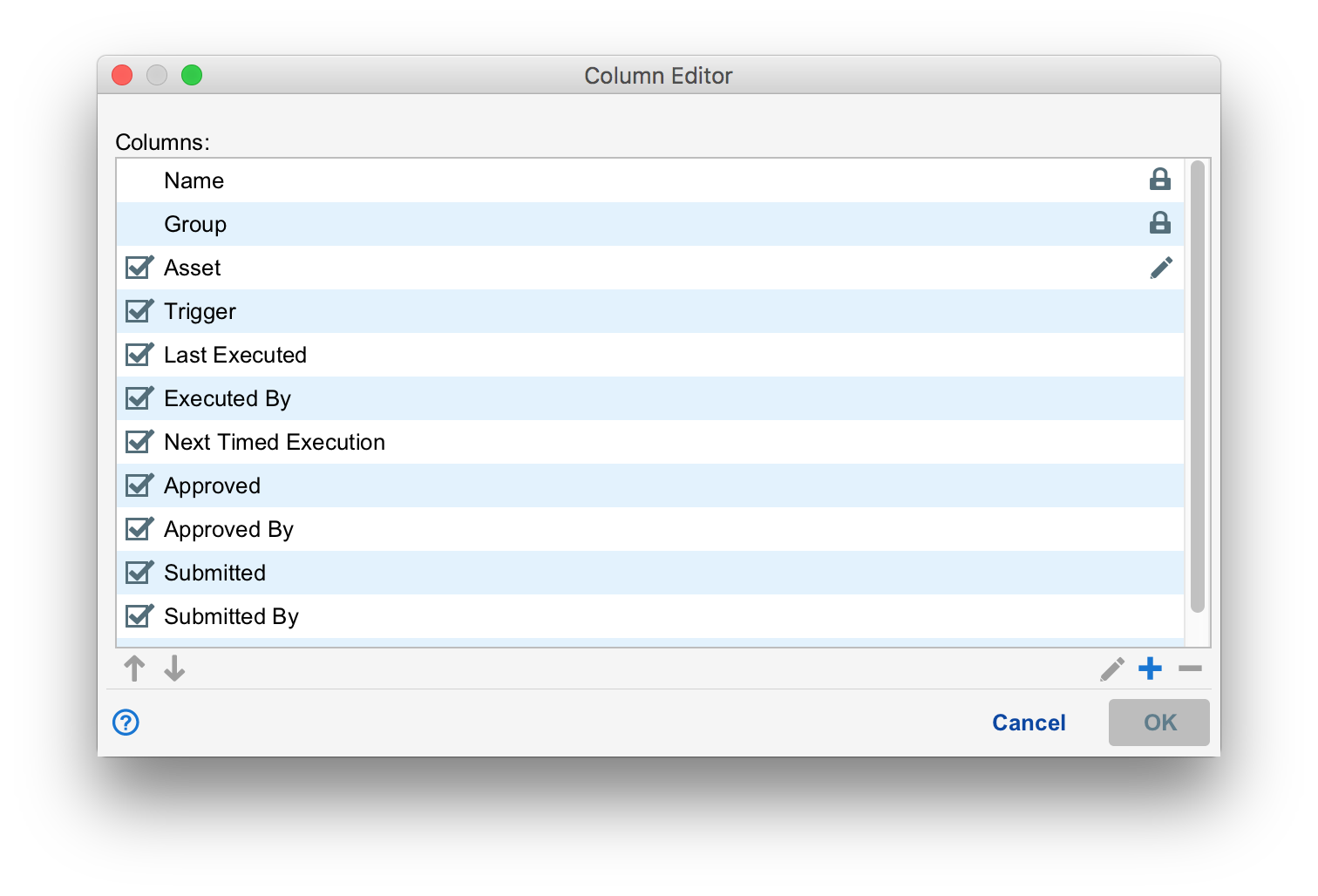
The column editor shows each column in the order it is displayed. The "Name" and "Group" (shown only when "Show Groups" is checked) cannot be removed or reordered.
The set of builtin columns (no pencil icon on the right) cannot be edited. They can only be reordered.
Adding Columns
The "+" button can be used to add your own columns.
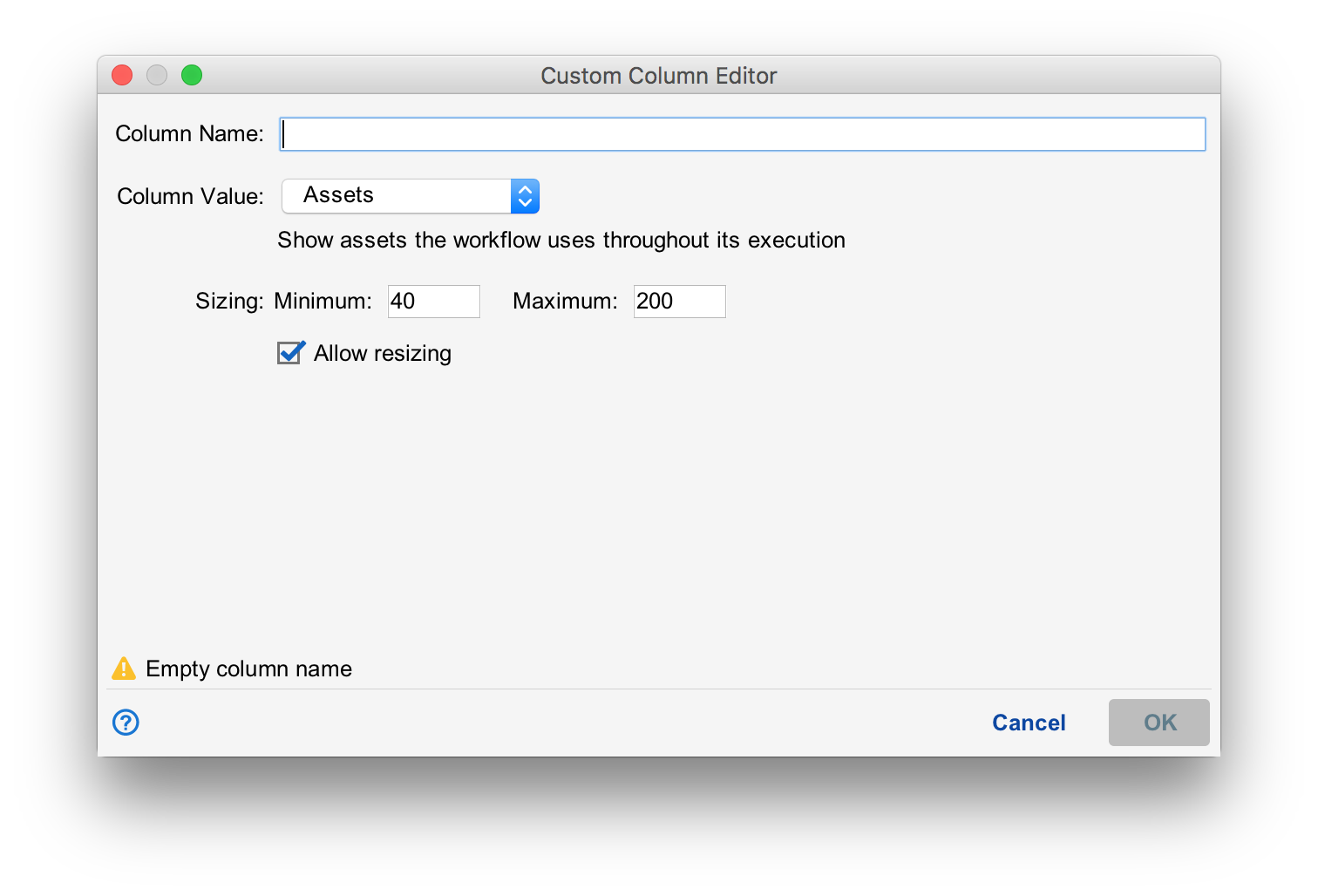
You must name your column, then select the Column Value. The following values are available:
| Assets | Displays a comma-separated list of likely assets that the workflow will execute on. |
|---|---|
| Calendars | A comma-separated list of calendars used by the workflow. |
| CMDB Schemas | A comma-separated list of CMDB Schemas in use by the workflow. |
| Command | A comma-separated list of remote commands that will likely be executed when the workflow runs. |
| Workflow Type | The textual name of the workflow type. |
| Endpoints | A comma-separated list of all endpoints the workflow will likely interact with when it runs. |
| File or Directory | A comma-separated list of files and directories the workflow will likely use when it runs. |
| Tags | The value of the specified tag. |
| Parameters | A list of likely parameters that will be passed to other workflows when the workflow runs. |
| Timezone | A comma-separated list of timezones the workflow will likely use when it runs. |
| Trigger Variable | The likely value of the specified trigger variable when the workflow runs. |
| Users | A comma-separated list of users the workflow will likely use when it runs. |
| Windows Services | A comma-separated list of windows service the workflow will likely control when it runs. |
Liekly Values
Many values found in situate workflows contain variables. To gather the data required by some custom columns, situate must perform a simulation of what might occur at runtime so that variables can be expanded, if possible. The value returned will therefore be the "likely value" or best guess but may be different at actual runtime.
If a variable cannot be expanded, the column value will be the unexpanded string.
Sizing
The Minimum and Maximum sizes must be established for each custom column. You may check the box if you want to be able to resize the column.
As you resize columns, situate persists your settings so the next time the view is opened it is the same.
Reordering Columns
You can reorder columns by selecting a column and pressing the up or down buttons. You can also drag columns with your mouse.