
Appearance
Asset Groups
Asset groups provide a way to organize related assets. Asset groups work differently than a file system in that every asset can be found in the "All" folder. Assets can then exist in multiple groups as needed to provide a way to relate similar assets. Sub-groups are also possible. When an asset is a member of a sub-group, it's also considered a member of the sub-group's parent folder and so on.
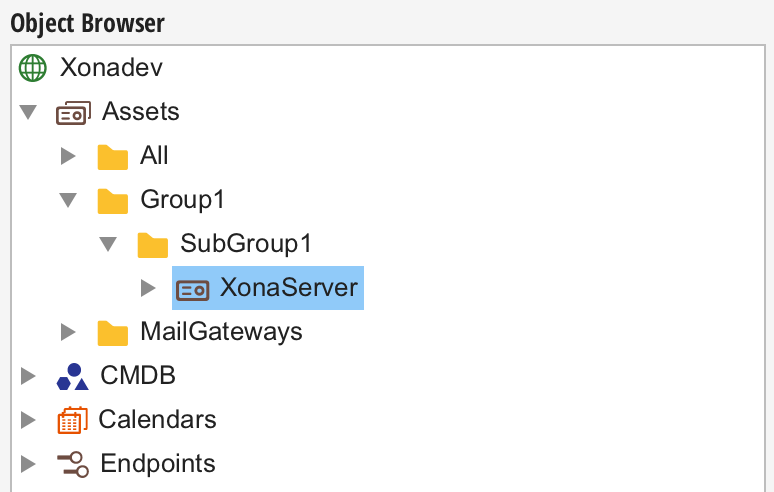
The Group Menu
Right-click an asset group in the Object Browser to open its menu.
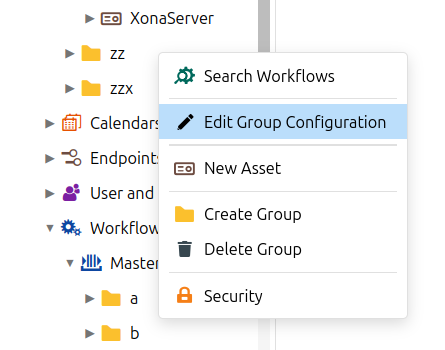
| Menu item | What it does |
|---|---|
| Search Workflows | Opens a Search Workflows tab for the assets in this group and its sub-groups. See Search Workflows |
| Edit Group Configuration | Opens the group's settings (see Group Settings). Saving changes requires "Update" access to the group |
| New Asset | Creates an asset and adds it to this group. See Creating an Asset. Requires membership in AssetManagers or Administrators |
| Create Group | Creates a sub-group of this group. Requires "Create" access to this group |
| Delete Group | Deletes this group and its contents, after asking you to confirm. Requires "Delete" access to the group |
| Security | Sets who can access the group (its ACL). See ACLs and Security |
Top-level groups are created by right-clicking Assets and selecting Create Group. Only members of the Administrators group can create them.
Group Settings
Create Group and Edit Group Configuration open the group's settings.
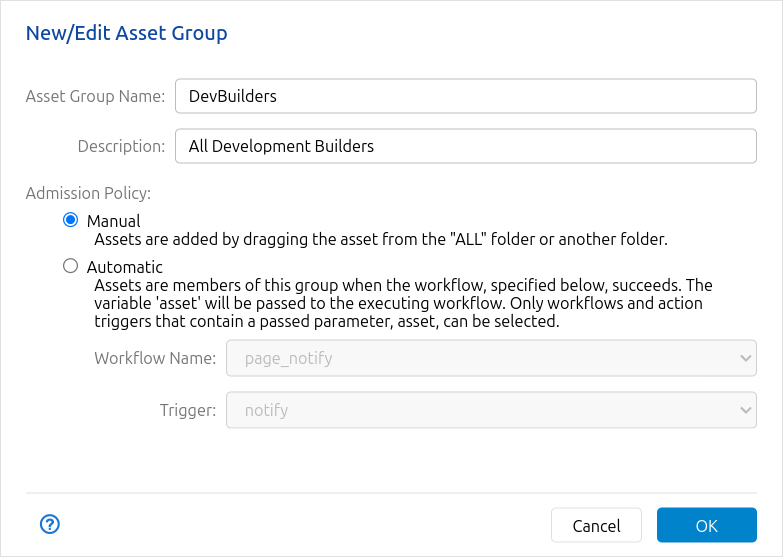
| Field | Meaning |
|---|---|
| Asset Group Name | The name of the group |
| Description | Optional text to help identify the group |
| Admission Policy | How assets become members of the group: Manual or Automatic. See below |
| Workflow Name | For automatic admission, the workflow that decides whether an asset belongs to the group |
| Trigger | For automatic admission, the action trigger to run in that workflow |
Click OK to save the group.
Manual Admission
With Manual admission, you choose the members yourself. To add an asset, right-click it in the Object Browser and select Add to Group..., then choose the group. This requires "Update" access to the group.
To take an asset out of a group, right-click it under the group and select Remove From Group. This requires "Update" access to the group, or membership in AssetManagers. The asset is only removed from the group; to remove it from Situate, delete it from the "All" folder.
Automatic Admission
With Automatic admission, Situate decides the members by running a workflow. For each asset, Situate runs the selected workflow and trigger, passing the asset in the variable asset. If the workflow succeeds, the asset belongs to the group. If not, the asset does not belong to the group.
Only workflows and action triggers that have a parameter named asset can be selected.
Situate runs the workflow again each time a significant change occurs on the server, such as when it is rebooted or Situate is restarted.
You can't add assets to an automatic group with Add to Group....