
Appearance
Passing Variables with Triggers
Most variables are defined in triggers. These variables become part of the workflow instance's level of variables.
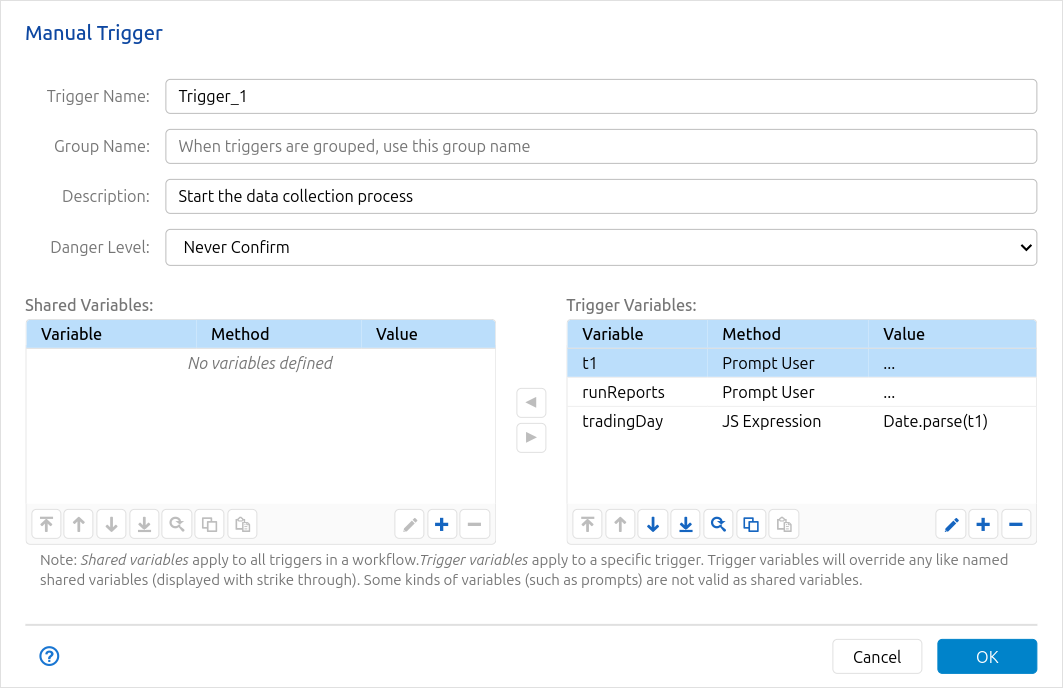
The example above shows the configuration window for a manual trigger. The dialog contains two sections for defining the two types of trigger-defined variables.
- Trigger Variables are created only when the trigger in which they are defined runs.
- Shared Variables are created whenever any trigger in the workflow runs.
When a workflow executes, shared variables are defined before trigger variables. When the same variable exists in both the shared and trigger variable section, the trigger variable will override the shared variable, and the shared one is shown struck through. This property allows shared variables to act as default values.
The arrows between the two tables move the selected variable from one table to the other. Some kinds of variables, such as prompts, can't be shared variables.
Editing Variables
Variables are added, edited and removed by using the +, pencil and − buttons below each table. Double-clicking a variable also opens it in the Edit Variable dialog. The other buttons move the selected variable to the top, up, down or to the bottom, find a variable, and copy and paste variables.
Variable Name
The variable name is the name of the variable to set. For more information on what constitutes a valid variable name, see Introduction to Variables.
Method
The method describes the kind of variable to be defined. By default, the method is JS Expression, meaning that the value must be a valid Javascript expression. For more variable methods, see Variable Methods.
Value
The value of the variable sets the variable's initial content when it is created. The value of the variable must be valid to its method.
Examples
The trigger above defines three variables.
Prompting for a Value
t1 uses the Prompt User method, so Situate asks the person who runs the trigger for a value, with the prompt Trading Day:.
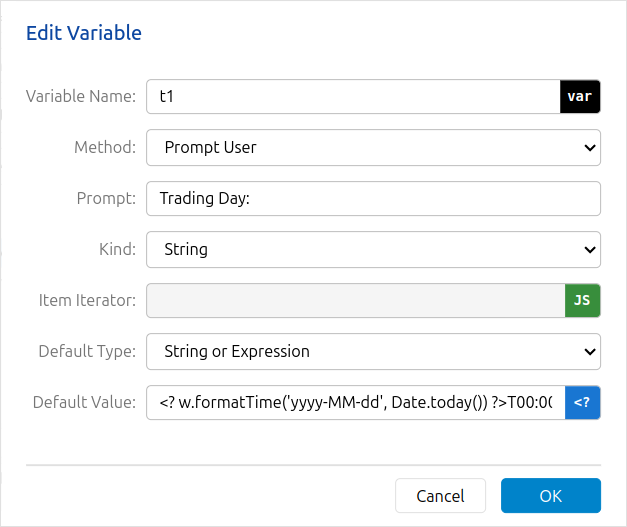
The default value can be an expression. Here it's <? w.formatTime('yyyy-MM-dd', Date.today()) ?>T00:00..., which fills in today's date, so the person running the trigger can accept it or type another day. See User Prompts.
Using Trigger Variables in Other Trigger Variables
Variables are processed top to bottom in the variables panel and once a variable is created, it can be used to define other variables.
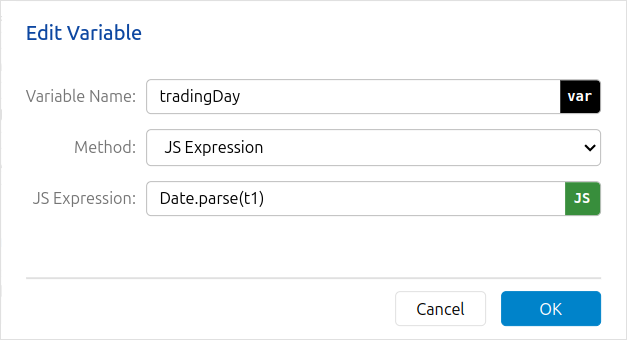
tradingDay is a JS Expression, Date.parse(t1), that turns the date typed for t1 into a date value. It works because t1 is above it in the list. See JS Expressions.
Computing a Date
The Date Expression method sets a variable to a date worked out when the workflow runs.
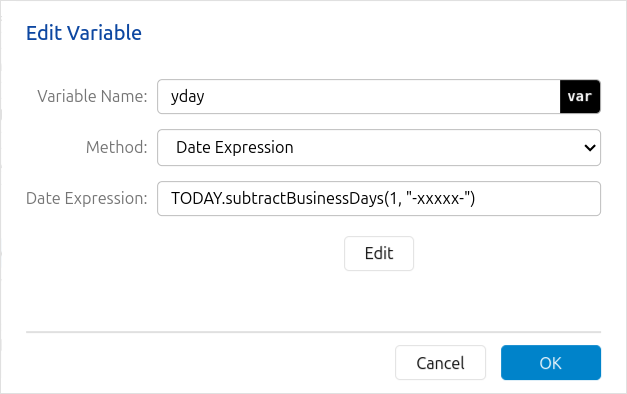
Here yday is TODAY.subtractBusinessDays(1, "-xxxxx-"): the previous business day. The "-xxxxx-" marks the days of the week that count, Sunday through Saturday, so only Monday to Friday are business days. Click Edit to build the expression in the Date Variable builder instead of typing it. See Date Builder Expressions.