
Appearance
Sibling Domains
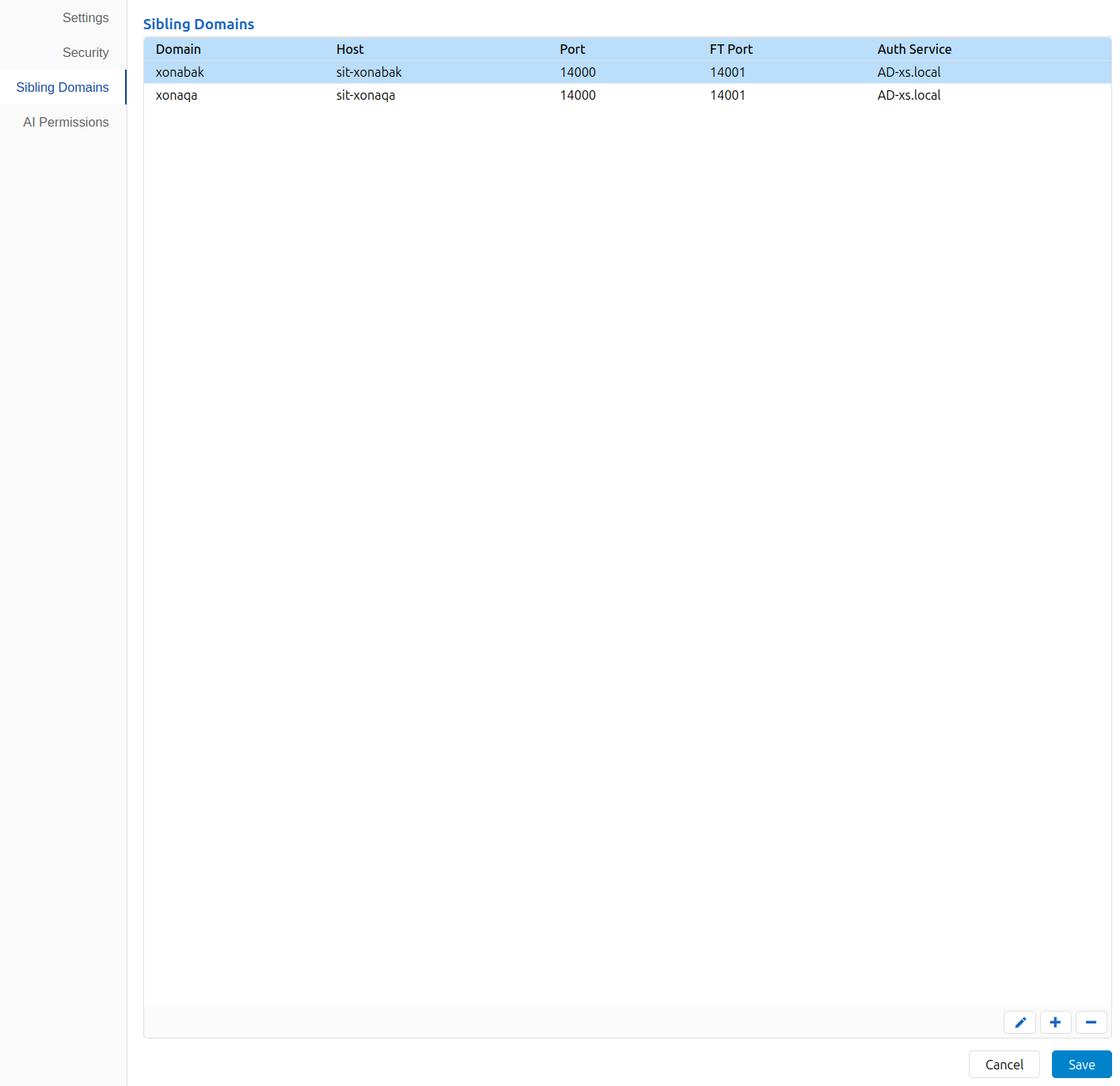
The Sibling Domains screen of Domain Settings lists other domains that the UI opens whenever you open this domain. It saves you from opening each domain by hand when you work with several at once. For example, if each of your customers has its own domain, add them as siblings of one domain and they all open together.
Only members of the Administrators group see this screen. The list applies to everyone who opens the domain.
Logging In to Sibling Domains
When you open this domain, the UI also opens each sibling domain:
- If the sibling's auth service is the one you logged in to this domain with, the UI logs you in to the sibling automatically.
- Otherwise, the UI shows the login dialog for that sibling.
Adding and Editing Sibling Domains
To add a sibling domain, click + below the table. To edit one, select it and click the pencil icon. To remove one, select it and click −. Click Save to keep your changes, or Cancel to discard them.
The dialog has these fields:
| Field | Meaning | Default |
|---|---|---|
| Domain | The name of the sibling domain | |
| Host | The sibling domain's server | sit-<domain>, filled in as you type the domain |
| Port | The sibling server's port | 14000 |
| FT Port | The sibling server's file transfer port | 14001 |
| Auth Service | The authentication service users log in to the sibling with. Choose from this domain's services or type a name, such as AD-acme.local |