
Appearance
Security
The Security screen of Domain Settings controls who can log in to Situate and what they can do. It has two sections: Authentication Services and Situate Groups.
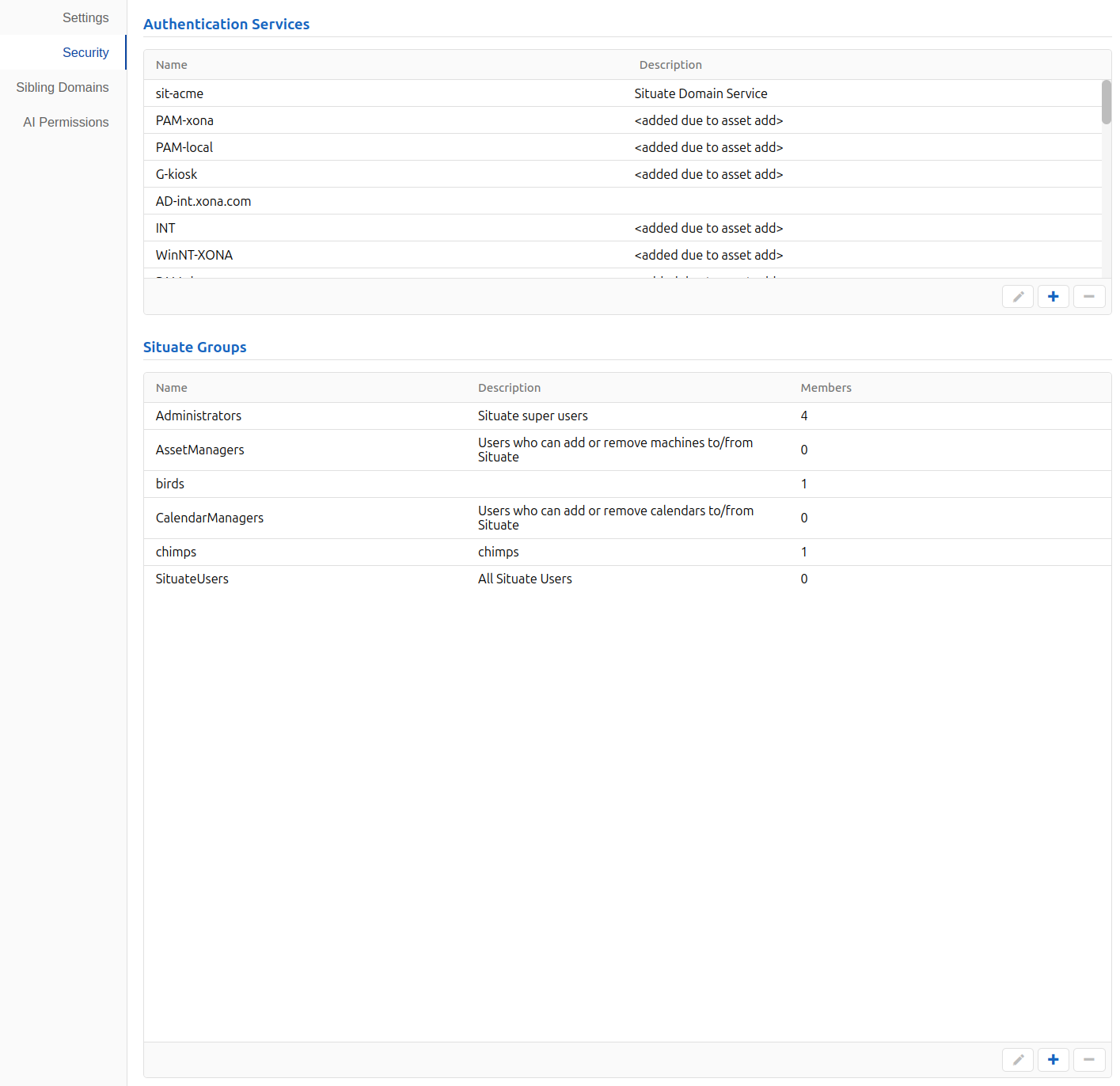
Authentication Services
Authentication services are systems that maintain user accounts, groups, passwords and other data required to authenticate and authorize a user. For the most part, Situate detects and configures authentication services as new assets are added or as endpoints are configured. However, sometimes authentication services need to be added or updated manually.
Naming Authentication Services
An authentication service name is made up of a prefix that indicates the type of authentication service and a name that uniquely identifies it. The following table describes the types of authentication services.
| Prefix | Type | Description | Example |
|---|---|---|---|
| AD- | Microsoft Active Directory | The Microsoft Active Directory service for both Windows and Linux computers using AD (such as sssd) for authentication. | "AD-acme.local" is the Active Directory domain "acme.local". |
| PAM- | Linux Pluggable Authentication Modules | Unix accounts validated through PAM on hosts that aren't in a directory domain. PAM-local is the default for every such Linux host; Situate assumes the same accounts exist on every PAM-local host. Use PAM-<name> for a named set of hosts when different sets of hosts have different accounts. | PAM-local, or PAM-acme for a named set of hosts. |
| WinNT- | Windows Workgroup | A Windows workgroup account. | WinNT-prd |
| E- | Situate Endpoint | An endpoint is an entity Situate integrates with that does not run an agent. For information on endpoints, see Endpoints. A relational database is an example of an endpoint. Relational databases have user accounts and so Situate would need to have an account to be able to login to the database. In this case, the authentication service represents the accounts in the database. | E-e138d39e-105d-11e9-9777-14109fe12bfb is an endpoint with the GUID "e138d39e-105d-11e9-9777-14109fe12bfb". |
| sit- | Situate Auth Service | Each Situate domain has an authentication service used to structure groups. | sit-xonatest is the internal authentication service for the domain "xonatest". |
| G- | Ad-hoc Group | Accounts shared by an ad-hoc group of hosts that don't share an auth service, but have the same login and password on each machine in the group, usually synchronized by hand. A host can belong to several such groups. | G-acmedmz is a group of computers collectively named "acmedmz" within Situate. The name is purely to identify the group within Situate. |
| H- | Asset Local | Local user accounts on one host. On Windows, these are local system accounts not part of Active Directory. On Linux, these are accounts in the local password file. When the agent is installed, it writes a GUID, the agent id, to its agent.id file. The asset local authentication service is "H-" followed by the agent id (not the asset id, and not the host name). H-<hostname> is still accepted but is deprecated. | H-f981413e-105d-11e9-9777-14109fe12bfb is the set of local users on the host whose agent id is f981413e-105d-11e9-9777-14109fe12bfb. |
For the complete list of authorities, including BUILTIN, see Principal names.
Adding and Editing Authentication Services
To add an authentication service, click + below the Authentication Services table. To edit one, select it and click the pencil icon.
You can add only ad-hoc group (G-) services by hand. Situate adds the other types itself as assets and endpoints are added.
The dialog has these fields:
| Field | Meaning |
|---|---|
| Name | The service name, following the naming conventions above. A new service's name must start with G- |
| Description | Optional text to help identify the service |
| Access Through | The asset Situate uses to check accounts in this service. For example, to validate jeff@G-webrail, Situate looks the account up on this asset |
Removing an Authentication Service
To delete an authentication service, select it, click − below the table, and confirm.
Situate Groups or Roles
The Situate Groups section is where Situate groups are maintained. Every user is a member of one or more groups which collectively determine their permissions within Situate.
Access to objects such as workflows, assets, calendars, users, etc. is controlled by ACLs (Access Control Lists). Situate groups are used in these ACLs. For more information on ACLs, see ACLs and Security.
Creating and Editing Groups
To create a group, click + below the Situate Groups table. To edit one, select it and click the pencil icon. To delete one, select it, click −, and confirm.
Each group must have a name and a description. The Members tab lists the members of the group. Members can be added or edited by pressing the "+" or pencil icon. Members can be removed by selecting the member and pressing the "-" icon.
Members
Situate groups allow both individual users and groups of users to be added. You first need to select the appropriate authentication service. If you are using Active Directory for authentication, select that one. Generally only one is present (the authentication service the server uses to log in users). Next, select Group or User, and finally add the name of the group or user.
Group Mirroring and Best Practices
The easiest way to manage Situate group membership is to create Situate groups that mirror the groups you already have set up in your existing authentication service. Companies typically have onboarding procedures in place that assign groups to new employees or change those groups as an individual takes a new position, changes teams, etc.
To mirror groups, simply create a Situate group with the same name as an Active Directory group (for example) and add that Active Directory group to the Situate group. As members of the Active Directory group change, Situate inherits the changes.
Policies
The Policies tab contains specific settings and permissions that apply to a user when they belong to the group. The Administrators group has no Policies tab.
| Policy | Meaning |
|---|---|
APA | Can approve a workflow whose user or asset is a variable, so it isn't known until the workflow runs. Normally only Administrators can approve these |
NAP | Can't approve workflows |
UVR | Sees only the workflows they can execute. This can be used to reduce an end user's view to only those things the designer wants them to see, such as in a "self-service" model |
QAC | Has queue administration controls: can control the workflow queue and place and revoke admin holds |
CHR | Can create a help report and manage support tickets directly with Xona Software |
T | Trial run |
Members of Administrators always have QAC and CHR.
Other Access Control Policies
These checkboxes are in the group dialog, below the description.
Set new user's default group to this group. (NUG) When a new user logs in for the first time, Situate creates a shadow account in Situate for that user. This account is used to store preferences, settings and security information for that user. Each of these users has a default Situate group assigned. As the user creates objects (such as workflows), their default group is used in the construction of an initial ACL for that object. When this policy is set, as new users who are members of this group login, their default group is set to this group. If no such group exists, their default group will be SituateUsers.
Set new workflow's group owner to this group. (WAG) When a user who is a member of this group creates a workflow, the initial ACL will contain this group as a group owner, assuring that other members of this group have read, write and execute access. Let's say you have a QA team (for example) that all share a set of workflows and everyone on that team should be able to run, edit, etc. the workflows of their teammates. By setting this setting in the QA group, you assure that every new workflow created by a QA team member will have read, write and execute access for the team. This setting overrides the user's default group during ACL creation for the purpose of creating workflows.
Set new workflow's 'execute as' user to: (WRU) Workflows may run as the user that kicks off the workflow or may be set to run as a specific user. Let's say you have a QA team and they run most of their workflows as a service account "tester". In this case, the QA Situate group can have this box checked and the user set to "tester". As members of the QA team create workflows, the "tester" user will be set as the "run as" user on these new workflows. Of course, the workflow designer may set this setting themselves but it prevents the workflow designer from accidentally forgetting to make this change.
Identities
The Identities tab contains a list of external accounts available to group members to authenticate with entities outside the Situate domain. When a Situate service account interacts with external entities, Situate selects the most relevant identity to authenticate with the entity to perform the action.
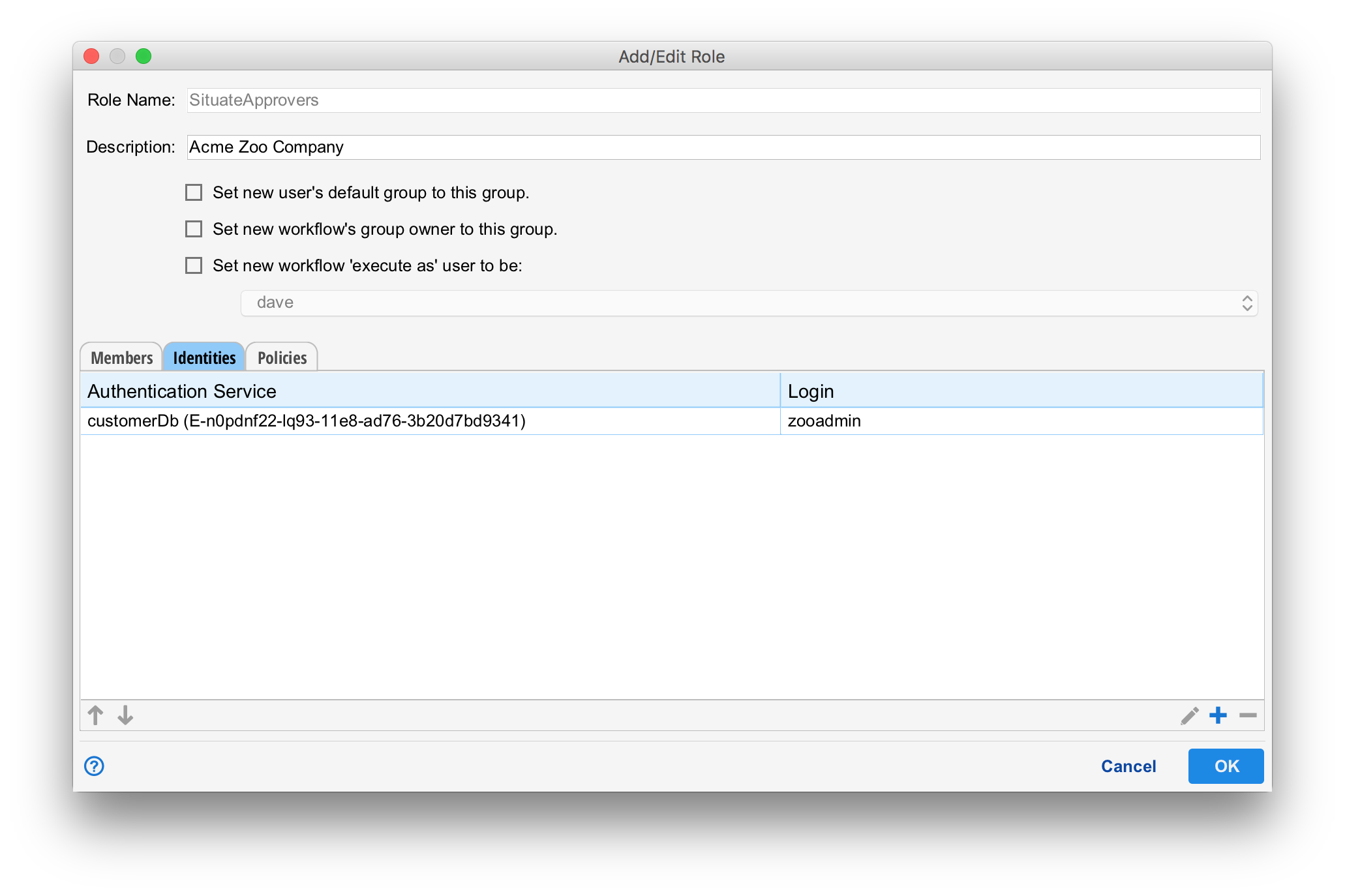
In this example, all members of "SituateApprovers" have been granted the "zooadmin" login to a database endpoint named "customerDb". When a user or workflow with "SituateApprovers" membership attempts to interact with "customerDb", Situate will automatically log in with the "zooadmin" login and password contained within the identity.
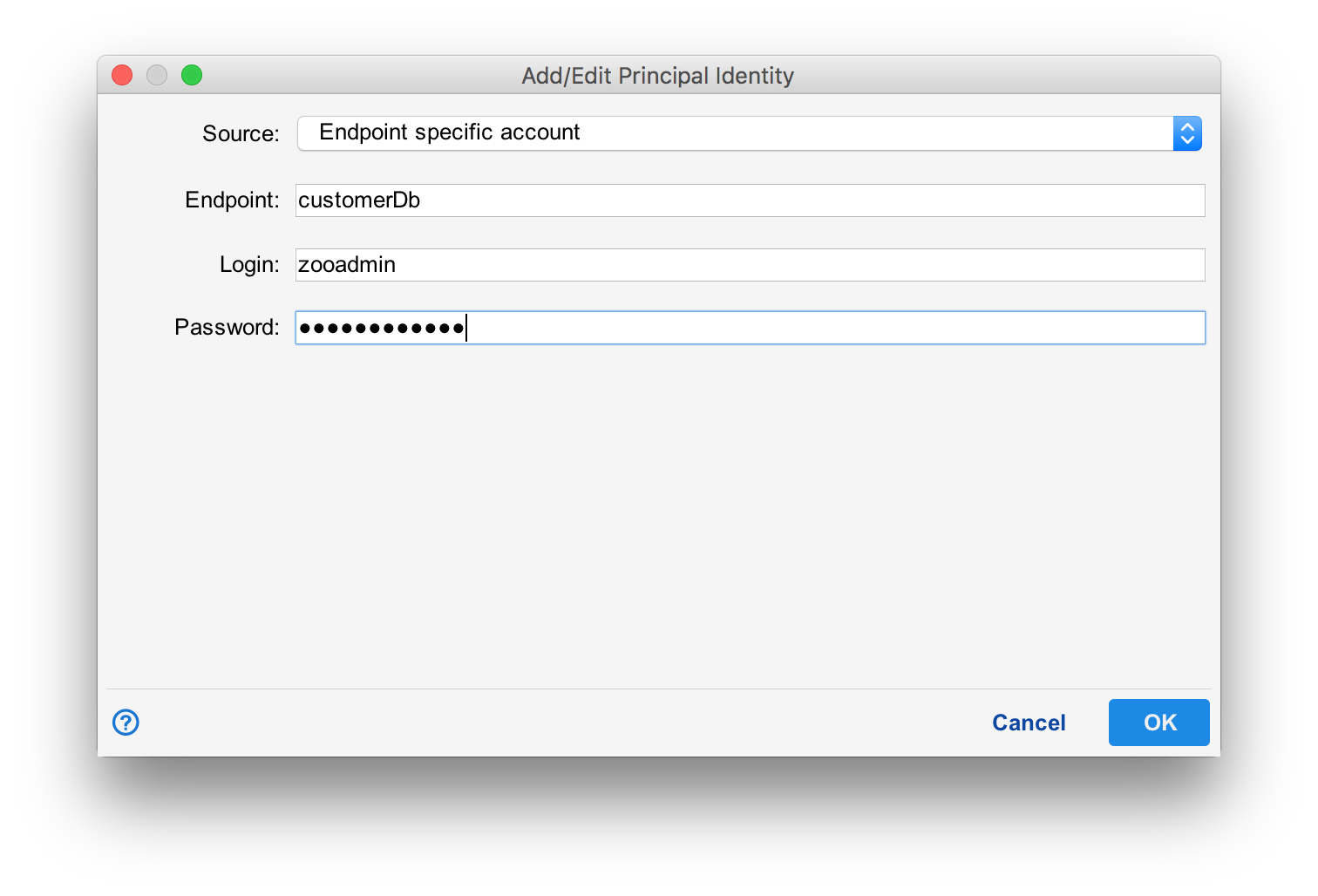
To edit, add or delete identities, select the "pencil", "+" or "-" buttons at the bottom of the identities tab. When adding an identity, it requires a source, endpoint, login and password. The source dictates the type of identity to configure. The endpoint references a Situate endpoint for location and connection details, and the login and password information allow Situate to authenticate with the external service.
For more information on identities, see Principal Identities.
In the Service Accounts section of Situate, users may establish a set of identities themselves. Identities assigned here are done by Administrators. The advantage of this approach is that the end users of these credentials never actually see the credentials. For example, let's say you have a sales team that needs access to a CRM database. Best practices dictate routine password changes on the database. Instead of going to each member of the sales team every 30 days and giving them the new password, an administrator can simply change the password at the group level for all users. This way, the members of the sales team never directly know the password and the administrator does not have to deal with several sales people each month who are locked out because they missed the memo.
Built-in Groups
There are several built-in groups in Situate that cannot be removed. They are:
| Group | Description |
|---|---|
| Administrators | Administrators can change almost anything, though certain workflow approval operations are not granted to administrators. This group is analogous to 'domain admin' on Windows or 'root' on Linux. Most importantly, Administrators can edit and update the security settings within Situate. |
| AssetManagers | AssetManagers can add, edit or remove assets. Administrators can also perform these functions. A separate group exists because often teams who deploy servers require this capability, but you do not want to give them the full power of Administrators. |
| CalendarManagers | CalendarManagers can add, edit or remove calendars, and always pass calendar ACL checks. |
| SituateUsers | Every user is a member of SituateUsers. This is a catch-all group for users who login but belong to no other Situate groups. Its settings can't be changed. |