Appearance
Identities
An identity is a set of authentication information that identifies and authenticates a user or some other entity within an authentication service (See authentication services). Identities are used when working with an operating system, an endpoint, or Situate itself. Examples include an operating system login, an Active Directory domain login, a database login, a web service API key, or a Situate API key that lets a program call Situate's REST API as the user. Each account in Situate has a list of associated identities. Situate workflows use these identities to act on behalf of a user. Your principal holds only a reference to each password, kept in Situate's vault; the password itself never travels in it. The first time you log in, your login password is saved as an identity, so you can usually run as yourself.
Which Identity Is Used on an Asset
Work on an asset (a remote exec, a file transfer, browsing files) runs as an OS account on that asset, never as Situate. Two agent settings decide which identities fit. On Unix they're in /etc/situate.conf; on Windows they're registry values under HKEY_LOCAL_MACHINE\SOFTWARE\Situate\SituateAgent:
| Setting | Meaning | Example |
|---|---|---|
AUTH | The authority the agent validates logins and passwords against. A successful login of dave is dave@<AUTH> | AUTH=AD-acme.local |
AUTHLOGIN | A comma-separated list of the authorities whose identities are valid on this agent | AUTHLOGIN=G-webrail,G-secteam |
The agent also accepts identities for its own H-<agent id> authority.
The agent goes through your identities in order and uses the first one whose authority it accepts. Any later identity for the same authority is never chosen; to run as a different account, use a workflow with that "Execute As" user. Identities granted through roles can be placed ahead of your own. Work against an endpoint uses the identity for that endpoint's E-<id> authority in the same way.
If none of your identities fits the asset, the work fails with "no valid user for this host". Add an identity for one of the asset's authorities. See Which account runs on an asset.
Modifying Identities
Identities are changed on the Identities and Credentials tab of the account's Add/Edit Service Account dialog (see Editing an Account). Use + to add an identity, the pencil to edit the selected one, and − to remove it. Adding or editing opens Add/Edit Identities and Credentials:
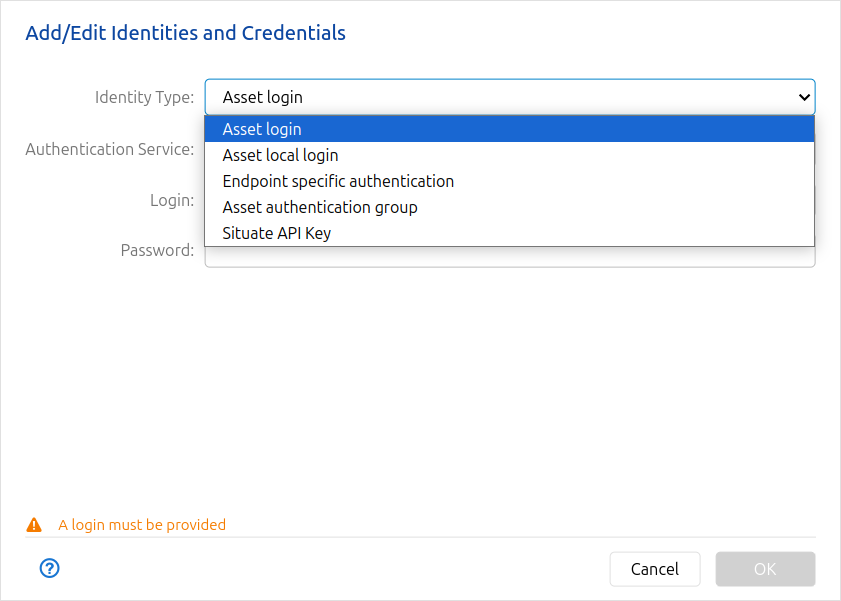
Pick an Identity Type, then fill in the fields for that type. The dialog checks your entries and shows what's missing at the bottom (for example, "A login must be provided"); OK stays disabled until the entries are complete.
When you edit an existing identity, only its password, keys or secrets can be changed. To change the type, the service or the login, remove the identity and add a new one.
An account can have only one asset login, asset local login or asset authentication group identity for each service.
Asset Login
A login to an authentication service known to Situate, such as Active Directory (AD-) or PAM (PAM-). Pick the Authentication Service and enter the Login and Password. Use this for accounts that are valid on every asset that accepts that service.
Asset Local Login
A login that exists only on one asset. Pick the Asset and enter the Login and Password.
Endpoint Specific Authentication
Credentials for a specific endpoint, such as a database or an email server. Pick the Endpoint; the Security Type list shows the kinds of credentials that endpoint accepts. Depending on the type, enter:
| Security Type | Fields |
|---|---|
| Login and Password | Login, Password |
| API Key | API Key |
| API Key and Secret Key | API Key, Secret Key |
| Private Key | Login, Private Key (an SSH endpoint's login and key; see the SSH task) |
| Microsoft XOAuth2 Application | Azure Tenant Id, Application Id, Client Secret (value), Email Address |
Asset Authentication Group
A login and password kept the same across a group of assets, which Situate treats as one authentication service (G-). Pick the Authentication Group and enter the Login and Password.
Situate API Key
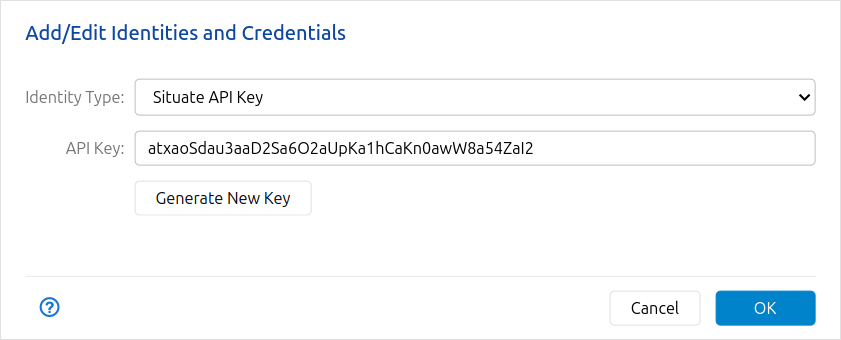
A key that lets programs call Situate through its REST API as this account. Situate generates the key and shows it in the API Key field; Generate New Key replaces it. Copy the key before clicking OK: once saved, it's no longer shown. Callers send it in the header X-API-Key: <key>.