
Appearance
Email Endpoints
An Email endpoint manages a sending and receiving connection to an email server.
Creating or Editing an Email Endpoint
Right-click Endpoints and select New Endpoint > EMail, or right-click an existing email endpoint and select Edit. See Endpoints.
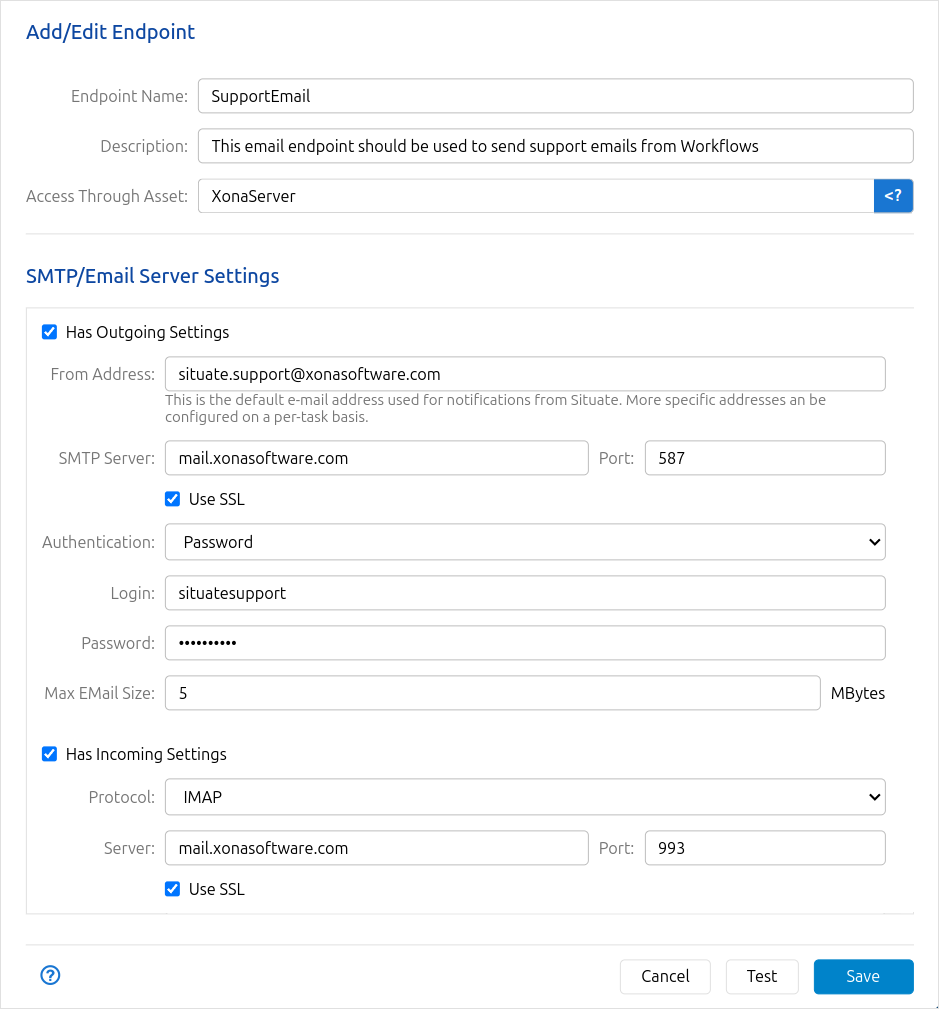
Common Settings
| Setting | Description |
|---|---|
| Endpoint Name | The name of the endpoint. |
| Description | A helpful description of the endpoint. Required. |
| Access Through Asset | Situate will make connections to a SMTP and/or an IMAP server. These connections are typically made from the Situate server (set the value to "XonaServer") but can be made from any computer running an asset. The agent on this computer will be the computer making the connections and processing incoming and outgoing mail. |
Outgoing Settings
When "Has Outgoing Settings" box is checked, Situate will use the following settings to connect to an SMTP server to send email:
| Setting | Description |
|---|---|
| From Address | The default sender address, used for notifications from Situate and whenever no other "from" address is specified. The email task can set a different sender. Required. |
| SMTP Server | The hostname or IP address of the SMTP server. |
| Port | The port the SMTP server is listening on. This is typically 25, 587 or 465. |
| Use SSL | If set, SSL (Secure Socket Layer) will be used to secure (encrypt) email traffic. We strongly suggest this be set. Checking it changes the port from 25 to 587. |
| Authentication | None, Password (enter a Login and Password below) or Microsoft XOAuth2 (enter a Tenant Id, Application Id and Secret Value; see Configuring Microsoft 365). |
| Login | When Authentication is set to "Password", this login will be presented to the SMTP server for authentication. |
| Password | When Authentication is set to "Password", this password will be presented to the SMTP server for authentication. |
| Max EMail Size | The largest message Situate will send, including attachments, from 1 to 100 MBytes. Defaults to 5. |
Incoming Settings
When "Has Incoming Settings" box is checked, Situate will use the following settings to connect to an IMAP server to receive email:
| Setting | Description |
|---|---|
| Protocol | The only protocol currently supported is IMAP. |
| Server | The hostname or IP address of the IMAP server. |
| Port | The port the IMAP server is listening on. Typically 993 (IMAP over SSL), or 143 without SSL. |
| Use SSL | If set, SSL is used to secure the connection to the IMAP server. |
Testing Your Settings
Once you have entered your settings, click Test to test them. Situate must save the settings before it can test them. See Testing an Endpoint.
When testing settings, a dialog will appear that may require you to enter information to perform the test such as an email address to send a test message. It may also ask for a login and password for an IMAP server.
The test dialog will show a detailed transcript of the outgoing and incoming test.
Setting Up Authentication for Incoming Email
Workflows run as different users. The login and password for the IMAP server will depend on the specific user context of the workflow. Credentials (login and password) for the mail server must be configured for each user or service account under User and Service Accounts in the Object Browser. See Identities for more information.
The Default Email Endpoint
Situate ships out-of-the-box with a single default email endpoint. This endpoint is used by the default notification workflow to send email to users when workflows succeed or fail based on the notification settings. This endpoint may only send email, and its name and description can't be changed.
Configuring Microsoft 365
Microsoft 365 (formerly Office 365) requires OAuth2 authentication. For instructions on configuring Situate to work with Microsoft 365, see Configuring Office365.