
Appearance
Managing Assets
For Situate to be able to interact with an asset, the asset must be known to the Situate server as an asset object.
WARNING
Only members of the AssetManagers or Administrators group can add assets.
Creating an Asset
The first step to adding an asset is installing the Situate agent. See Situate Agent. Once installed, you need to add the asset to the Situate domain.
In the object browser, expand Assets, right-click a folder (such as All), and select New Asset. If you start from an asset group's folder, the new asset is also added to that group.
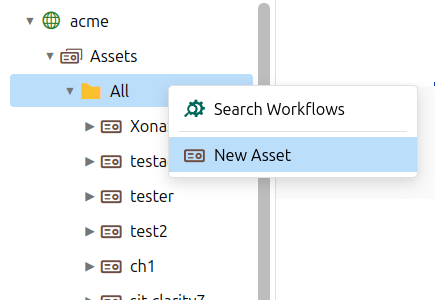
The Asset Editor opens.
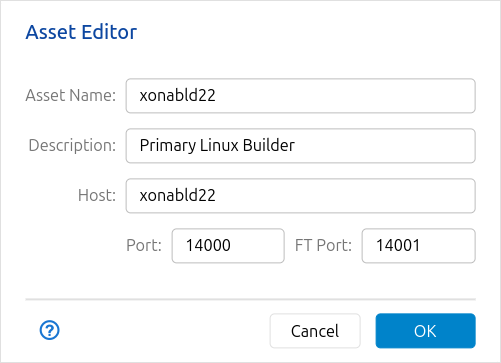
| Field | Meaning | Default |
|---|---|---|
| Asset Name | The name the asset has in Situate. It must be unique in the domain | |
| Description | Optional text to help identify the asset | |
| Host | The host name or IP address Situate connects to. It can't be localhost or another reference to the local host | |
| Port | The agent's main port | 14000 |
| FT Port | The agent's file transfer port | 14001 |
Change the ports only if the agent was installed with non-standard ports. Click OK to add the asset.
Depending on how the agent on the new asset was installed, you may be prompted for the login and password of an administrator on that computer:
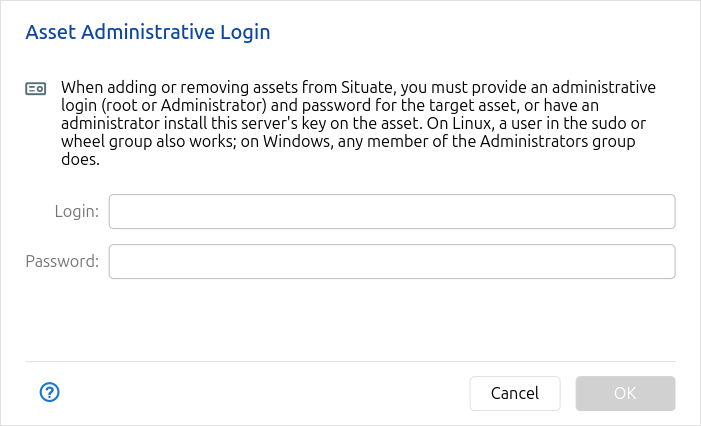
- Linux:
root, or a member of thesudoorwheelgroup. If the agent doesn't run as root (for example, a locked agent), the user the agent runs as is also accepted. - Windows: a member of the computer's local Administrators group, either directly or through another group such as Domain Admins. An administrator whose rights are limited by User Account Control (UAC) is still accepted.
By entering these credentials, you are proving to the target computer that you have the right to control it and want it added to the Situate domain. This step protects agents from malicious Situate servers.
Adding an Agent Without a Login and Password
Often in large environments that use a provisioning tool such as puppet or chef, one wants to install agents and be able to add them without sharing the root password with a Situate administrator. This can be done by distributing the Situate server's certificate to the computer you want to add as part of the install process. Since one must be an administrator on the target computer to install the certificate there, permission to control the computer is demonstrated, which is all the password exchange is testing.
To install the server's cert, go to the Situate server. In /opt/situate/security, you will find a file of the form <Your Domain>-cert.pem. Place this file in /opt/situate/security/servers and rename it to just <Your Domain>.pem (taking off the "-cert"). On Windows computers, the file will go into C:\Program Files\Situate\SituateAgent\security\servers.
Aliases
Multiple assets can be added that refer to the same physical computer. This is often done when one wants to have an asset that has a functional name such as "production-database". In the event this asset needs to be redirected to a backup machine, for example, you can simply edit the asset and change the hostname.