
Appearance
Settings
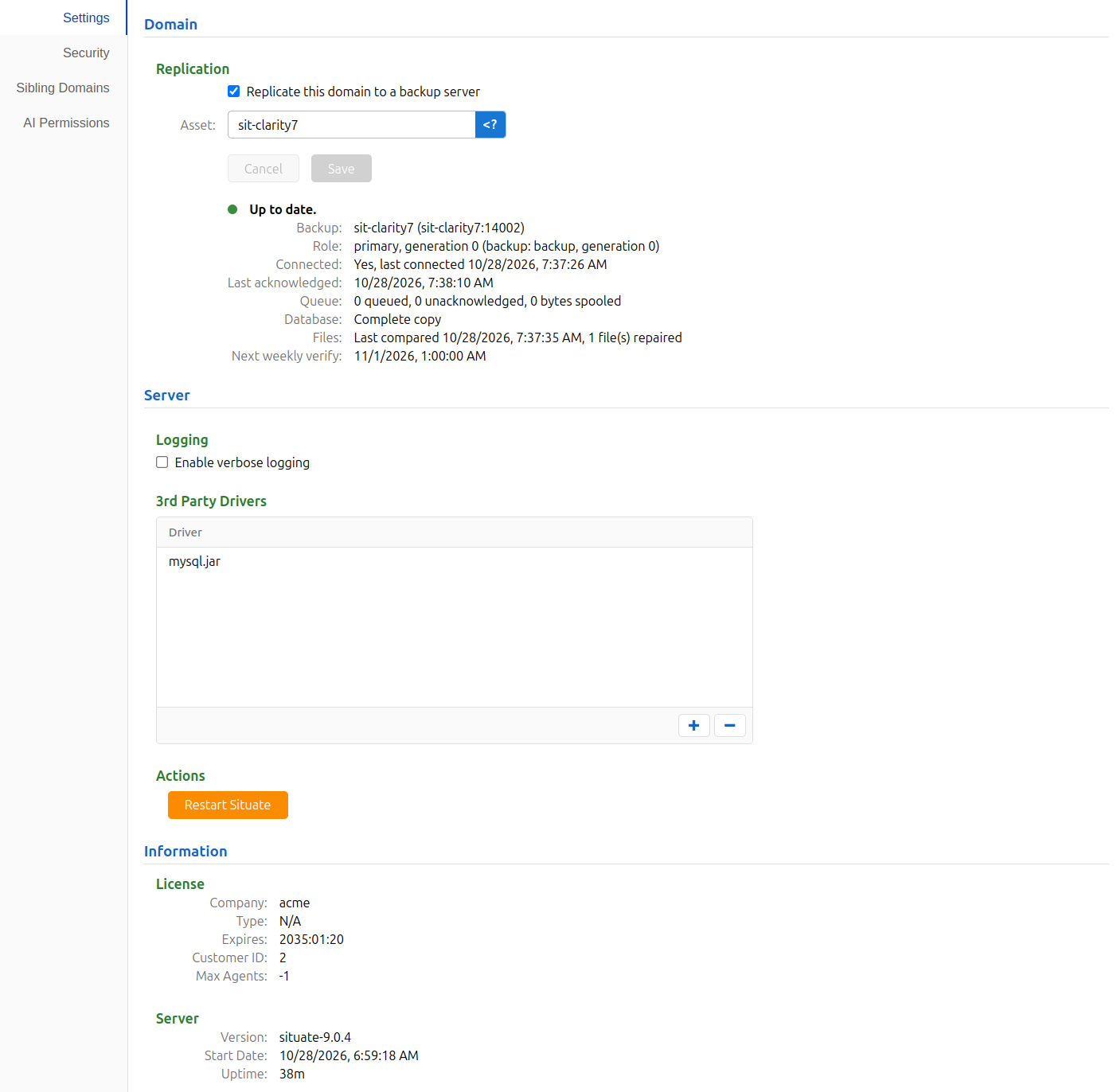
The Settings screen of Domain Settings configures replication to a backup server and the server itself, and shows license and server information.
Replication
Replication keeps a copy of the domain on a backup server. This server, the primary, sends every change to the backup as it happens: critical files as they are written, and every database write, in order. If the primary is lost, you promote the backup to take its place. Promotion is manual; there is no automatic failover. For how to set up a backup server, fail over and switch back, see Replication and Failover.
To turn on replication, check Replicate this domain to a backup server, choose the backup server's asset in Asset, and click Save. The primary then:
- Compares its critical files with the backup's and sends any that differ.
- Compares its database with the backup's, newest first, and sends the parts that differ. A new backup gets all of it.
- Sends every change as it happens.
The backup asset must be an asset of this domain, and it can't be this server (XonaServer or an alias of it). It also can't be a call-home agent, because the primary must connect to it.
Replication needs module-replication (or module-all) in the primary's license. The backup needs no license. Without the license, the settings can't be changed, except to turn replication off.
Replication Status
Below the settings, a status line summarizes the state of replication. It updates while the tab is open.
| Status | Meaning |
|---|---|
| Up to date. | The backup has every change, and a complete copy of the database |
| Up to date, but the backup does not yet have a complete copy of the database. | The backup has every change sent so far, but the primary is still comparing or sending older parts of the database. Promoting the backup now would lose older history |
| Catching up | Changes are queued or waiting for the backup to acknowledge them |
| Not connected to the backup. | The primary can't reach the backup. Check that the backup is running and that the firewall allows the primary to connect to the backup's replication port (14002 by default) |
| No backup asset is set. | Replication is on but no backup asset is chosen |
| This server is not licensed for replication. | The primary's license doesn't include replication |
| Replication is off. | Replication isn't turned on |
| Any other message | An error, such as two servers both acting as primary. Fix it before relying on the backup |
While the primary sends the existing database, it pauses whenever more than 5,000 changes are waiting for the backup. So during this time the queue can drop to zero and then fill again. That is normal.
The details below the status show:
| Field | Meaning |
|---|---|
| Backup | The backup asset, and the host and port the primary connects to |
| Role | This server's role (primary) and generation, and the backup's role and generation. The generation goes up each time a backup is promoted |
| Connected | Whether the primary is connected to the backup, and when it last connected |
| Last acknowledged | When the backup last confirmed it received changes |
| Queue | Changes queued, changes not yet acknowledged, and bytes waiting to be sent |
| Database | Whether the backup has a complete copy of the database. "Diverged" means the copies differ; the primary fixes this by comparing them again |
| Database walk | Shown while the primary is comparing its database with the backup's: whether it is a repair or the weekly verify, and how much it has checked and sent |
| Files | When the files were last compared with the backup, and how many were repaired |
| Next weekly verify | When the next full comparison of the database runs (Sundays at 2:00 AM by default) |
Server
Logging
Enable verbose logging makes the server write a more detailed log. The change takes effect as soon as you click the checkbox. Verbose logs grow quickly, so turn it on only while you need it.
3rd Party Drivers
Some integrations, such as database endpoints, need drivers that Situate can't ship because of their licenses. You add these drivers to the server yourself.
To add a driver, click + and choose its .jar file. To remove one, select it and click −. Restart the server after adding or removing drivers.
Actions
Restart Situate stops and restarts the Situate server, after asking you to confirm.
Information
License
The company, license type, expiry date, customer ID and the maximum number of agents the license allows.
Server
The Situate version running on the server, when the server started, and how long it has been running.