Appearance
Searching Workflows
There are two facilities for searching: Quick Find and Search.
Quick Find
The quick find is the text box at the lower left corner of the Workflow View. You can put in any value to search the table above. Rows that do not match are hidden. Use Ctrl+F to change input focus to this box and use ESC to cancel.
Searches are controlled by the following buttons:
| When pressed, a case insensitive search is performed. When not pressed, case is preserved. | |
|---|---|
| By default, strings containing the search string are matched. When pressed, strings matching the regular expression in the search box are matched. |
Search
A deep search can be performed by selecting "Search..." from the system "Edit" menu. It can also be selected by pressing Shift+F. Whereas the quick find only searches the table, search asks the server to perform a deep search of exact and likely matches.
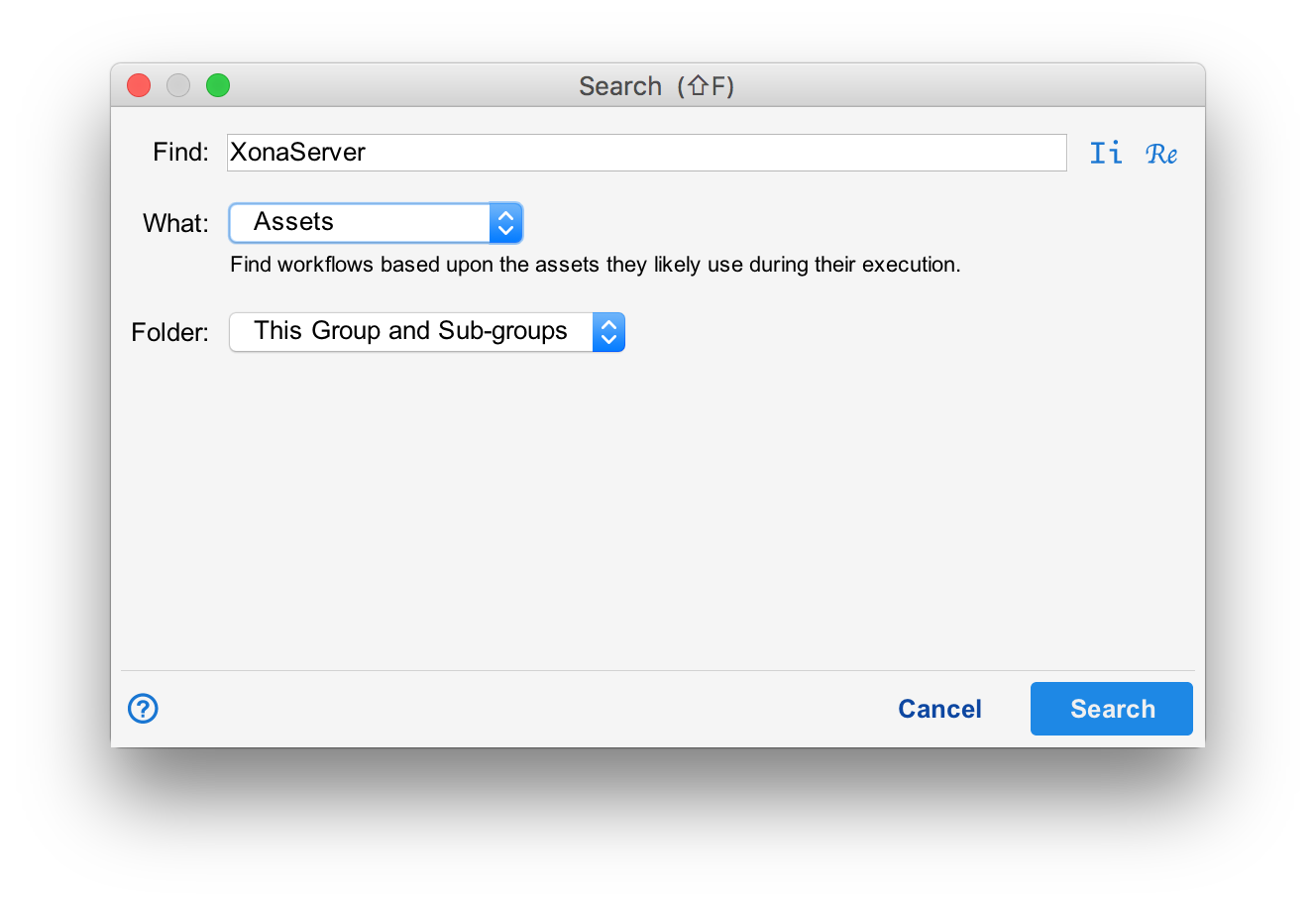
The search box controls for case sensitivity and regular expression matching are the same as the quick find above.
Likely Values
Many values found in Situate workflows contain variables. To perform a deep search, Situate must perform a simulation of what might occur at runtime so that variables can be expanded, if possible. The value returned will therefore be the "likely value" or best guesses but may be different at actual runtime.
What
The "What" is where you specify what you are trying to find. The following values are available:
| Annotations | Searches annotations and the workflow's description. |
|---|---|
| Assets | Searches for matching assets. |
| Calendars | Searches for workflows that use the specified calendar. |
| CMDB Schemas | Searches for workflows that use the specified schema. |
| Command | Searches the command field of remote execution tasks. |
| Workflow Type | Searches The textual name of the workflow type. |
| Endpoints | Searches for workflows that use the specified endpoint. |
| File or Directory | Searches for matching files or directories. |
| Tags | Searches for matching tags values of a certain tag key. |
| Parameters | Searches parameters passed to a child workflow. |
| Timezone | Searches for workflows that use a certain timezone. |
| Trigger Variable | Searches for matching trigger variable values for a given trigger variable. |
| Users | Searches for matching users and/or service accounts. |
| Windows Services | Searches for matching windows services. |
Groups
The groups selection describes where to search.
| Scope | Description |
|---|---|
| This Group | Searches only the current workflow group. |
| This Group and Sub-Groups | Searches the current group and all nested sub-groups. |
| Entire Queue | Searches all workflows in the entire queue. |
Results
Search results are displayed in the output area. If variables were expanded to generate results, the "Value" field will contain the expanded value and the "Unexpanded" field will contain the value before expansion.

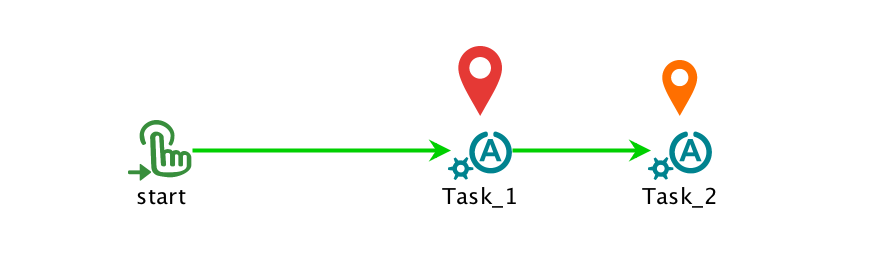
You can double click any row to open the workflow. The "Object" field describes which object or element of the workflow contains the match. A large, red pin will hover over the matching object. A smaller orange pin will hover over other unselected matches.