
Appearance
AI Permissions
The AI Permissions screen of Domain Settings sets which actions the Claude task may and may not take. These rules apply to every Claude task in every workflow in the domain.
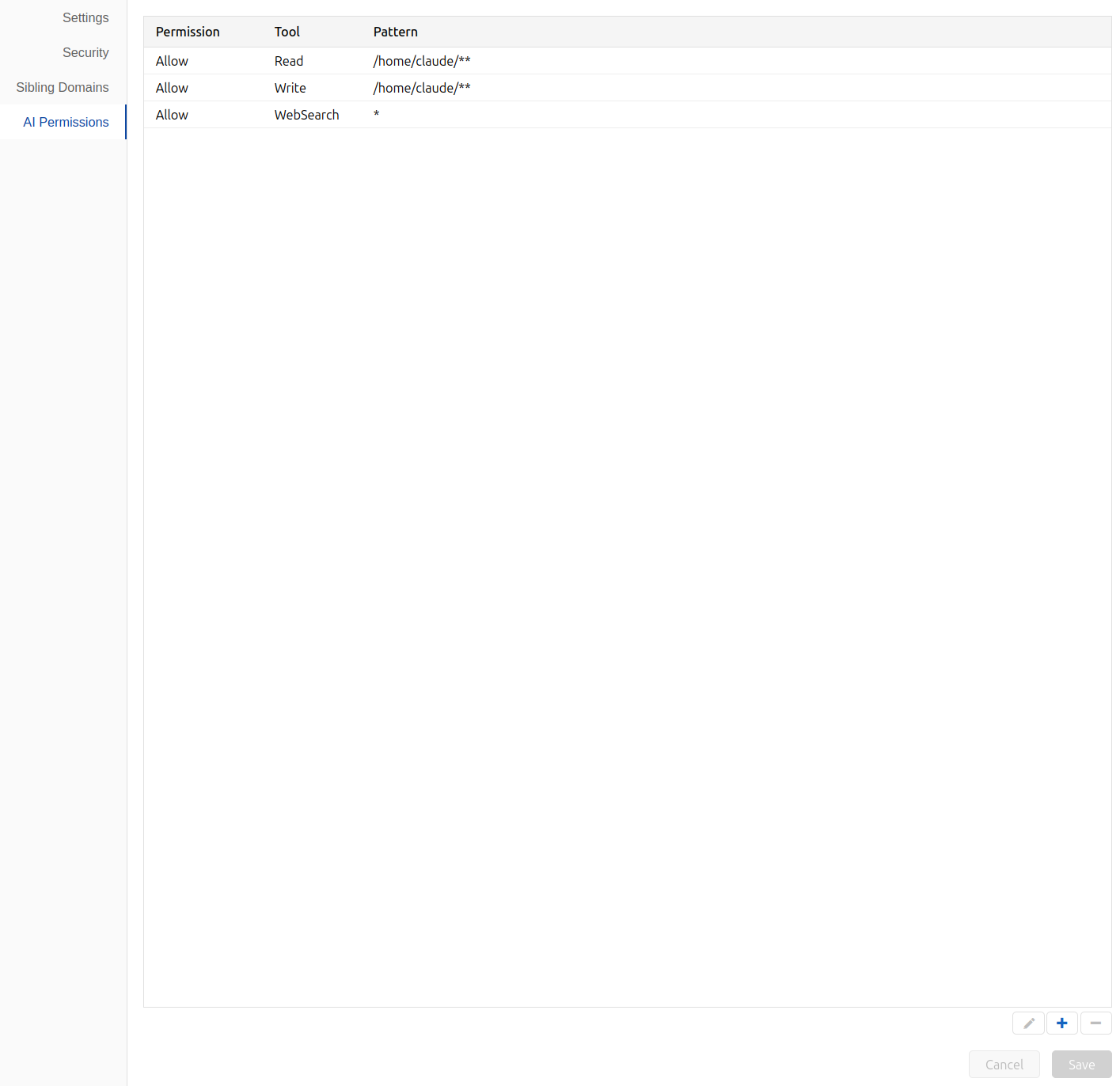
Rules
Each row is a rule:
| Column | Meaning |
|---|---|
| Permission | Allow lets Claude take the action without asking. Deny blocks it |
| Tool | The Claude tool the rule applies to, such as Bash, Read, Write, Edit, WebFetch, WebSearch, Grep or Glob |
| Pattern | The paths or commands the rule covers, such as /data/** or python *. Leave it empty, or use *, to cover every use of the tool |
For example, the rules in the screenshot above let Claude read and write anything under /home/claude and search the web.
To add a rule, click +. To edit one, select it and click the pencil icon, or double-click it. To remove one, select it and click −. Click Save to keep your changes, or Cancel to discard them.
Domain, Workflow and Task Rules
Rules can also be set on a workflow and on an individual Claude task. When a Claude task runs, Situate combines the three sets of rules in this order:
- The domain's rules, from this screen.
- The workflow's rules.
- The task's rules.
When two rules have the same tool and pattern, the later one wins. For example, a task can turn a domain rule that allows Bash with rm * into one that denies it. Rules with different patterns don't replace each other.
Rules and the Task's User
These rules limit what Claude may do. They don't grant access the task's user lacks: Claude still runs as that user, and the operating system's permissions still apply. See Security and Permissions.