
Appearance
Importing Crontabs
Situate can import crontabs from an asset (a single machine) or an asset group (several machines at the same time) and turn each crontab entry into a workflow.
Users
The cron importer runs as the user you're logged in as. Linux permissions mean it can only read the crontab entries for your user. If you log in as root, Situate loads all crontabs regardless of the user. If no entries are found, Situate warns you that you may not be running as the right user.
Starting an Import
Right-click an asset or asset group in the Object Browser and select Import Crontab. The menu item is only available for assets that aren't running Windows.
Situate opens a Crontab tab and gathers the crontabs. This may take several minutes. Here, one entry has been collected from XonaServer and is waiting for a name:
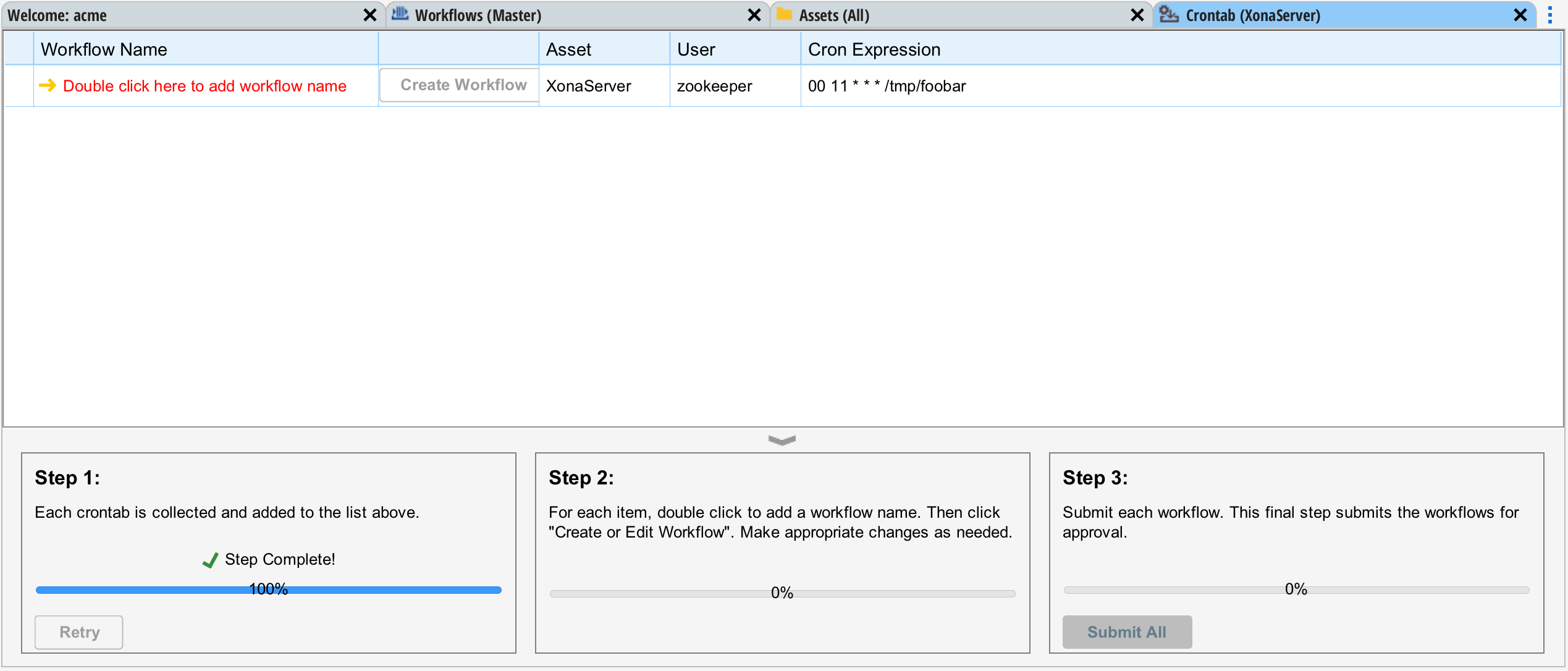
Each crontab entry gets a row with its Workflow Name, a Create Workflow or Edit Workflow button, the Asset it came from, the User whose crontab it's in, and its Cron Expression. If Situate couldn't read the crontabs on an asset, that asset gets a row saying why.
Below the list, the three steps of the import show their progress. Click the arrow above them to show or hide them.
Step 1: Collecting the Crontabs
Situate collects each crontab and adds its entries to the list. If collection fails, fix the problem and click Retry.
Step 2: Naming and Creating Workflows
Crontab entries don't have names, but Situate workflows do. Double-click "Double click here to add workflow name" in an entry's row to give its workflow a name. The name can't match an existing workflow or another name in the list.
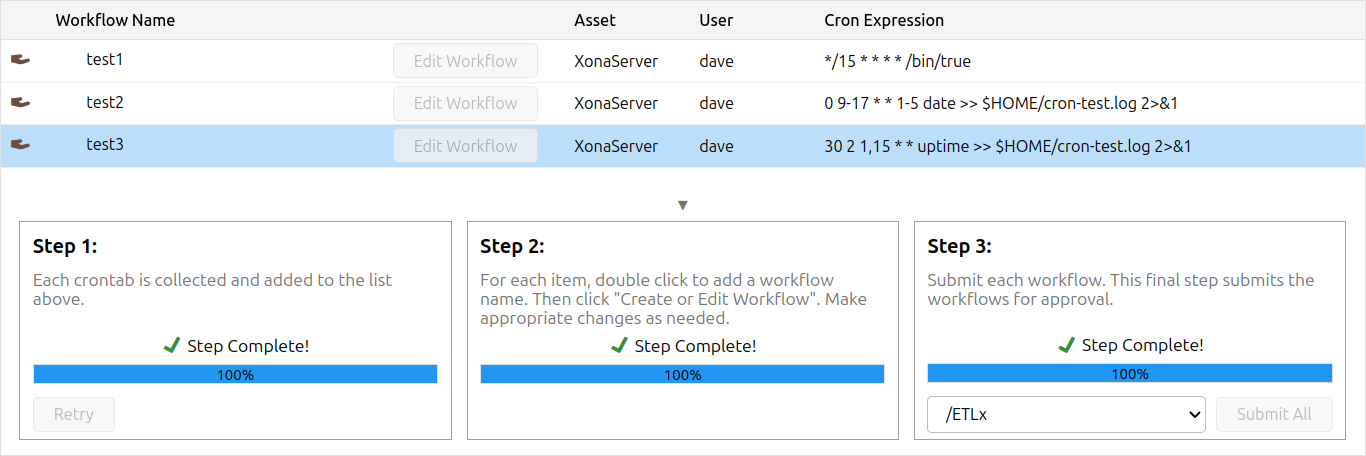
Once an entry has a name, click Create Workflow. Situate turns the entry into a workflow, with a schedule matching the cron expression, and opens it in a workflow editor tab. Change the workflow as needed, then click Save and Return. The button then reads Edit Workflow, and you can click it to make more changes.
Step 3: Submitting the Workflows
Choose the workflow group to submit the workflows to, then click Submit All. The workflows are submitted for approval. See Approving Workflows.
Here, three entries have been named, converted and submitted to the /ETLx group, and all three steps are complete:
Removing Unwanted Entries
To leave a crontab entry out of the import, right-click it and select Delete. This only removes it from the list; the crontab on the asset isn't changed.