
Appearance
User Prompts
User Prompts are a method available only to the trigger variables of manual triggers. They cause Situate to prompt the user for information whenever the workflow is executed from a manual trigger.
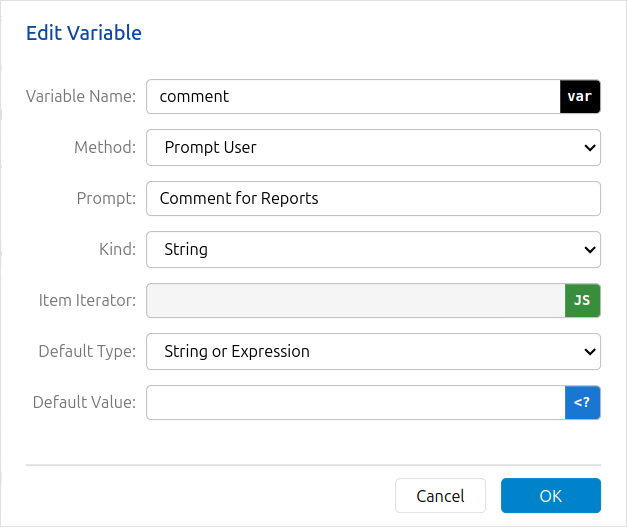
In this example, Situate prompts the user with Comment for Reports and assigns the response to the variable comment. There is no default.
Fields
| Field | Description |
|---|---|
| Variable Name | The name of the variable to set. See Introduction to Variables for valid names. |
| Method | Prompt User. |
| Prompt | The caption of the field the user fills in when firing the trigger. |
| Kind | How the user answers. See Kind. |
| Item Iterator | The choices for a Combo Box: a Javascript expression that returns an array, such as ['yes', 'no'] or a variable that holds a list. Used only when Kind is Combo Box. See Combo Box. |
| Default Type | What kind of default the field has. See Default Type. |
| Default Value | The value the field is pre-filled with. It can include expressions that use other variables. Leave it empty for no default. |
Kind
| Kind | Description |
|---|---|
| String | A text field. The response is stored as a string. |
| Combo Box | A dropdown menu of the choices in Item Iterator. |
Default Type
| Default Type | Description |
|---|---|
| String or Expression | Default Value is text, and can include expressions such as <? w.formatTime('yyyy-MM-dd', Date.today()) ?> or <? defaultAccount ?>. |
| Special Value | Default Value becomes a menu: the user's Computer Name, IP Address or Login Name. |
Combo Box
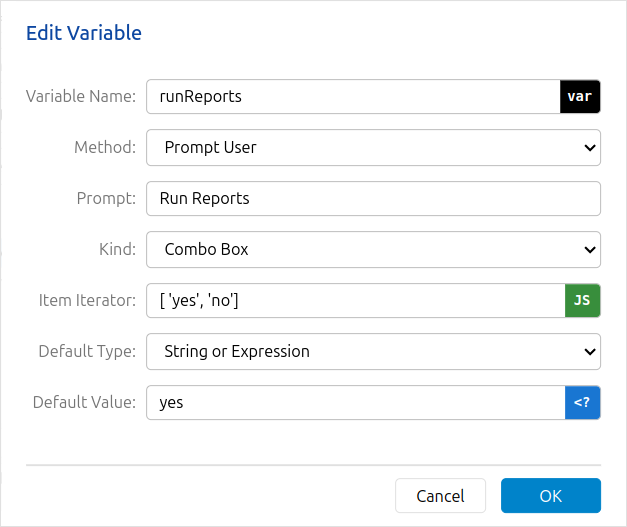
To give the user a set of choices, set Kind to Combo Box and put the choices in Item Iterator, which is required for this kind. Item Iterator is a Javascript expression that returns an array, and each element is one option in the dropdown menu.
Here Situate prompts the user with Run Reports and the choices 'yes' and 'no', with yes selected by default, and assigns the choice to the variable runReports.
The choices don't have to be fixed. Item Iterator is evaluated when the trigger runs, so it can be any variable that holds a list, such as a shared, group or global variable, or a trigger variable defined above the prompt. For example, with a group variable regions set to ['east', 'west', 'central'], an Item Iterator of regions offers those three choices, and changing the group variable changes the choices for every workflow in the group.
Keep the prompts together at the end of the trigger variables, after any variables they use. Situate shows consecutive prompts in one dialog, so a variable between two prompts splits them into two dialogs.
When the Trigger Runs
When the user runs the trigger, Situate shows the Workflow Inputs dialog with one field for each prompt. Each field is pre-filled with its default value.
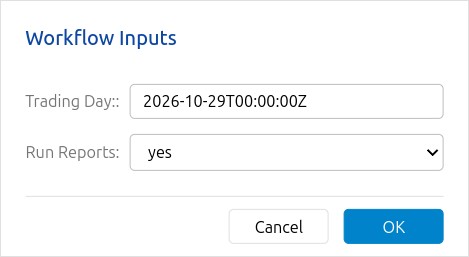
Here Trading Day is a String prompt filled in with today's date, and Run Reports is a Combo Box set to yes. When the user clicks OK, each variable is set to the user's response and the workflow continues. Cancel cancels the workflow instance.