
Appearance
Security
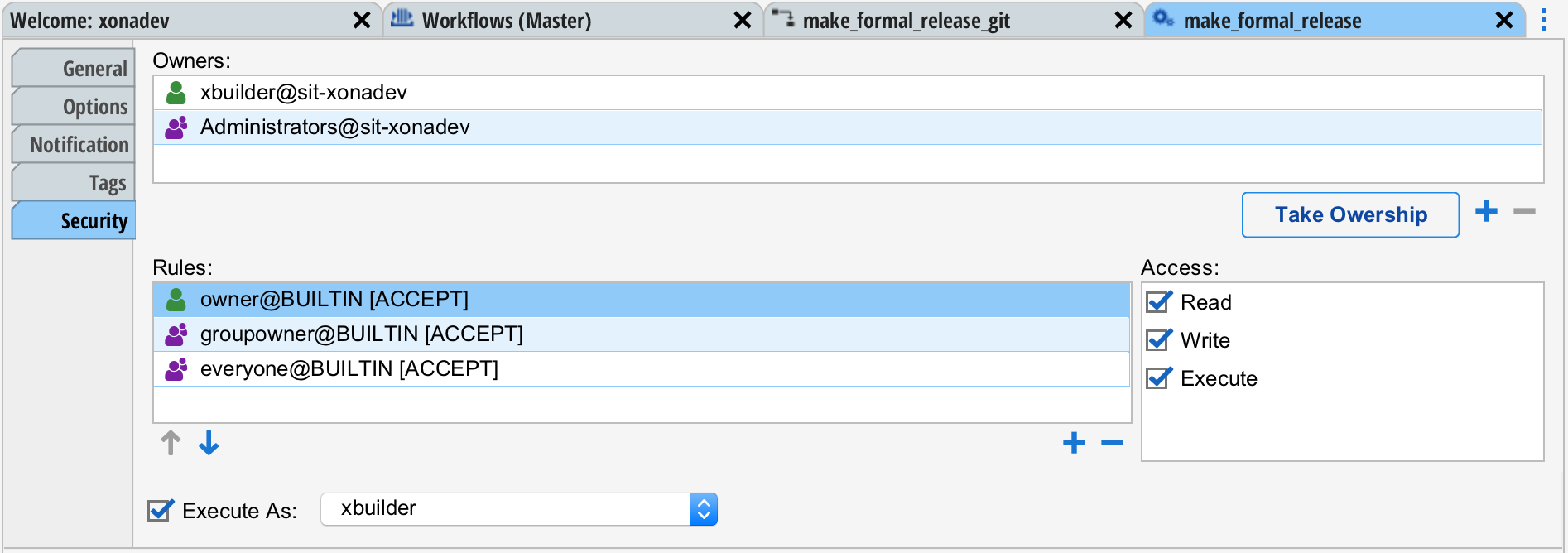
The security settings for the workflow are found in the "Security" tab in the Workflow Designer. The top section is exactly the same as the ACL and Security editor used on all the other objects within Situate. To learn how to edit an ACL, see ACLs and Security.
Verbs
The verbs secured by the ACL are as follows:
| Verb | Description |
|---|---|
| Read | A user must have read access to the workflow and its workflow group to open and view the workflow. |
| Write | A user must have write access to edit or delete the workflow, or to enable or disable its triggers. A user need not have write access to execute the workflow. |
| Execute | A user must have execute access to the workflow group and then to the workflow to run it. Execute access is also needed to cancel a run. |
Only the workflow's own group is checked. Locking down a parent group doesn't restrict the groups beneath it. Users with the UVR policy see only the workflows they can execute. For the complete list, see What the rights control.
Execute As
With no "Execute As" user set, the workflow will run as the user that executes it manually. However, if the workflow is to be automatically started, an "Execute As" user must be set.
When a run-as user is set, the workflow runs as that user: steps use that user's Situate groups for ACL checks and that user's identities on assets. See Run-as and the effective user.
The execute user is set by checking the "Execute As" box and selecting the user.
Setting the User at Runtime
You can determine the user at runtime via code by setting the "Execute As" user to <Javascript Expression> and entering a Javascript expression. At runtime, the expression must evaluate to a string whose value is a valid Situate user or service account.
When a user is determined at runtime via code, the workflow can only be approved by an Administrator or by a user with the APA policy. See Policies for more information.