
Appearance
Remote Execution
The remote execution task executes command, scripts or programs on one or more hosts.
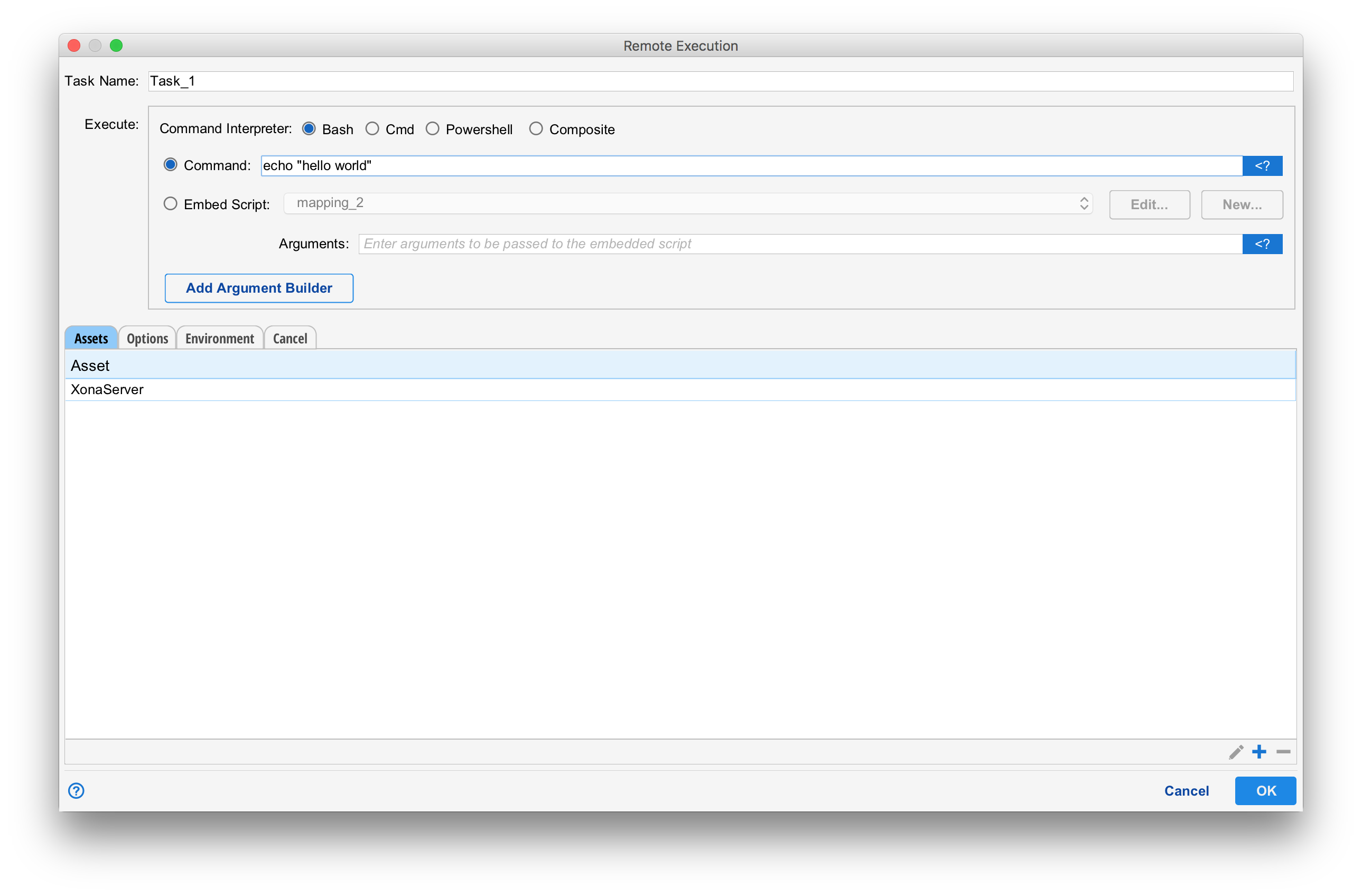
The Command and Interpreter
The command field takes the command and arguments to run on the remote host. The command field may contains an expression escape as needed.
The interpreter describes how the process should be run. Bash is supported for Linux while both powershell and cmd.exe are supported for windows. The interpreter must be specified and must be correct for the operating system running on all assets provided.
The behavior of the command field differs between operating systems. On UNIX systems, the command is executed as if run as:
/bin/sh -c "<contents of command field>
On a Windows system and when the "Run on logged in user's desktop" (under the "Options" tab) is NOT checked, the command is run as if executed as:
cmd /S /C "<contents of command field>
using the CreateProcessAsUser() system call.
Composite
Composite allows both a Linux and a Windows command to be specified to simplify the construction of workflows that run on both windows and Linux.
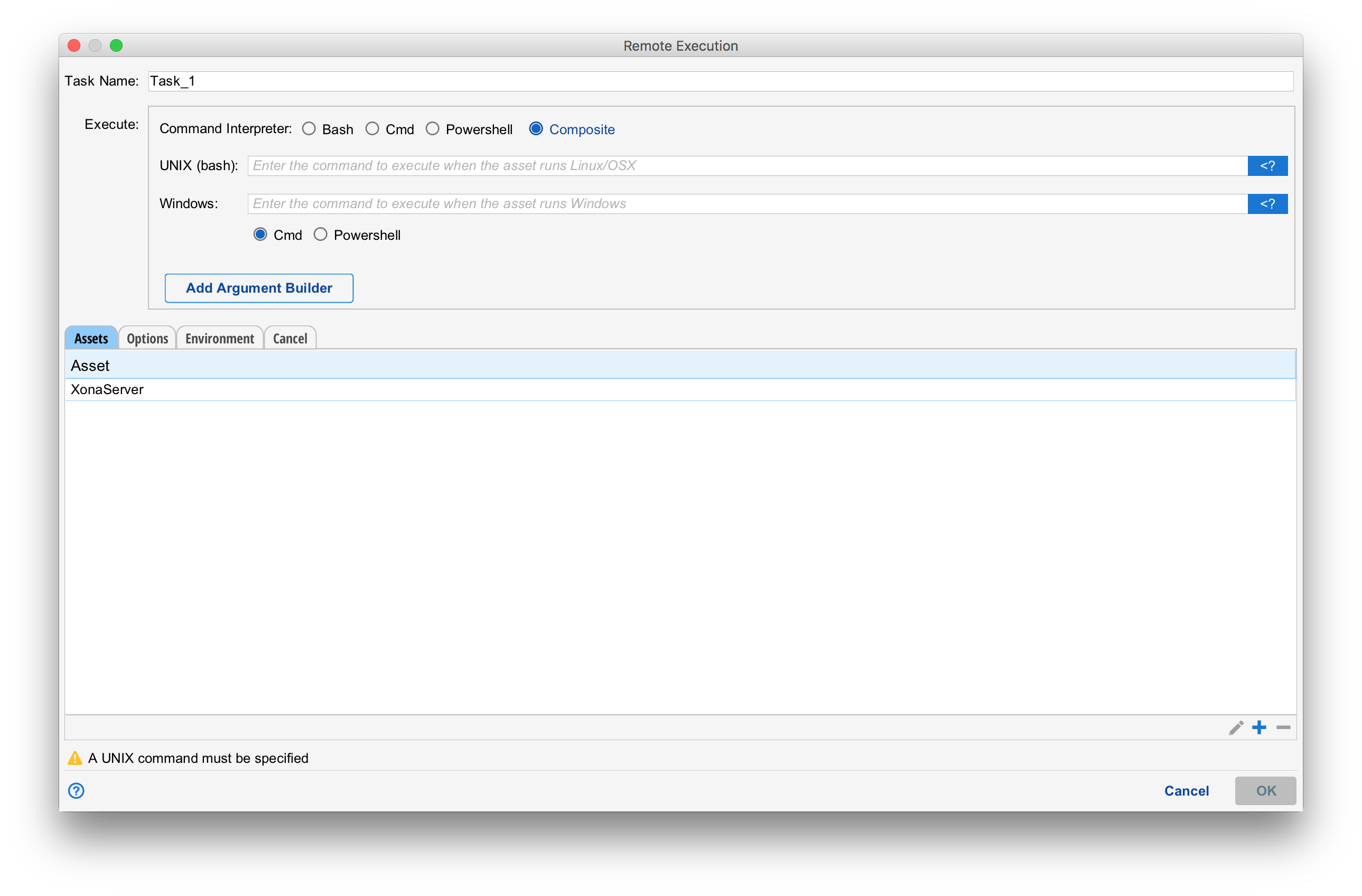
When composite mode is specified, you still must specify the interpreter for Windows. cmd.exe or powershell.
Security
The user the command runs as will be the best identity among those identities associated with the Situate user the workflow is running as. For more information about how Situate chooses native identities. See the section on Native Identities.
The user the workflow runs as can be temporarily changed using the substitue user group.
Assets
A list of assets upon which the command should be executed must be specified. Assets must be defined in the object browser before they can be used. See assets.
Each entry in the asset table is expanded using expression expansion. It is therefore possible to pass the name of an asset as a variable. If the variable is an Array, the list is expanded into the table, meaning the command will run for each asset in the list as well as any others in the table.
Options
The "options" tab contains many options that control the remote exec task.
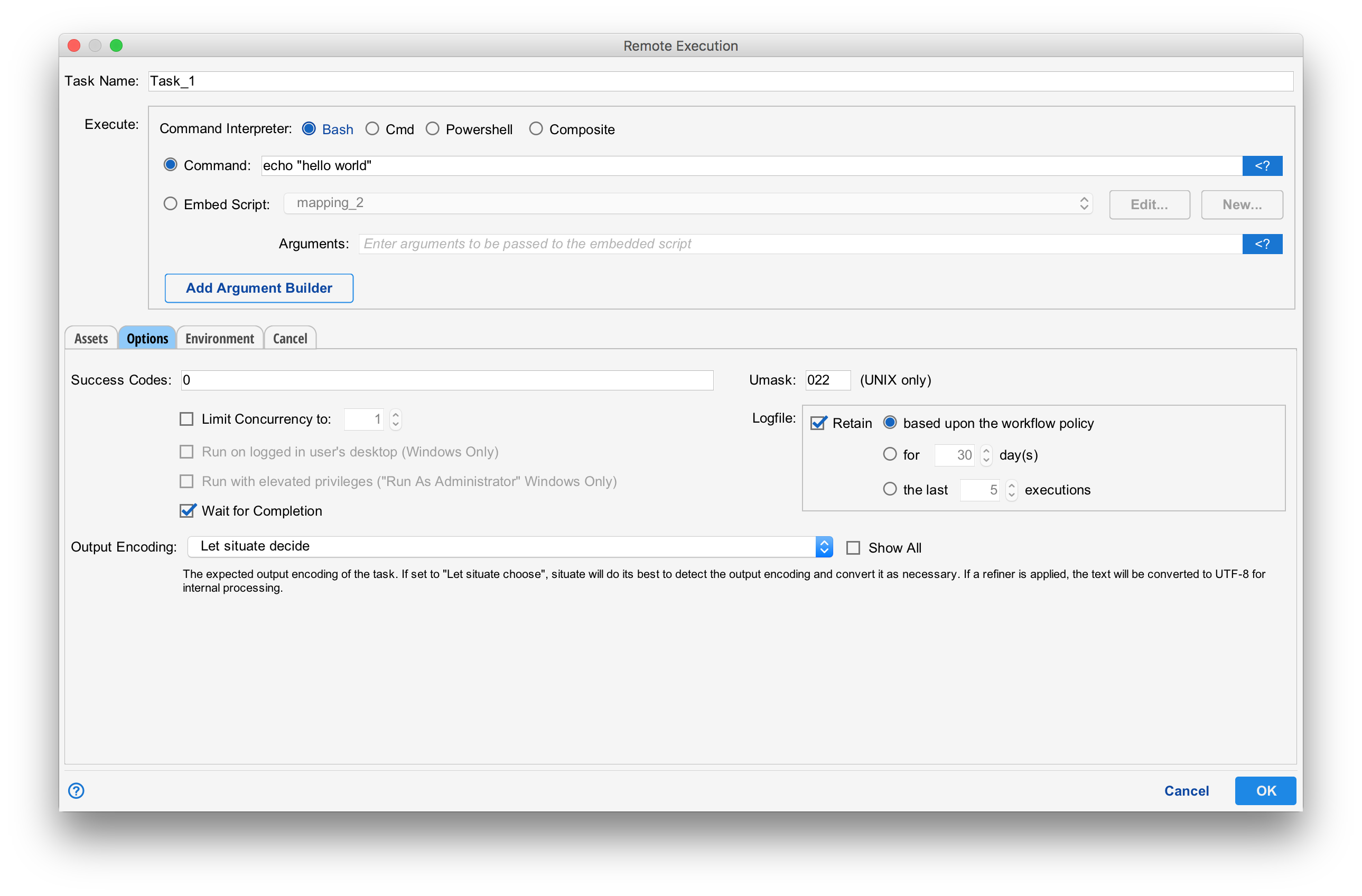
Success Codes
The success codes field contains a comma- or space-separated list of exit statuses (exit status of the command being execute per the standard exit(2)). If the command exits with one of these values, it is assumed the task succeeded. If not, it's assumed the task failed.
Success codes are ignored whenever "Wait for completion" is unchecked.
Limit Concurrency
Whenever the asset table contains a list, "Limit Concurrency" can be used to limit the number of remote executions that run at one time. If unchecked, the command will run on all assets at the same time.
Run on Logged on User's Desktop
See Runing on a Logged On User's Desktop.
Run with Elevated Privileges
Even when a program runs as a user that is an Administrator, Windows still blocks certain privileges (See UAC). By checking the Run wit elevated privileges check box, Situate will attempt to give full access to the executing process. But, in doing so some access may be lost. For example, programs running with full privileges cannot access mapped drives. This is a rule imposed by Windows.
Wait For Completion
If checked, Situate will wait for the command to run to completion and return an exit status. This exit status is then checked against the success codes to determine success or failure.
If unchecked, Situate will declare success once the child process has started. It does not wait for the process to complete, allowing the workflow to immediately continue. This may be desirable when remote commands are used to start long running processes. In this case, the success codes are ignored.
Umask (Linux Only)
The Umask specifies the value of umask(2) for the child process. The umask controls the default acl on files created by the child. See umask(1) for more information.
Logfile
The logfile settings control how long a logfile stays before it is cleaned up (removed). If "retain" is unchecked, no logfile is kept. If retain is checked, the logfile retention can inherit the workflow's default, be set to keep a particular number of runs or keep logs for a certain number of days.
Output Encoding
When Situate displays or processes (via a refiner, for example), it's important that it understand the output encoding (the format of the output) so that it can process it correctly. The output encoding can be set to "Let Situate Decide". Most of the time, it correctly discovers the format as long as the output is in a typical format.
You can specify the encoding if that becomes necessary. The "Show All" check box can be used to show all supported encodings. When unchecked, only typical ones are shown.
Environment
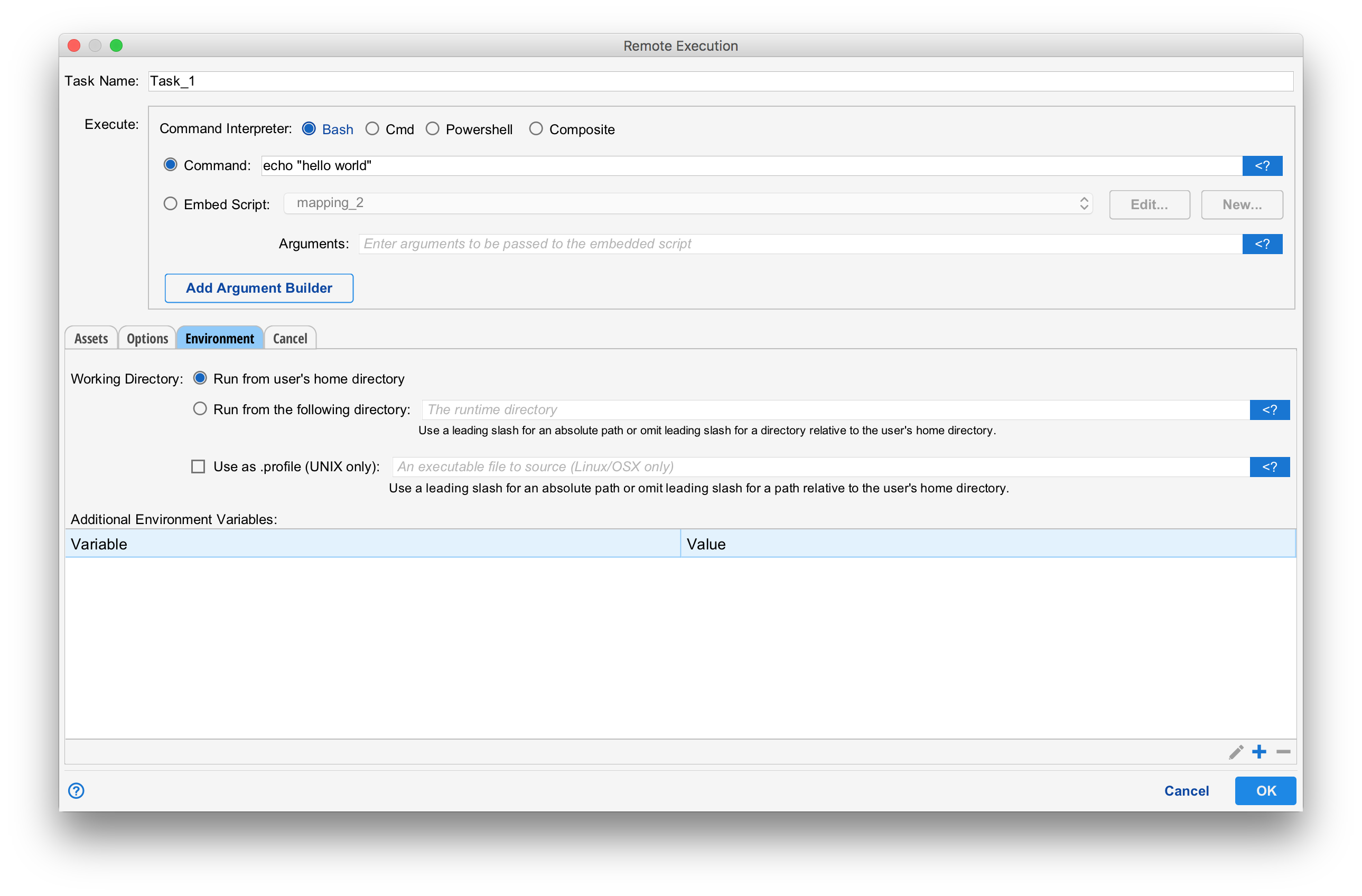
One or more environment variables may be added to the base set (see below) for the running process. Expression expansion can be used as needed.
Environment Variables on Windows Compuers
On Windows, the base set of environment variables is created from the user's profile and system settings using the same process used by the operating system (using CreateEnvironmentBlock()). Environment variables specified in the table either override or are added to these variables.
Environment Variables on Linux
On Linux, environment variables are handled as follows: First, a posix borne shell is created. This creates a base set of environment variables. The system's /etc/profile and the user's ~/.profile is NOT read. Next, each environment variable in turn is set. You can think of this as executing "X=Y ; export X", where X and Y are the variable and value being set, for each variable in the table.
The "Use .profile" CheckboxExpanding Variables
If the "Expand Variables" check box is selected, Situate will process the file using template expansion.
Argument Builder
The argument builder is used to create a complex set of arguments. All of the arguments constructed by the arg builder are added to the end of the remote exec task's "Command" field.
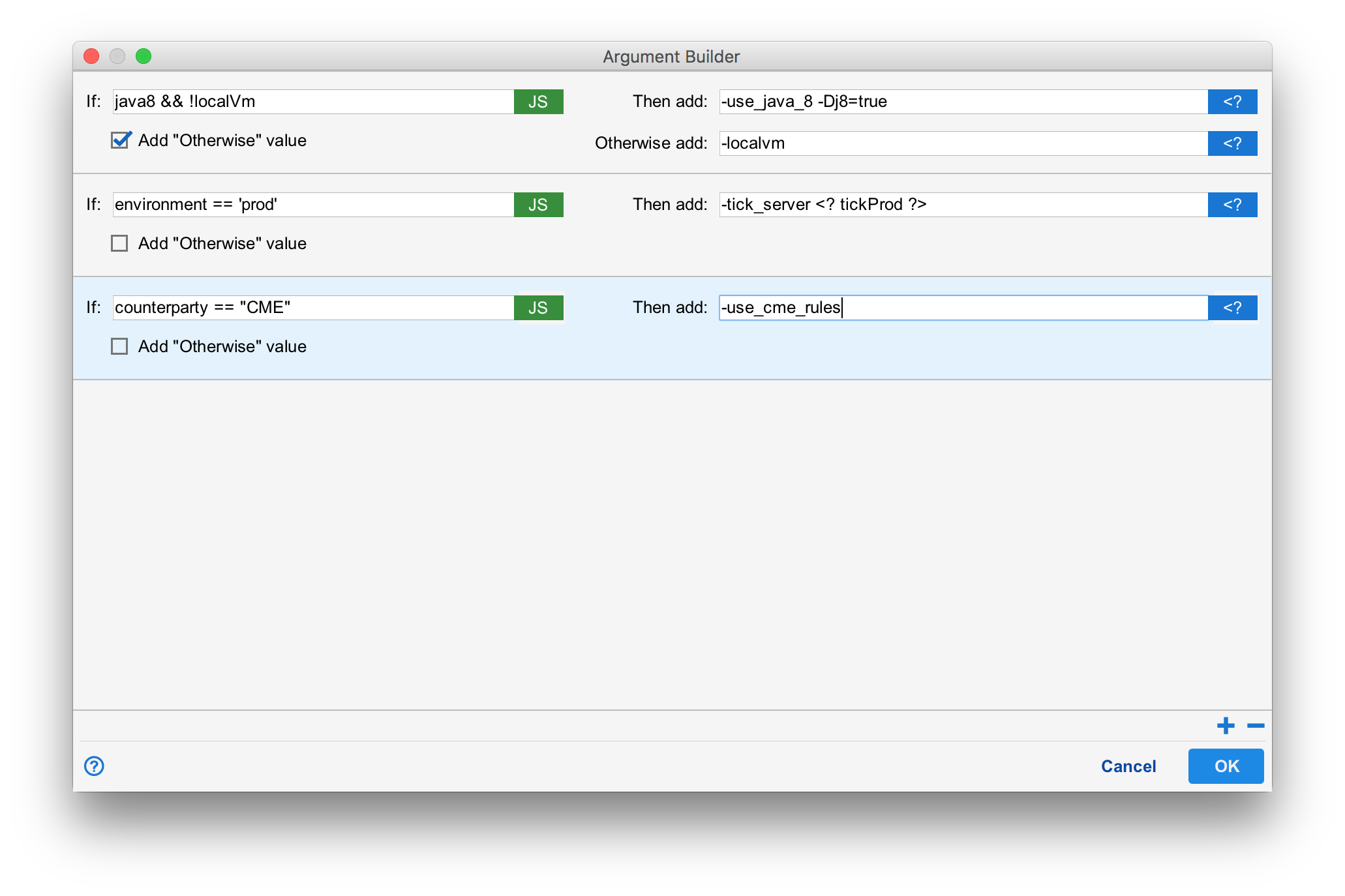
The arg builder contains a list of pieces that are executed in order. Each piece has a Javascript expression (the "If" field on the left) and a string to append ("Then Add") if the expression is true. If the "Add "Otherwise" value" is checked, then a string to append when the expression is not true may also be supplied.
While the expression is pure Javascript, the "Then add" and "Otherwise add" are strings. Expression escape may be used in these fields.
In the example, if the expression "java8 && !localVm" is true, "-use_java_8 -Dj8=true" is added to the command. If that expression is not true, "-localvm" is added.
Running on a Logged On User's Desktop
Sometimes there are windows applications that can only run in a logged on user's session. Automating these kinds of applications can be a challenge. Situate provides a component called the "desktop controller". It is an application that starts when a user logs in and executes as a tray icon.
The "desktop controller" is a bridge that allows Situate to execute applications as if the logged on user started them (avoiding the session 0 limitations put in place by Microsoft More information on session 0 isolation.))
To run an application in this way, check the "Run on logged in user's desktop" check box in the remote exec task's configuration.
When Situate executes the command, the user Situate executes the command as must have a native identity matching a user that is currently logged in.
It is up to the customer to setup some kind of auto-login for these kinds of applications to run.