
Appearance
Schedule
The schedule trigger starts a workflow based on time. If so configured, it can also be manually executed.
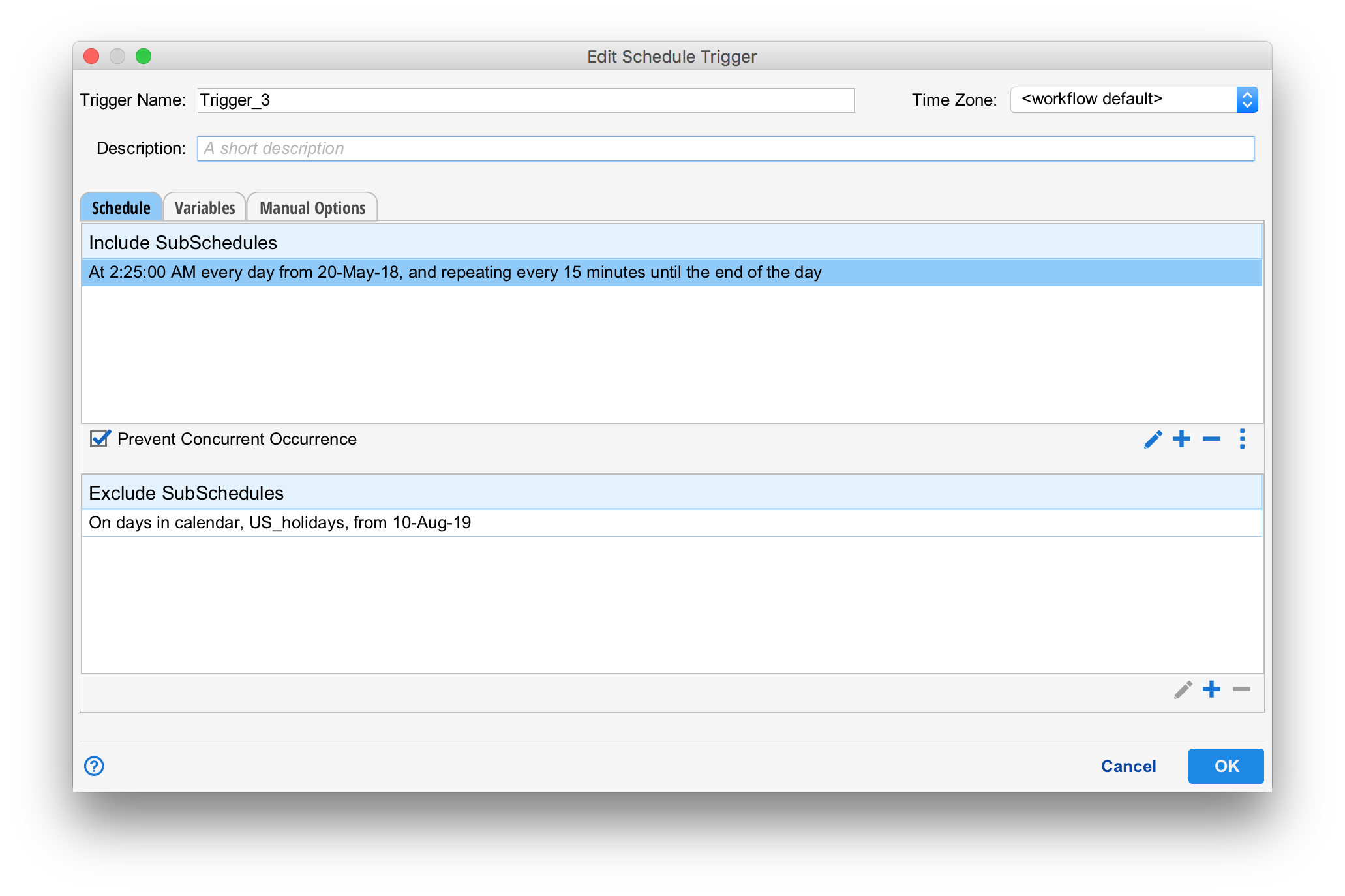
Like all triggers, the schedule trigger requires a name and description. Variables can be set just like any other trigger (See Passing Variables with Triggers) on the "Variables" tab.
Schedule
A schedule is composed of a set of "Include SubSchedules" and "Exclude SubSchedules". A worflow fires when any of the include subschedules and NONE of the exclude schedules match. In the example above, the workflow is set ot run at 2:25 AM each day via the include schedule but the exclude schedule prevents execution on US Holidays.
SubSchedules
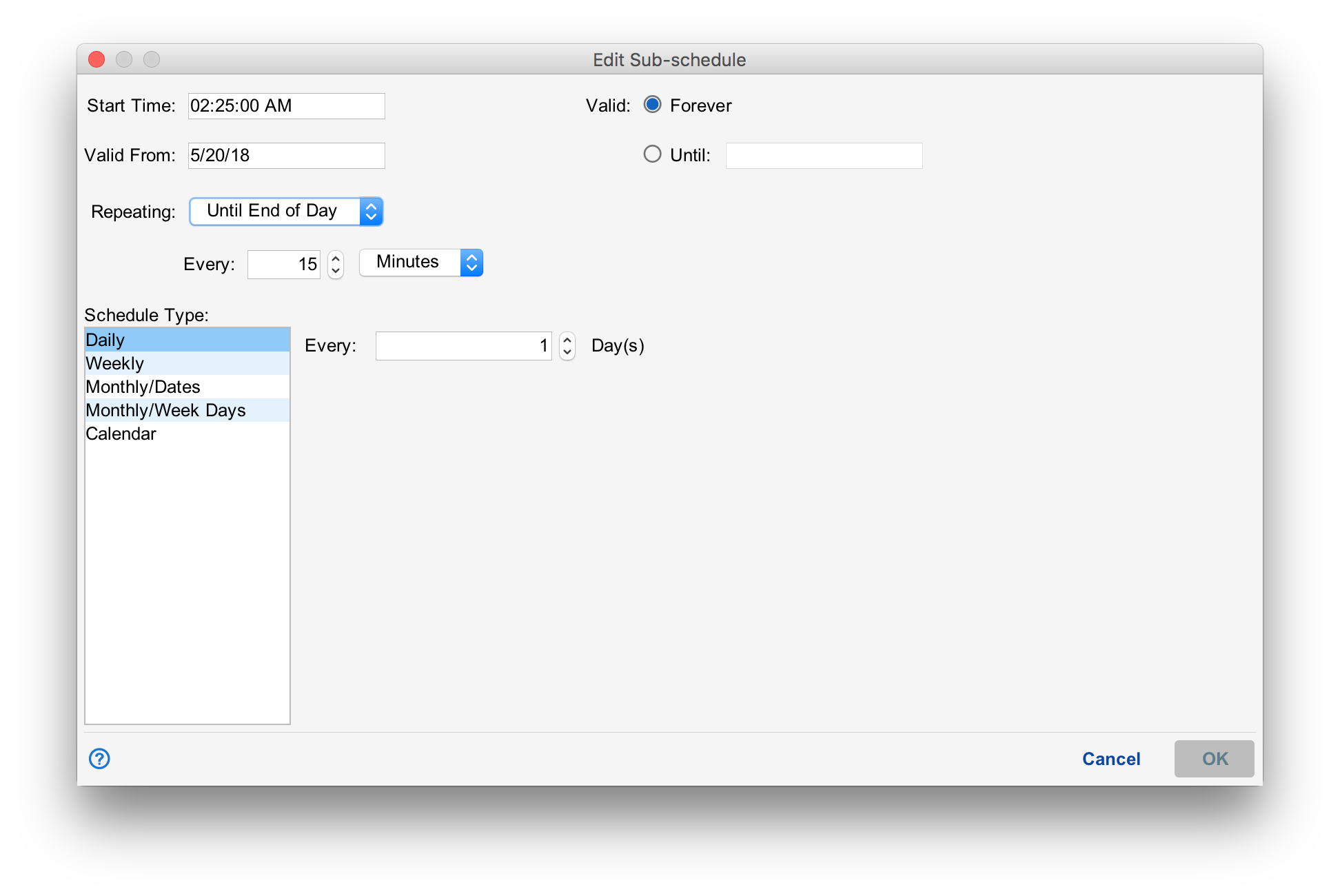
Start Time
The start time is the time of day the schedule will fire.
Valid From and Valid (forever/until)
The valid from and valid (forever / until) allow a beginning and ending date to be established for the sub schedule. This allows workflows to be approved before their first run date and allows workflows to be retired without change.
Repeating
The repeating settings allow a workfow to be re-executed over and over after its first start time. The options are:
- Never. The workflow does not repeat.
- Until End of Day. Until the end of day (midnight).
- Until Time. Until the specified time.
- Number of Times. A specific number of times.
When set to repeat, the user must specify the "Every" time and its units. In the example above, the workflow is set to run at 2:25 AM each day and repeat every 15 minutes until midnight is reached.
Schedule Type
Each schedule type is discussed below.
Daily
The workfow runs every "n" days, where "n" is specified in the "Every" input box. For example, every other day would be accomplished by setting "Every" to 2. Every day would be 1.
Weekly
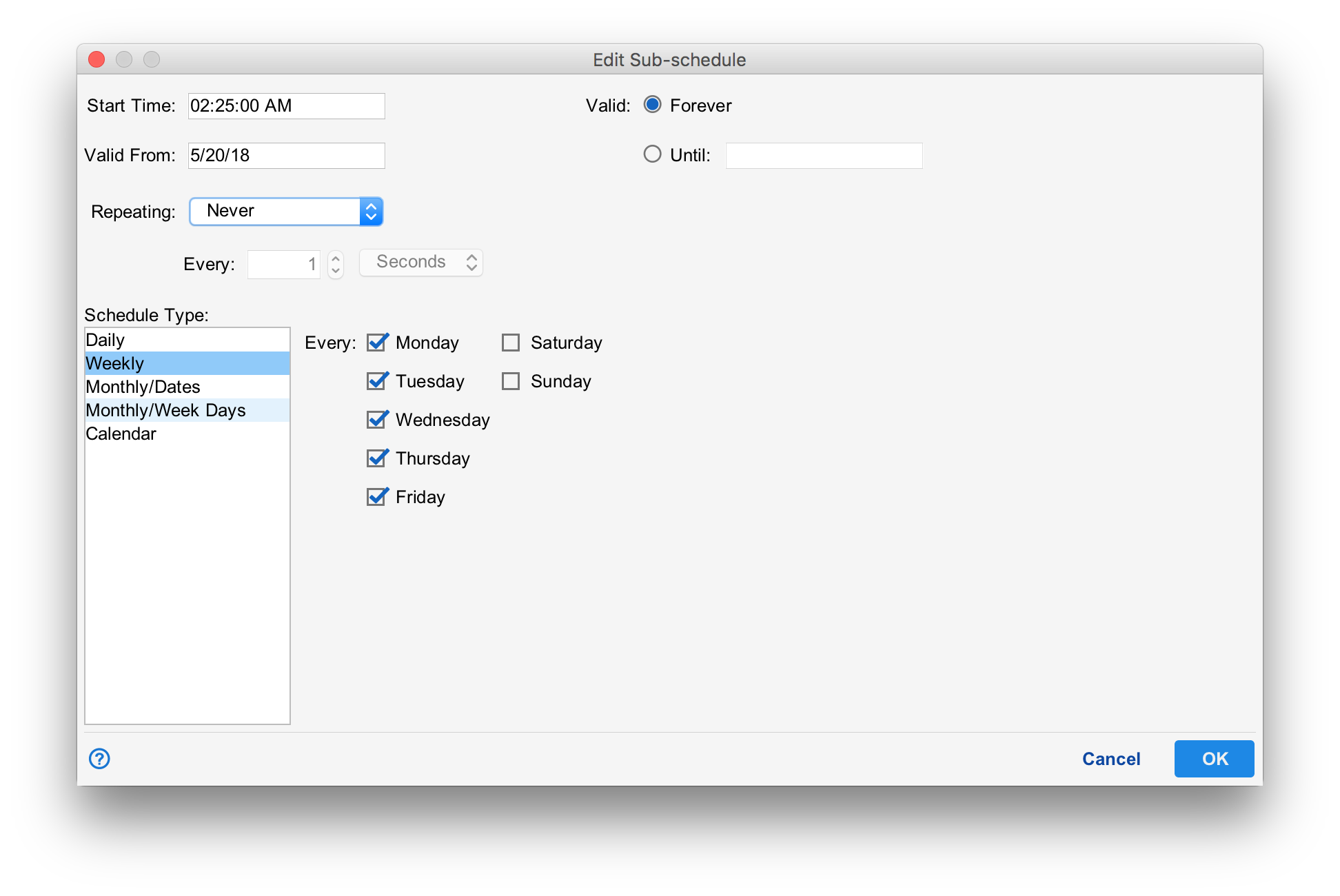
The weekly schedule type allows a workflow to run on particular days of the week.
Monthly/Dates
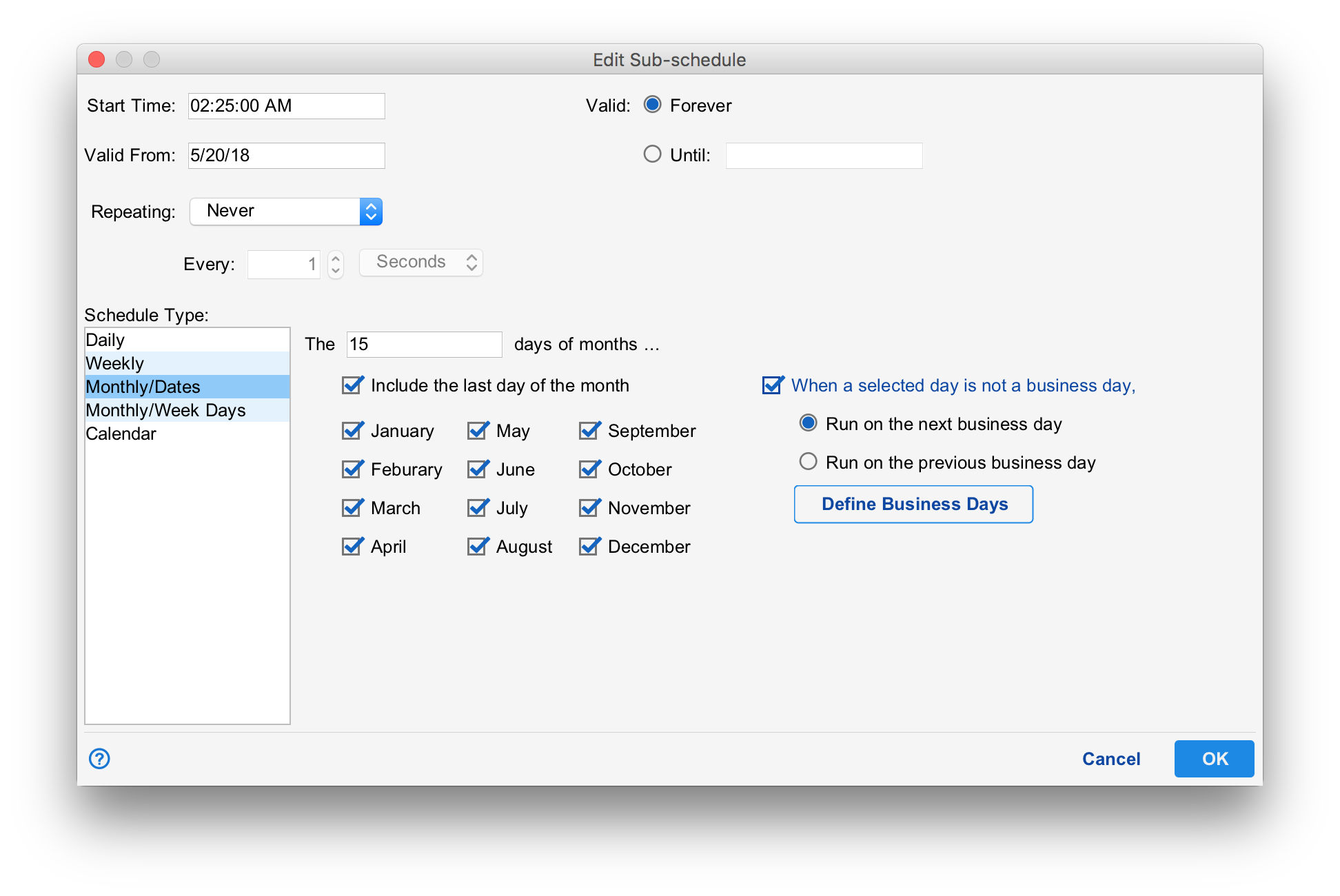
The Monthly/Dates causes the workflow to run on particular days of a set of months. A comman-separated list of dates can be intered in the box such as "1,15" for the first and 15th of the month. A checkbox "Include the last day of the month" causes the last day of each selected month to be included. The image shows a workflow that will run on the 15th and the last day of each month.
The "When a selected day is not a business day", can be used to make the workflow run on the day before or the day after a non-business day. If the day before/after is also not a business day, the day before/after that is used and so on. Defining a business day is discussed below.
Montly/Week Days
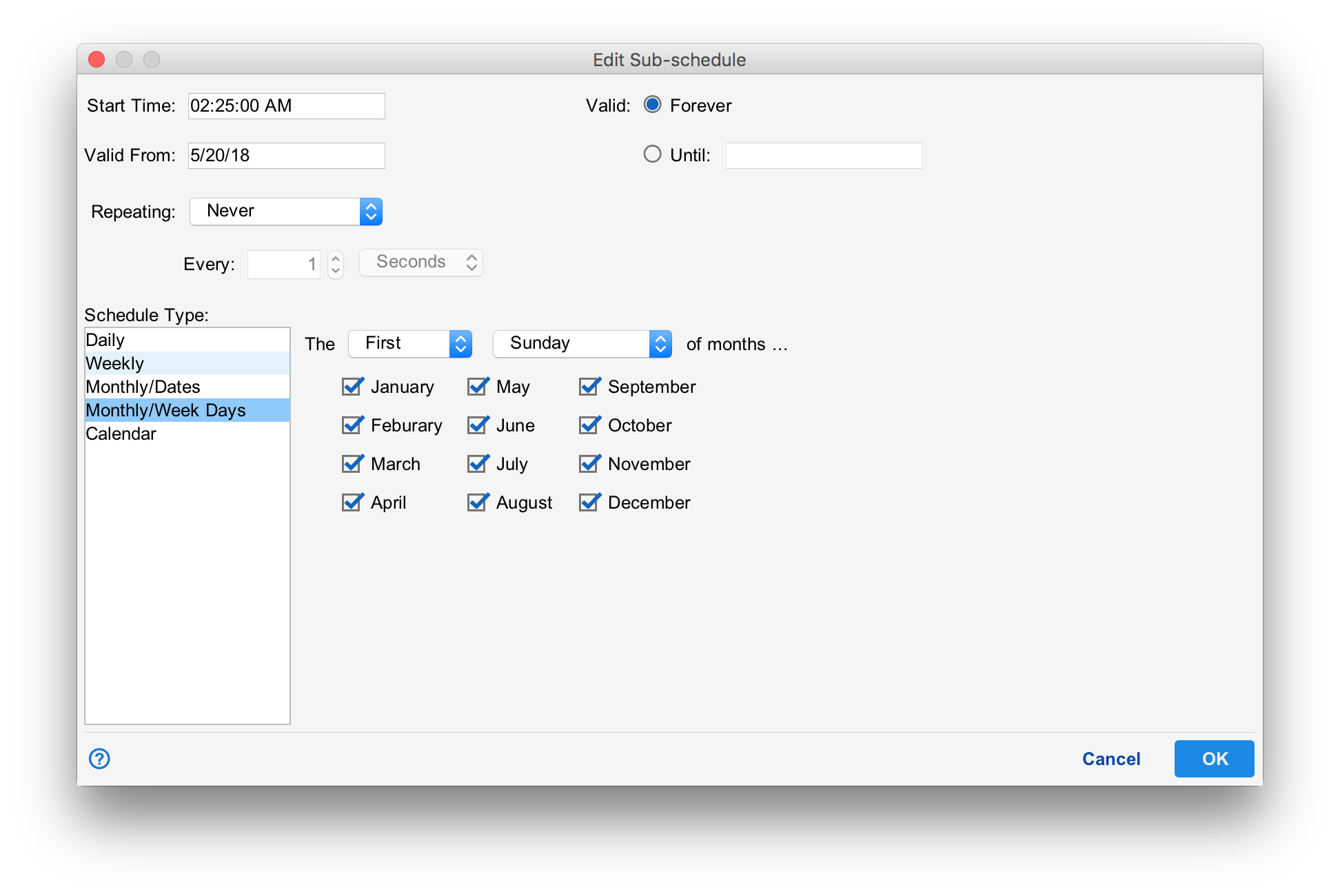
The Monthly/Week schedule type allows workflows to execute on days like "The 3rd Monday in October".
Calendar
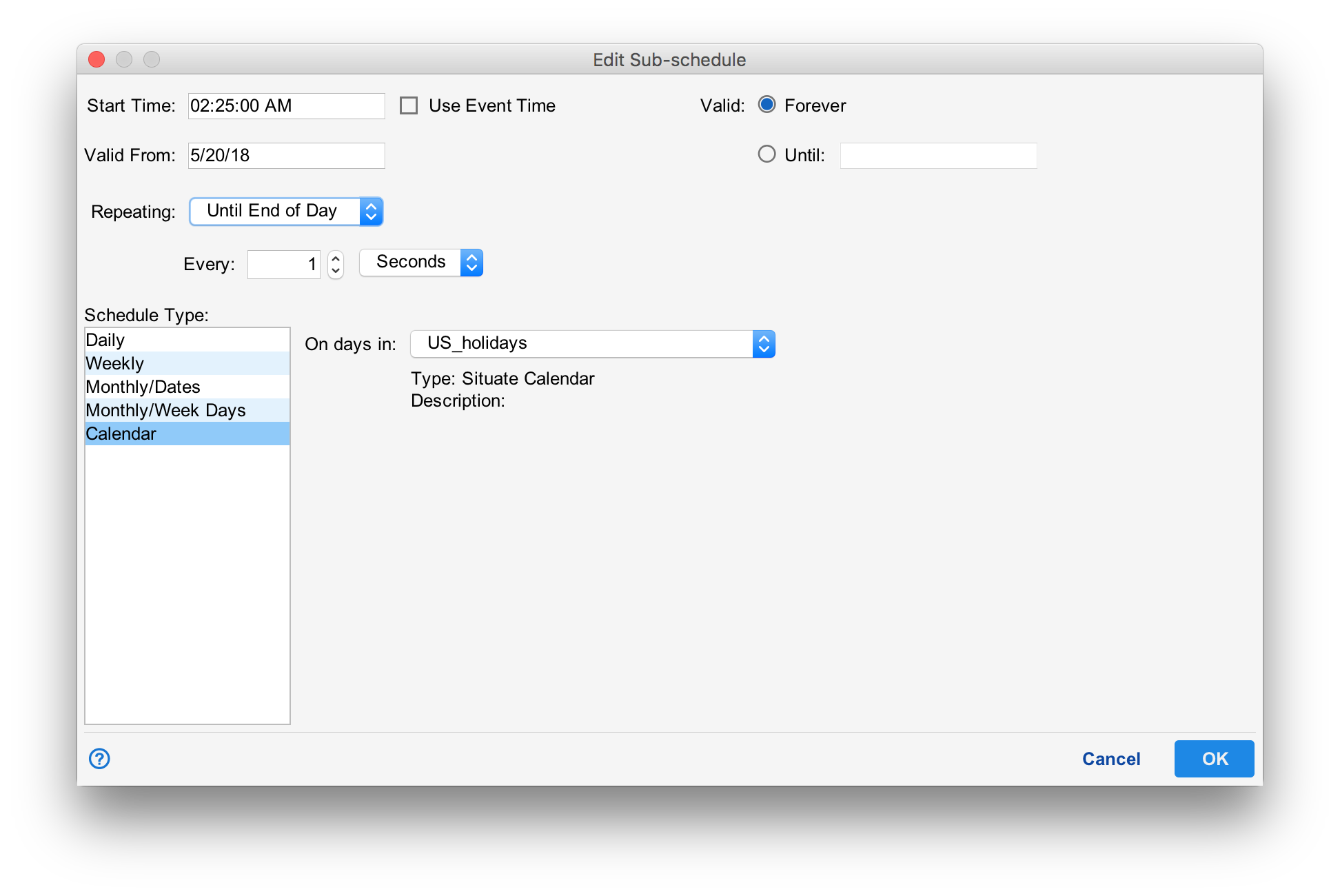
The calendar schedule type causes the workflow to run on days within a calendar. A calendar is typically just a list of days. However, if an ical (or ics) calendar is integrated, the "Use Event Time" checkbox can be selected to cause the trigger to fire when the event starts.
Defining Business Days
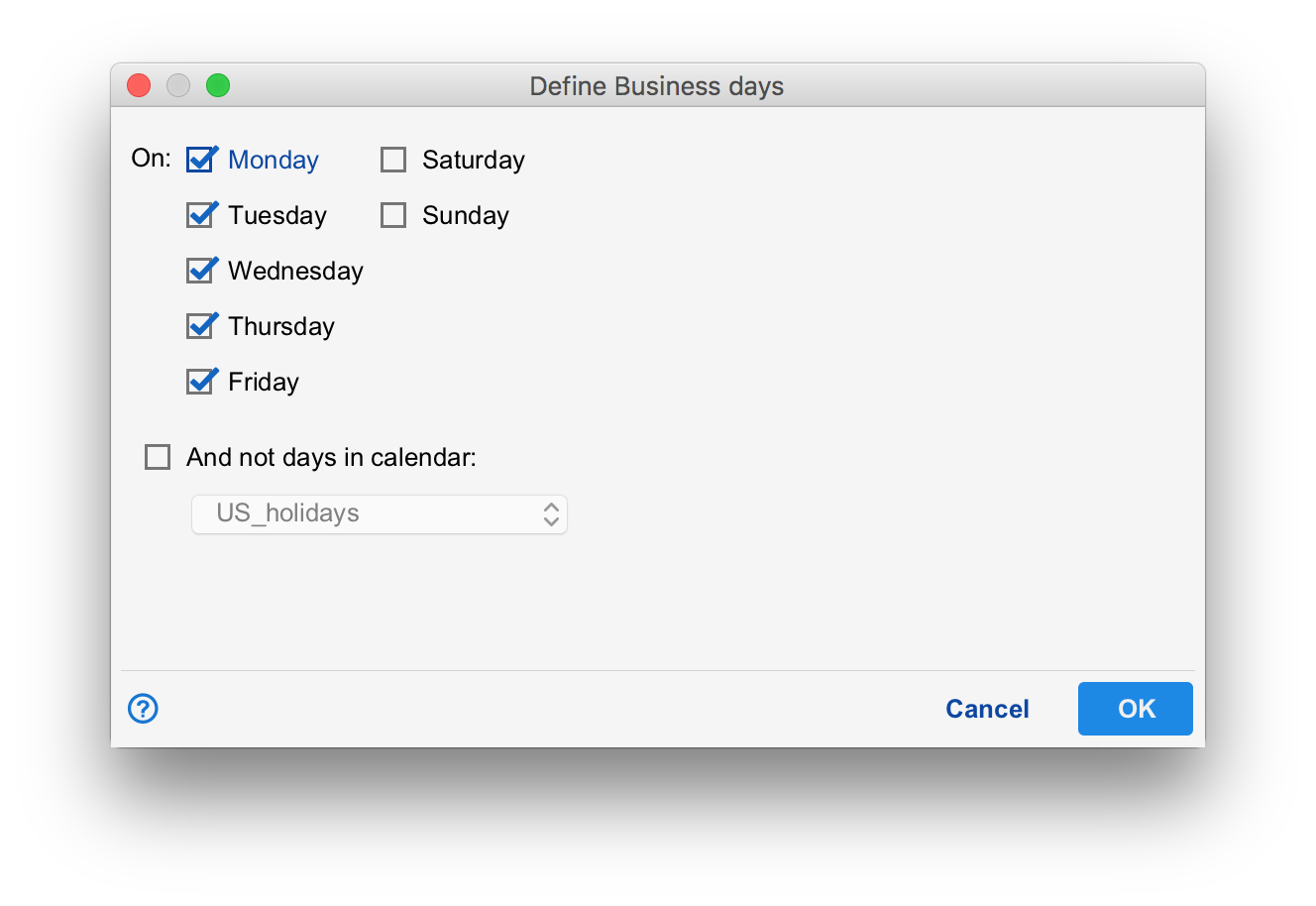
The define business days allows you to select which days are considered business days (typically Monday through Friday). A calendar can optionally be selected to provide a list of holidays.
Timezone
Each schedule trigger operates within a timezone. By default, the trigger inherits the timezone set in the containing workflow. However, you may select any supported world timezone.
Prevent Multiple Occurrance
The "Prevent Multiple Occurance" check box prevents a subsequent execution from starting before the existing one finishes. For examle, a workflow is configured to run every 15 mintes. It's time to start a new instance but the prior one is still running (Assume for discussion that it will take 20 minutes to execute). The trigger will be placed into a "delayed" state. The UI will show this in the "Next Scheduled Execution" field with a pause icon and scheduled start time in orange. After the existing one ends, the next one will start. In this example, five minutes late.
If its time to start a new instance and an instance is already in pending (paused) state, the pending instance is discared and replaced. There can be at most one pending instance.
Manual Options
If the "Allow Manual Execution" check box is selected on the "Maual Options" tab, the schedule trigger can be executed manually on demand by a user. The "Danger Level" can be set per the manual trigger.