
Appearance
The Asset View
The Asset View is opened by double clicking on the "All" folder under "Assets" in the Object Browser or by double clicking on one of the asset groups. If opened on an asset group, only assets in that group or sub-groups are shown.
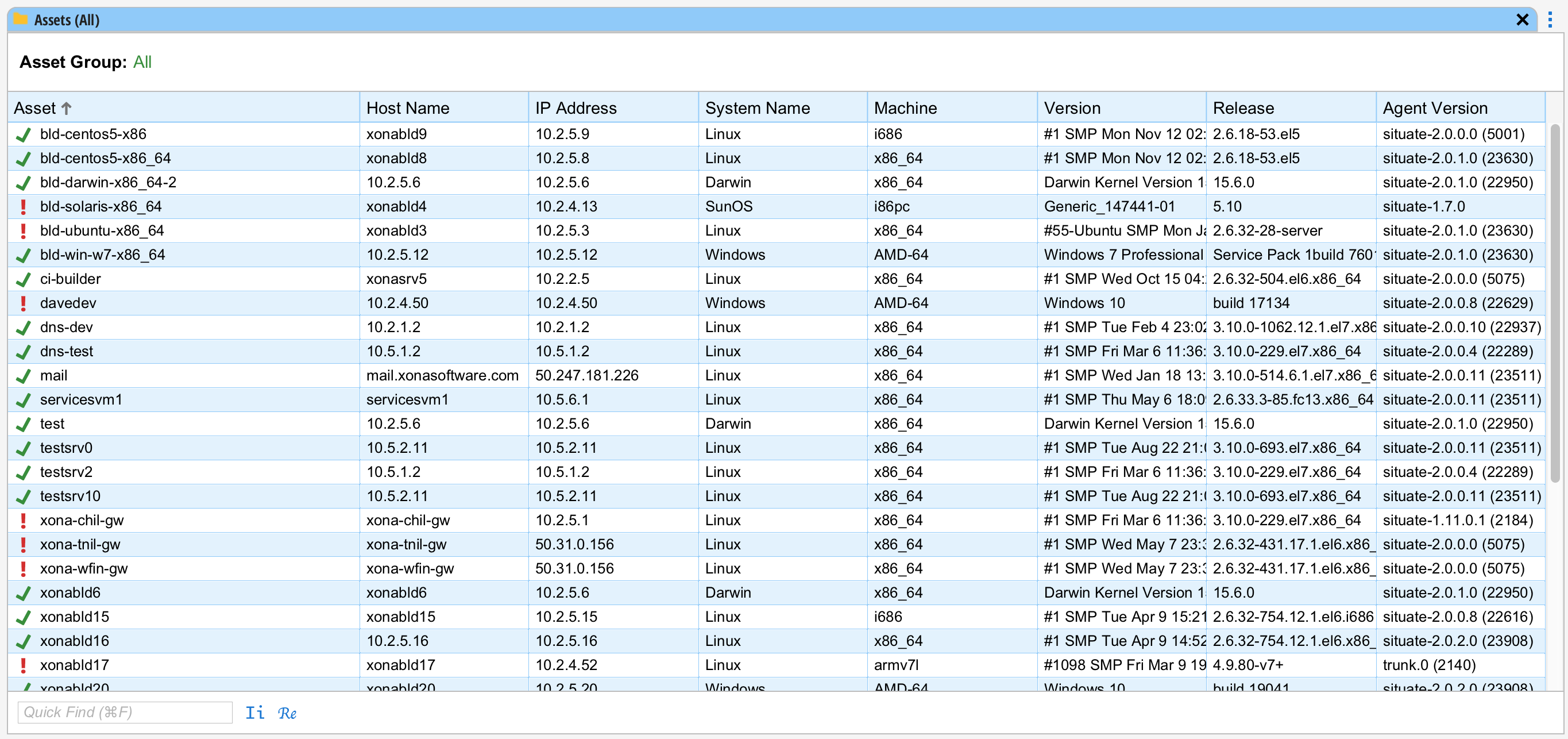
The asset view displays information Situate keeps about the asset. The leftmost column also shows the state of the asset. A green checkmark indicates there are no alerts that would indicate an issue with the asset. The following is displayed.
| Asset | The asset name and its state |
|---|---|
| Host Name | The Host Name in the asset's configuration. |
| IP Address | The IP address Situate is using to talk to the agent. |
| System Name | On Unix (Linux) machines this similar to the value value returned from 'uname -s'. On Windows-based computers, the value will be "Windows". |
| Machine | On Unix (Linux) machines this similar to the value value returned from 'uname -m'. On Windows-based computers, the value will be either WIN32 for 32-bit operating systems or AMD-64 for 64-bit operating systems. |
| Version | On Unix (Linux) machines this similar to the value value returned from 'uname -v'. On Windows-based computers, the value will be descriptive of the Windows operating system. For example, "Windows 10" or "Windows Server 2019". |
| Release | On Unix (Linux) machines this similar to the value value returned from 'uname -r'. On Windows-based computers, the value will be the current build number. |
| Agent Version | The version of the installed Situate agent installed. |