
Appearance
Using the User Interface
Installing the UI
Go to the downloads section of Xona's website and download the Situate UI.
If your computer is a Windows computer, see these instructions.
If your computer is a Linux computer, see these instructions.
Once installed, launch the UI and enter your domain, server name (or the sit-domain alias) along with your login and password.
Logging in to Situate
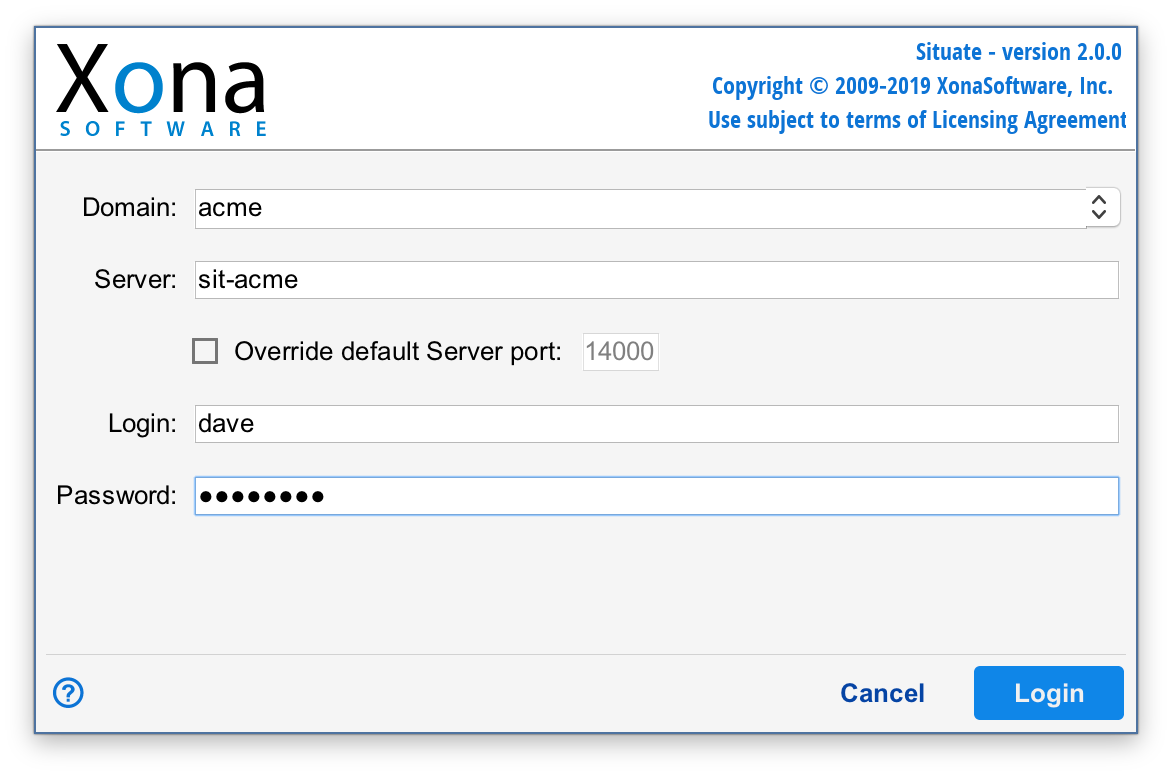
When starting the Situate viewer application, the following information is required to connect to any Situate server:
| Field | Description |
|---|---|
| Domain | Each installation of Situate is identified by a Situate domain, as configured by the system administrator during installation. The name of the domain must be entered when you log in. |
| Server | Each Situate domain contains one Situate server. The name of the server is typically in the form "sit-yourdomain," or as configured by the system administrator. |
| Port | Programs that use the Internet Protocol to communicate must connect to their server on an advertised port. By default, Situate uses port 14000, or the port configured by the system administrator. |
| Login and Password | Situate integrates with its environment's existing authentication service. This allows Situate to accept a user's existing corporate login and password. |
Navigating the User Interface
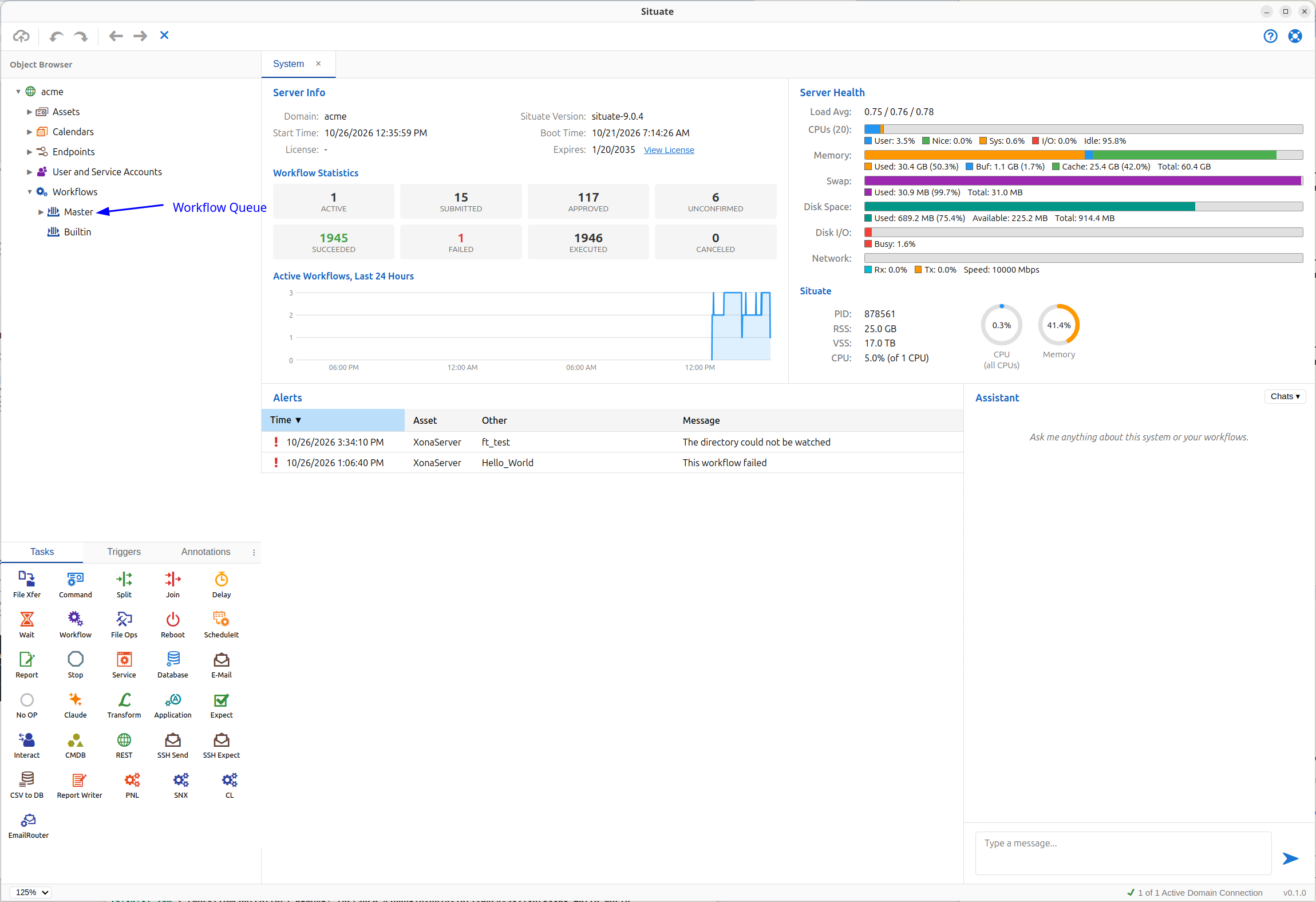
The first thing you see after a successful login is the System tab.
- Server information and workflow statistics. At the upper left of the System tab, you see information about your server and statistics about your workflows: how many are active, submitted, approved, unconfirmed, succeeded, failed, executed and canceled, plus a chart of active workflows over the last 24 hours.
- Server health. At the upper right, you see how your server and Situate itself are performing: CPU, memory, swap, disk and network use.
- Alerts. The lower part of the System tab shows alerts. This is how Situate tells you about issues. It's not an event list: when you fix a problem, its alert goes away.
- The assistant. At the lower right is the chat assistant. Ask it anything Situate-related.
Outside the System tab:
- The Object Browser. At the top on the far left is the Object Browser. It's where workflows and other things are organized, and it's where you launch most things from.
- The palette. Below the Object Browser is the palette. It contains the primitive parts of your workflows: tasks, triggers and annotations.