
Appearance
Connection Security
Situate Agents communicate using the Secure Socket Layer, or SSL. To ensure the security and validity of connections between Situate agents, Situate uses a key-based authentication system, as detailed here.
Public and Private Keys
When a Situate agent is started for the first time, it generates a certificate and a private key.
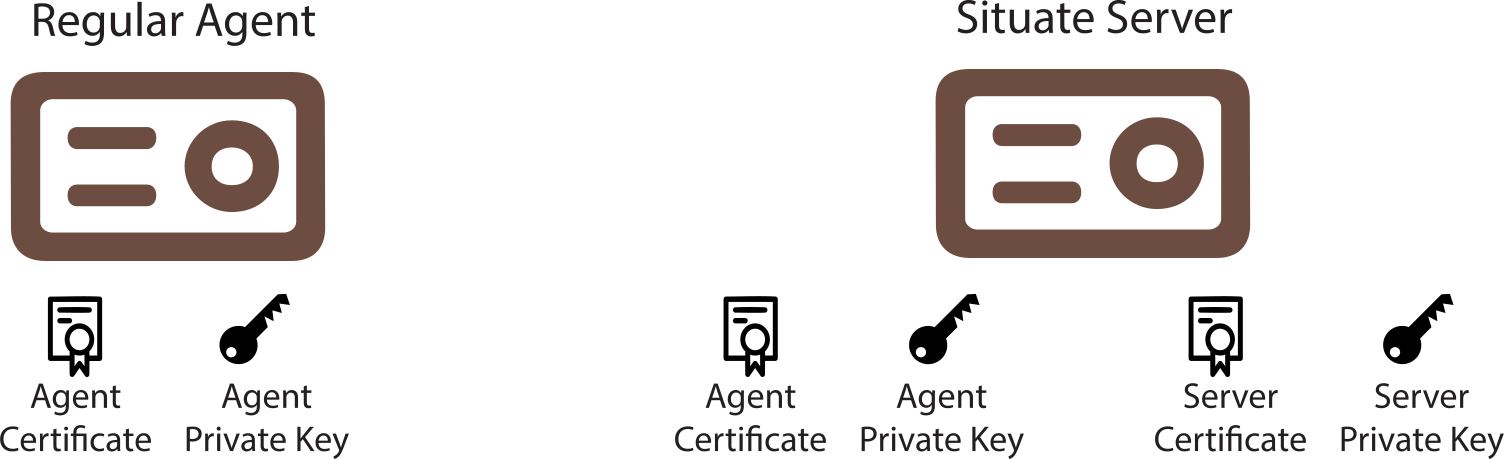
Because each Situate server is both an agent and a server, it generates a server certificate and key as well as an agent certificate and key.
Connecting with Keys
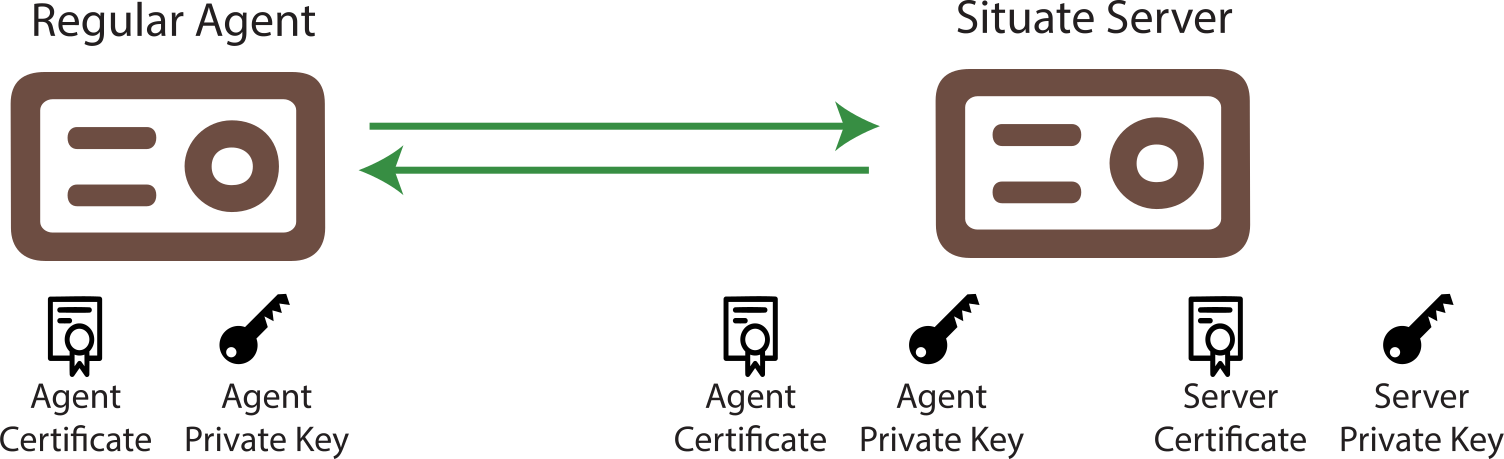
When the server connects to an agent, the server and agent exchange certificates per the SSL protocol. By using the certificates and private keys, the connection is secured.
Key Exchange
The agent and server don't just connect. There is a process in place wherein the server tests the authenticity of an agent and the agent tests the authenticity of the server. The server keeps a keystore that contains each agent's certificate. During a connection, if the agent's certificate does not match the certificate on file, the connection is terminated. The agent keeps the server's certificate as well. This is stored on disk in the security/servers directory.
Before the server and agent will trust one another, the certificates must be exchanged. This is part of the process of adding an asset. During that process, Situate will prompt for a login.
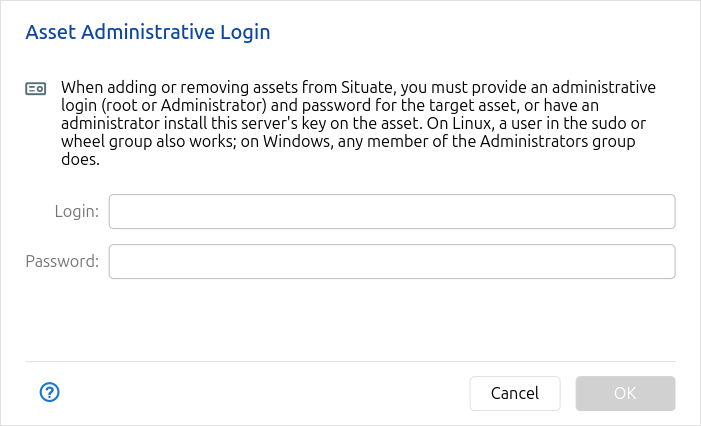
The person adding the agent must enter the login and password of an administrator on that computer:
- Linux:
root, or a member of thesudoorwheelgroup. If the agent doesn't run as root (for example, a locked agent), the user the agent runs as is also accepted. - Windows: a member of the computer's local Administrators group, either directly or through another group such as Domain Admins. An administrator whose rights are limited by User Account Control (UAC) is still accepted.
By doing this, you are proving to the agent being added that you have the right to control it and want it to be added. Once successfully added, the agent will install the server's certificate in the security/servers directory and the server will install the agent's certificate in the keystore.
Manual Key Exchange
Manually adding a server's certificate into the agent's allowed managers folder allows newly added agents to skip the login prompt that occurs when an agent is added. Since you must be an administrator on the computer to install the certificate, you prove that you can manage the agent. The asset can be added as normal without the need of the login/password popup.
To manually exchange keys, simply find the server's key:
<install-path>/security/<domain>-cert.pem (UNIX)
<install-path>\security\<domain>-cert.pem (Windows)
Then, copy the key to the target asset's allowed managers folder:
<install-path>/security/servers/<domain>.pem (UNIX)
<install-path>\security\servers\<domain>.pem (Windows)
Resyncing Keys
There are times when keys need to be re-exchanged. This can happen when the agent is uninstalled and re-installed without preserving the agent's keys. When this happens, the asset shows an alert in the Asset View. To fix it, right-click the asset in the Object Browser and select Reset Connection Keys/Certs. The menu item is available only while the asset has this alert, and only to users who can manage assets. If the server's certificate is no longer installed on the agent, the login dialog box will be presented. Once reset, it will take several seconds before Situate will reconnect.