
Appearance
Calendars
Calendars are Situate objects that define a list of specific days of the year. Calendars are then used throughout Situate both to control when workflows run as well as to calculate dates, offsets, and other things.
For more information about scheduling workflows, see the Schedule Trigger.
For more information about date variables in workflows, see Date Builder Expressions.
Managing Calendars
Calendars are managed in the Calendars section of the Object Browser. Members of the CalendarManagers or Administrators group can create a calendar by right-clicking Calendars and selecting New Calendar.
Right-click a calendar to open its menu.
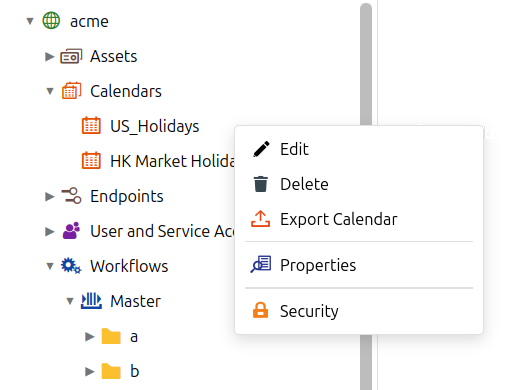
| Menu item | What it does |
|---|---|
| Edit | Opens the calendar's dates for editing (see below) |
| Delete | Deletes the calendar |
| Export Calendar | Saves the calendar to an .xml file, which can be imported into another domain (see Importing Calendars) |
| Properties | Shows the calendar's attributes |
| Security | Sets who can access the calendar (its ACL). See ACLs and Security |
Members of CalendarManagers and Administrators can always edit, delete and export calendars. Other users need the access the calendar's ACL gives them.
Editing a Calendar
New Calendar and Edit open the calendar editor.
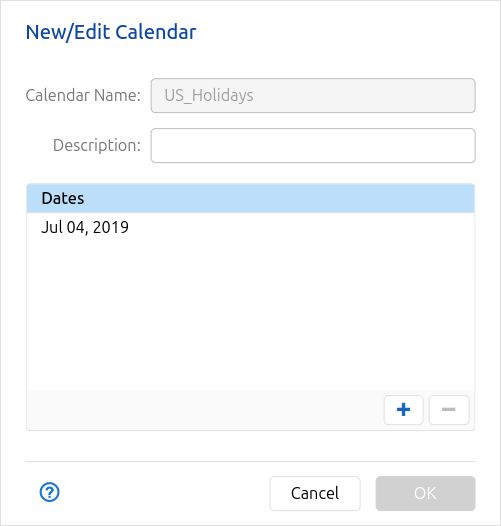
| Field | Meaning |
|---|---|
| Calendar Name | The calendar's name. It can't be changed after the calendar is created |
| Description | Optional text to help identify the calendar |
| Dates | The days in the calendar |
A Situate calendar is simply a list of dates. To add dates, click + below the Dates list. To remove one, select it and click −. Click OK to save the calendar.
+ opens a full-year view for picking dates:
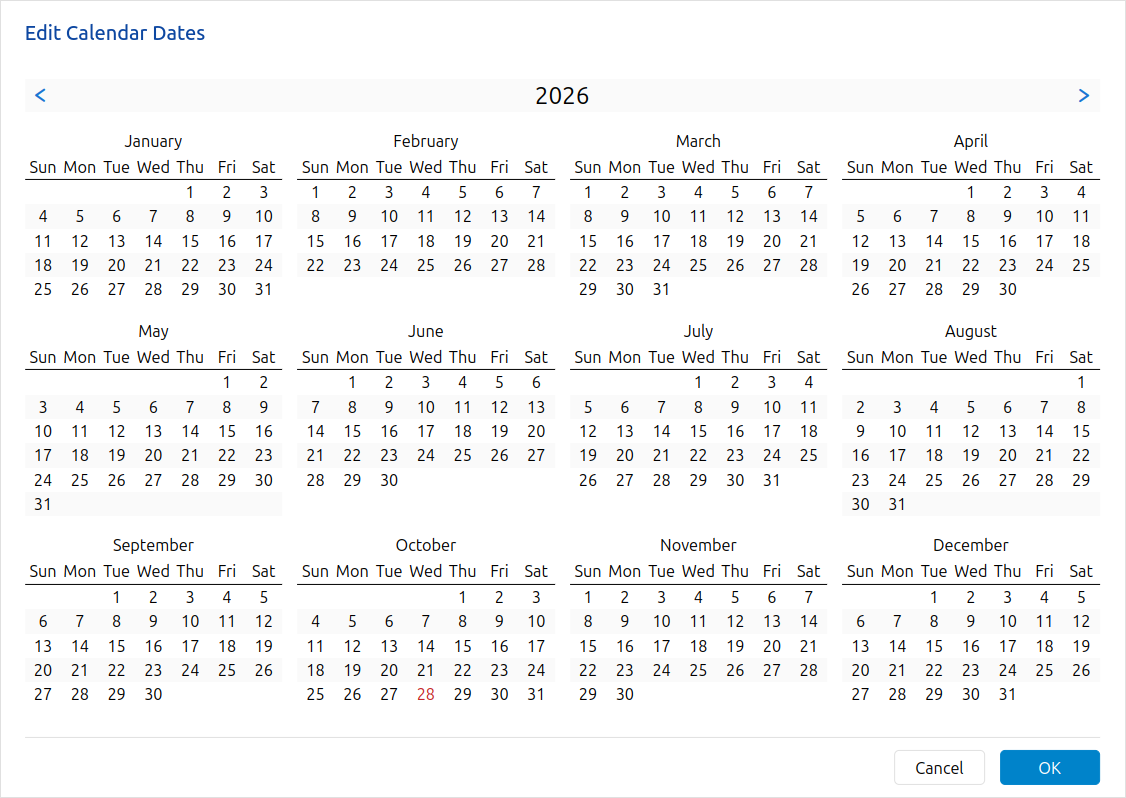
Use the < and > arrows to move to the year you want. Click a day to add it to the calendar, and click it again to remove it. Today's date is shown in red. Click OK to return to the calendar editor.
Importing Calendars
To import a calendar exported from Situate, right-click Calendars, select Import Calendar, and choose the .xml file. This requires membership in CalendarManagers or Administrators.
Situate can also load iCalendar (.ics) files as calendars. Copy the file into the ical folder on the Situate server:
<install-path>/data/calendars/ical/<calendar-name>.ics (UNIX)
<install-path>\data\calendars\ical\<calendar-name>.ics (Windows)
The file name must end in .ics, in lowercase; other files in the folder are ignored. Situate notices when a file in the folder changes and reloads it.
Calendars loaded from iCalendar files can't be edited, deleted, exported or secured in the UI. To change one, change its file.