
Appearance
Schedule Trigger
The schedule trigger is used to start a workflow at a particular time or times.
Include and Exclude Sub-schedules
The Schedule determines when the trigger will fire and is made up of one or more include and exclude sub-schedules. The trigger fires when the current time matches ANY of the include schedules and NONE of the exclude schedules. (fire = (Include0 | Include1 ...) & ~(Exclude0 | Exclude1 ...))
Time Zones
Situate supports all of the time zones around the world. Simply select the appropriate time zone from the time zone field.
Concurrent Occurrences
Some workflows run repetitively over the day. For example, you may have a workflow that runs every 10 minutes. Because it can run longer than expected, it's possible for the next workflow to start before the current one ends. This can cause problems.
When checked, the "Prevent Concurrent Occurrence" option prevents the next workflow from starting while the current one is still running -- preventing two from running at once.
If a workflow runs longer than its next start time, the next execution will begin immediately after the current workflow exits. If a workflow runs longer than two start times, one of the executions will be skipped completely.
The Variables Tab
Like all triggers, the schedule trigger can inject one or more variables. This covered in "Triggers and Data Injection".
Editing Sub-schedules
Include and exclude schedules can be added, edited or removed by pressing the appropriate button below each table.
The following shows the include sub-schedule editor
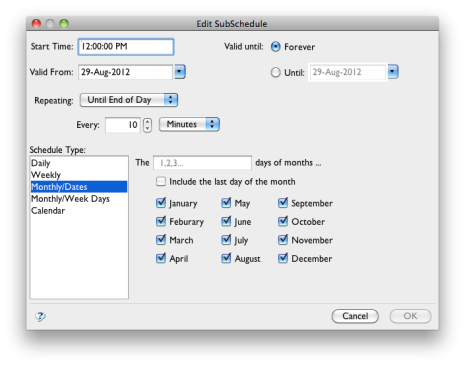
The include and exclude schedule editors are exactly the same except that the exclude editor does not have a "Start Time" or "Repeating" field. Exclude schedules are designed to exclude entire days not specific times within a day.
Start Time
The start time is the time the workflow should first start.
Valid From / Valid Until
Each sub-schedule can be configured to be valid between a set of dates. This allows sub-schedules to be:
- Created before they are to be used
- Used to create a temporary change in scheduling
- Used to inject seasonal or other rules (for example, during "our summer season")
The "Valid From" is set by default to the day the workflow is created and may be set to any date.
Reoccurrence
The "Valid From" date is important to certain schedules that run with a reoccurrence such as "every other day". In this example, the first day the job will run will be on "Valid From". It will skip the next day and then run the next and so on. So, the "Valid From" date is important because it marks the beginning of the sequence. Sometimes it is necessary to change the "Valid From" date to control which days are skipped and so on.
The "Valid Until" may be set to "Forever" or a specific date
Repeating
A workflow may repeat:
- Never
- Until the end of the day
- Until a certain time
- A specific number of times
Only administrators can create sub-schedule that run more frequently than every 10 seconds.
Schedule Type
The schedule type allows you to pick the kind of schedule you want.
Daily schedules allow you to run a job ever day or every (n) days.
Weekly schedules allow you to run a workflow on certain days of the week
Monthly/Dates schedules allow you to run a workflow on certain days of one or more months.
Monthly/Week Days schedules allow you to run a workflow based upon when certain days fall within the month. For example, "The first Monday in October" or "The last week in June".
Calendar schedules allow you to run a workflow on certain days within a calendar
Cron Conversion
From the schedule dialog, it's possible to enter a sub-schedule as a cron expression. For more information on Cron conversion, see
"Convert Cron tab Date Expression".