
Appearance
ACLs and Security
All objects in Situate have an associated ACL or Access Control List. The ACL determines users' permissions regarding the object.
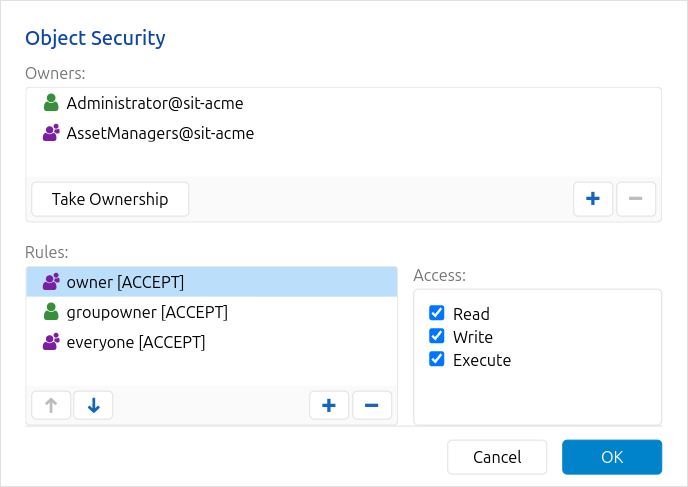
To edit an object's ACL, right-click it in the Object Browser and select Security. The Object Security dialog opens. This example is the ACL of an asset group:
Click OK to save your changes, or Cancel to discard them.
Owners
You can only edit the ACL on objects you own. Owners are listed in the "Owners" table. Members of the Administrators group can always edit an ACL. Typically, there is both a user owner as well as a group owner. In the example above, the ACL is owned by the user Administrator@sit-acme and the group AssetManagers@sit-acme.
When a user creates a new object, the initial ACL will have a user owner equal to the creator's user and a group owner equal to the creator's default group. The default group is set in the user account under "User and Service Accounts" in the Object Browser.
If you have permission to do so, the set of owners can be modified using the + and − buttons below the Owners list. Take Ownership makes you the user owner, replacing any other user owners; group owners are kept. This can be handy when taking ownership of objects with bad ACLs. For example, objects owned by users that no longer exist.
Verbs
Before a user can perform an action on an object, the ACL is checked for access. ACLs secure "Read", "Write" and "Execute" on every object. Asset and endpoint groups also secure "Create", "Update" and "Delete". The particular action being performed will cause one or more verbs to be tested. For example, viewing a workflow tests "Read" on the workflow and on its group, while running it tests "Execute" on its group and then on the workflow. See What the rights control for the full list.
Members of the Administrators group always pass the ACL test, except for approvals: an approver must satisfy the ACL even as an administrator. Members of CalendarManagers also always pass on calendars.
Rules
When a verb is checked, Situate goes down the ordered list of rules (the Rules list) testing each rule in turn. Every rule consists of an identity, an accept/deny action (shown as [ACCEPT] or [DENY]), and a set of selected verbs. When you select a rule, the Access panel on the right shows its verbs.
A rule is matched whenever the calling user has the identity mentioned in the rule (the caller is the user specified in the rule or is a member of the group specified in the rule) and the appropriate verb is selected. Once matched, the accept/deny action is performed. If "accept", then the caller passes the ACL test. If "deny", the caller fails that ACL test causing a Permission Denied error. If the entire rules list is scanned and no accept rule is matched, the ACL test fails.
Rules that don't select the verb being tested are skipped, and the first matching rule decides, so order matters: a deny only takes effect if it comes before the accept that would otherwise match.
The ACL test is performed for each required verb.
Changing Access
Select a rule, then check or uncheck the verbs in the Access panel.
To change the order of the rules, select a rule and use the up and down arrows below the Rules list.
Adding or Removing Rules
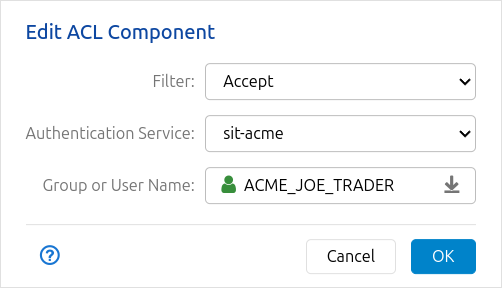
To add a rule, click + below the Rules list. To remove one, select it and click −. Adding a rule opens the Edit ACL Component dialog:
| Field | Meaning |
|---|---|
| Filter | Accept or Deny: what happens when the rule matches |
| Authentication Service | Where the identity comes from: the Situate domain's service (sit-your domain), or Built-in user/groups |
| Group or User Name | The user or group the rule applies to. For the domain's service, choose from the users under "User and Service Accounts" in the Object Browser and the groups on the Security screen of Domain Settings. For built-in, choose Owner, Group Owner or Everyone |
Click OK to add the rule, then check the verbs it should cover in the Access panel. On objects secured by Read, Write and Execute, a new rule starts with Read and Execute checked (only Read for the SituateUsers group). New rules are added at the end of the list, so use the arrows to move a rule up if it must be checked earlier. A rule for a user or group that already has one isn't added again.
Built-in users/groups
The built-in authentication service links the ACL rule's identity to the ACL's owners. There are three choices:
| Identity | Matches |
|---|---|
| Owner | Any of the user owners of the ACL. |
| Group Owner | Any of the group owners of the ACL. |
| Everyone | All users. All users will match this identity. |
Similarity to UNIX Permissions
The builtin authentication service allows ACLs that resemble UNIX file permissions. Consider the following set of rules:
text
owner@builtin -> (Read, Write, Execute)
groupowner@builtin -> (Read, Write, Execute)
everyone@builtin -> (Read, Execute)
In UNIX, files are controlled by read, write and execute in three sections: owner, group and other. The rules above do exactly this and depict UNIX permissions of 0775 or -rwxrwxr-x.
The builtin authentication service helps to simplify ACLs allowing an owner, group, other style of ACL to be constructed. Of course one can also add others, making it impossible to model as a simple UNIX permission.
These ACLs aren't POSIX permissions, though: the first matching rule decides. With mode 0070, an owner who is also in the group owner still gets Read, because the owner rule has no Read and is skipped, and the group owner rule matches.
Default ACLs
When a new object is created, a new, initial ACL is also created. It depends on the kind of object being created:
| Object | Default |
|---|---|
| Workflow | You own it; your default group is the group owner (or the groups in your WAG policy). Mode 0755, or 0775 if your default group isn't SituateUsers. With a WRU policy, it runs as that user |
| Workflow group, calendar, organization, dashboard | Mode 0755, or 0775 if your default group isn't SituateUsers |
| CMDB item | Mode 0775 |
| Lock | Mode 0644 or 0664 |
| Asset or endpoint group | Owner and group owner get Create, Update and Delete; everyone gets Update |
Mode 0775 is:
text
owner@builtin -> (Read, Write, Execute)
groupowner@builtin -> (Read, Write, Execute)
everyone@builtin -> (Read, Execute)
When the creator's default group is SituateUsers, the group owner gets no more than everyone (mode 0755, groupowner@builtin -> (Read, Execute)). SituateUsers is a catch-all group for "all users" and so duplicates the functionality of everyone@builtin.
Submitting or importing a workflow gives it a new default ACL. Keeping the original ACL ("preserve ACL") requires an administrator.
User and Service Account ACLs
User and service accounts get the same default ACL:
text
owner@builtin -> (Read, Write, Execute)
everyone@builtin -> (Read)
The group owner is Administrators, but there is no groupowner@builtin rule, so it gets nothing through the ACL. (Administrators are allowed everything regardless.) The equivalent UNIX mode is 0704 or -rwx---r--.
The owner depends on how the account was created:
| How the account is created | Owner |
|---|---|
| In the UI or through the API | The person who created it (an Administrator), not the account itself |
| Automatically, as the shadow account made at first login | The user's native login, e.g. dave@AD-acme.local/u |
| The built-in Administrator account | Administrator. Its group owner, Administrators, also gets Read, Write and Execute |
For more detail, see the Principals and ACLs Reference.