
Appearance
Workflow Queues and Groups
Unlike asset groups, workflow groups function as a filesystem inside the workflow manager. Each group stores the workflows it contains and has its own queue view.
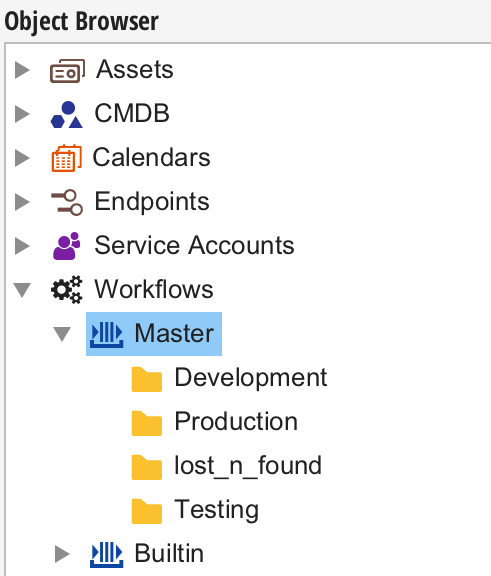
Workflow Queues
Workflow queues are top-level workflow groups. The following workflow queues exist by default:
| Master | The main queue. This where you will put your workflows. |
|---|---|
| Builtin | Contains built-in workflows shipped with Situate. |
Workflow Groups
Workflow groups organize workflows. You can create a new workflow group by selecting either a queue or existing group under which you want to place your new group. Right-click and select "Create". You can edit a group by right-clicking and selecting "Edit" on the group you want to edit.
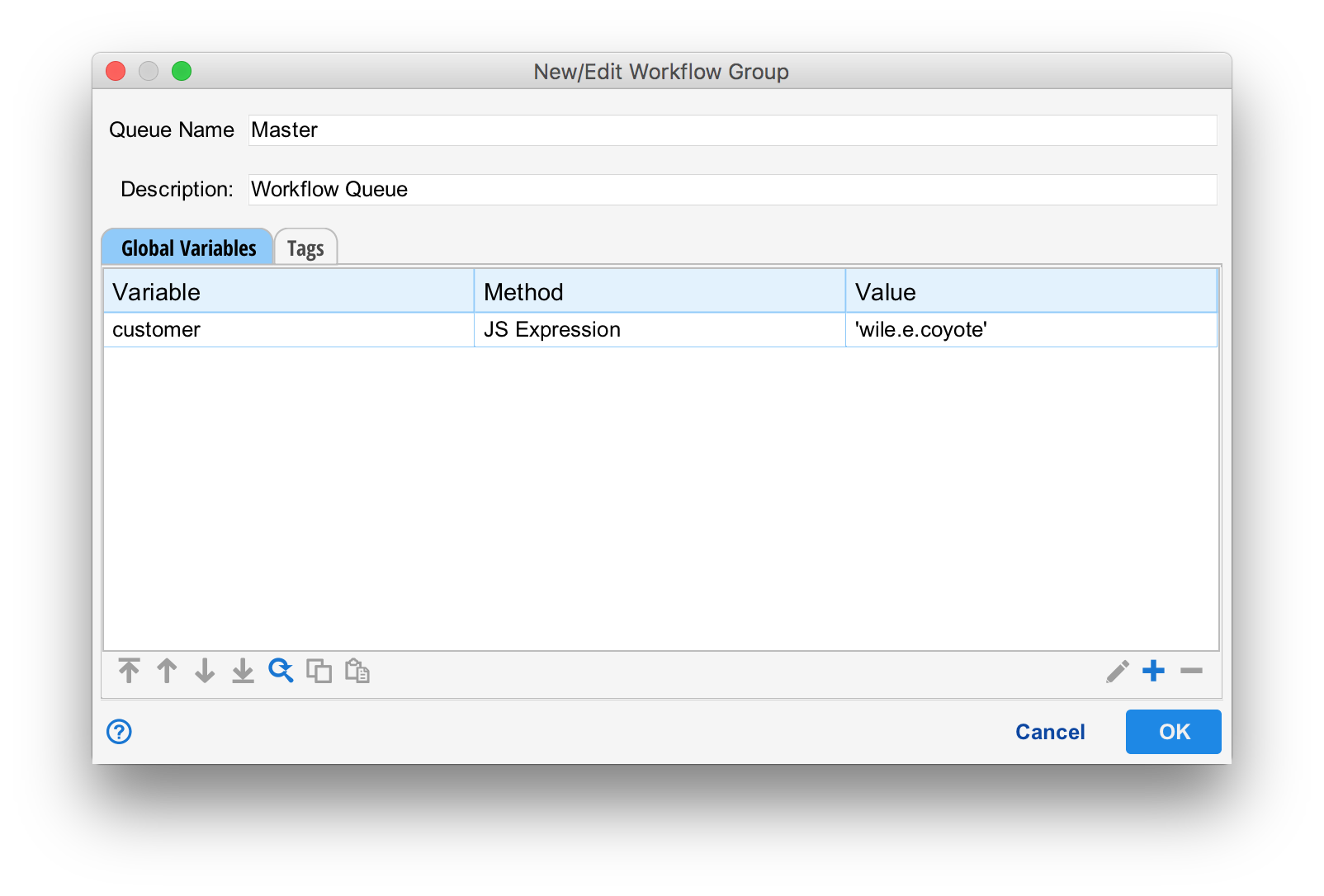
At a minimum, a group must have a name and description.
Global Variables
Variables can be defined at the group-level that are set for every workflow that runs from the group. When processing variables, Situate starts from the top-most group, sets those global variables, and repeats this process all the way to the bottom-most group. In this way variables named the same are overridden by sub-groups.
The method for configuring variables is exactly the same as passing variables in trigger. For more information, see Passing Variables with Triggers.
Tags
Tags are key/value data that can be attached to any workflow. Tags provide a method to search and find workflows. Tags added at the group level apply to all workflows in the group.
"lost_n_found"
The "lost_n_found" group is a special workflow group that appears workflows are found that reference a containing group that no longer exists. Workflows can also be moved to this group if they become invalid or corrupted.