
Appearance
Claude Task
The Claude task integrates AI assistance directly into workflow automation by invoking Claude Code as a subprocess. This allows workflows to leverage Claude's capabilities for solving problems and aiding production support.
Overview
The Claude task spawns Claude Code CLI with thread-scoped session continuity, meaning conversations can persist across multiple Claude tasks within the same workflow execution. This enables complex multi-step AI workflows where context builds up over time.
Note
Session Continuity: When multiple Claude tasks execute on the same workflow thread, they share a conversation session by default. This allows Claude to reference previous tasks, remember context, and build on earlier work. Each workflow thread maintains its own independent session.
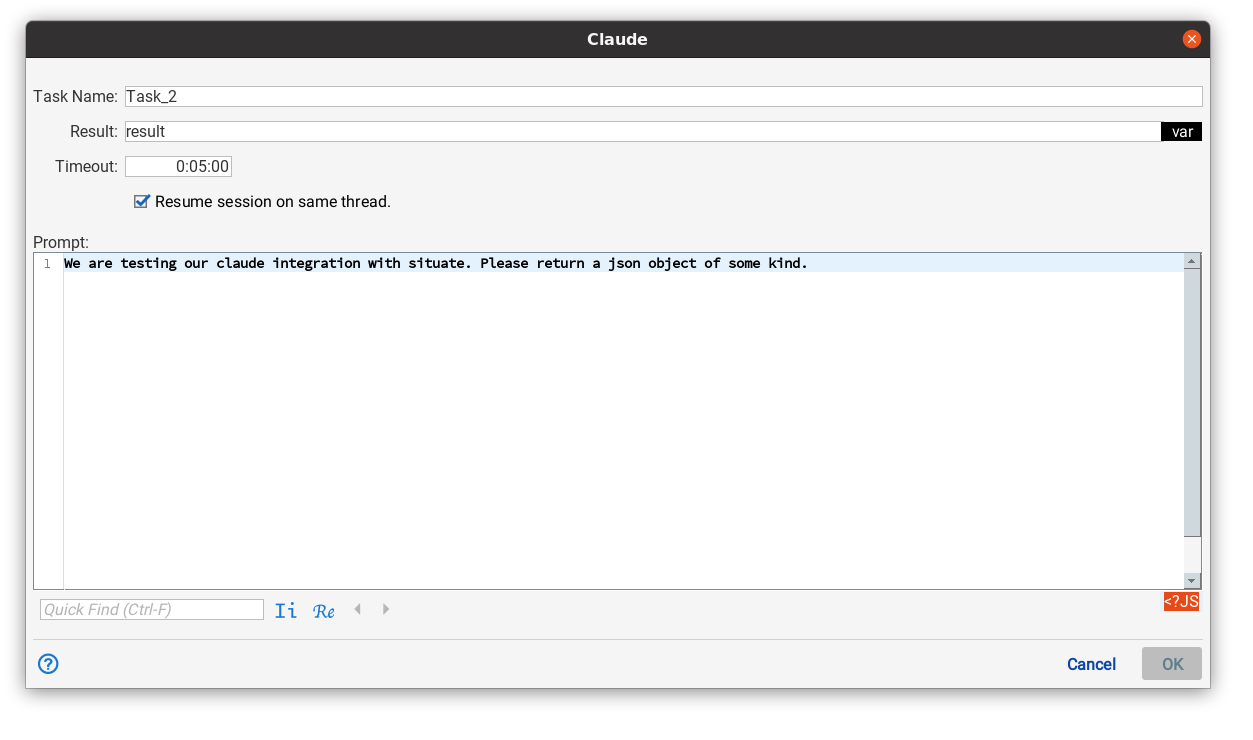
Prompt
The prompt field contains the message or request sent to Claude. This field supports expression expansion using ${variable} syntax, allowing you to incorporate workflow variables, previous task results, or dynamic data into your prompts.
Analyze the log file at ${log_file_path} and identify any errors or warnings. Report the top 5 most critical issues.
Prompts can be simple questions, complex instructions, or multi-step tasks. Claude has access to tools and can execute commands, read files, search code, and perform various operations based on its configured permissions and MCP server access.
Use expression expansion to incorporate workflow data dynamically with ${variable} syntax. Complex operations can be split across multiple Claude tasks for better organization and error handling.
Result Variable
The result variable field specifies the workflow variable name where Claude's response will be stored. This variable can then be referenced in subsequent tasks, conditions, or other Claude prompts.
If left blank, Claude's response will be logged but not stored in a variable. Specify a result variable when you need to use Claude's output in later workflow steps.
analysis_result
The stored result is Claude's full text response. For structured data, you can instruct Claude to return JSON format and then use other workflow tasks to parse it.
Timeout (Seconds)
The timeout field specifies the maximum number of seconds to wait for Claude to complete the task. The default is 300 seconds (5 minutes).
Simple queries typically complete in seconds, but complex tasks involving large file analysis, system operations, or multiple tool calls may require longer timeouts. If Claude doesn't complete within the timeout period, the task will fail.
Note
Timeout Considerations: Consider the complexity of your prompt when setting timeout. Tasks involving file operations, API calls, or extensive log analysis may need 5-10 minutes. Simple queries can use shorter timeouts (60-120 seconds).
Continue Session
The continue session checkbox controls whether this Claude task resumes a previous conversation session from earlier Claude tasks on the same workflow thread.
- Checked (default): Resume the existing session for this workflow thread. Claude will have access to the full conversation history from previous Claude tasks in this workflow execution.
- Unchecked: Start a fresh session. Claude will not have access to previous conversations in this workflow.
Session continuity is scoped to the workflow thread, not the workflow definition. Each workflow instance maintains independent sessions, and parallel workflow branches maintain separate sessions.
When to Use Fresh Sessions
Uncheck "Continue Session" when:
- You need Claude to forget previous context (e.g., switching to a completely different task)
- Previous context might interfere with the current request
- You want to start with a clean slate for a new phase of work
- Testing or debugging workflow behavior
User
The user field specifies which user identity the Claude process should run as. This works similarly to the Remote Execution task's user field.
If left blank, Claude runs as the best available identity for the workflow user. Specifying a user allows Claude to execute commands and access files with that user's permissions.
Note
Security: The user specified must be associated with a native identity in Situate. Claude's file access, command execution, and system operations will be governed by this user's permissions. See Native Identities for more information.
Global Configuration
Claude task behavior is configured globally via SituateProperties. These settings apply to all Claude tasks in all workflows:
| Property | Description |
|---|---|
| claude_config | Path to .md file containing skills and custom instructions for Claude. This file can include workflow-specific guidance, coding standards, or custom tool definitions. |
| claude_mcp_config | Path to MCP servers JSON configuration file. Defines which MCP servers (like the Situate MCP server) Claude can access. See MCP Tools for details. |
| claude_api_key | Anthropic API key for Claude API access. Required for Claude task execution. |
MCP Server Integration
When configured, Claude tasks have access to MCP (Model Context Protocol) servers that provide tools for workflow control. The Situate MCP server allows Claude to:
- List and search workflows and groups
- Start workflows with parameters
- Monitor workflow instances and check status
- Retrieve execution logs for debugging
- Confirm completed instances
- Manage workflow configuration (enable/disable triggers, set admin holds)
- Control application lifecycle (start/stop applications)
This enables powerful self-managing workflows where Claude can orchestrate complex automation sequences, respond to failures, and make intelligent decisions about workflow execution.
For complete MCP tool documentation, see MCP Tools Reference.
Use Cases
Log Analysis and Troubleshooting
Prompt: Analyze the error logs in ${log_directory} and identify the root cause of the recent deployment failures. Provide specific recommendations. Result Variable: troubleshooting_report
Data Validation
Prompt: Review the data in ${data_file} and check for: 1. Missing required fields 2. Invalid date formats 3. Duplicate records Return findings as JSON with counts and examples. Result Variable: validation_results
Workflow Orchestration
Prompt: Check the status of all ETL workflows in the "DataProcessing" group. If any failed in the last 24 hours, confirm them and start the recovery workflow with appropriate parameters. Result Variable: orchestration_summary
System Administration
Prompt: Examine the disk usage on ${server_name} and clean up old log files in /var/log older than 30 days. Report space reclaimed. Result Variable: cleanup_report
Multi-Step Research and Documentation
Prompt: Search the codebase for all usages of the deprecated API ${old_api_name} and document where it's called. Result Variable: api_usage_report Continue Session: ✓
Prompt: Based on the API usage you found, create a migration plan to replace ${old_api_name} with ${new_api_name}. Prioritize by risk and effort. Result Variable: migration_plan Continue Session: ✓
Session Management
Claude maintains conversation context across tasks on the same workflow thread. This enables sophisticated multi-step workflows:
- Task 1: "Check the status of all database backup workflows and identify any failures in the last 24 hours" (Continue Session: ✓)
- Task 2: "For the failed backups you found, analyze the logs and determine the root cause" (Continue Session: ✓)
- Task 3: "Based on your analysis, confirm the failed instances and start the recovery workflows with appropriate parameters" (Continue Session: ✓)
- Task 4: "Generate a summary report of the failures, root causes, and recovery actions taken" (Continue Session: ✓)
Each task builds on the previous one. Claude remembers what it checked, what it analyzed, and what recovery actions it took, allowing it to provide coherent, consistent results across the entire workflow.
Error Handling
The Claude task will fail if:
- The timeout expires before Claude completes
- Claude encounters a critical error during execution
- The Claude Code CLI is not accessible or properly configured
- API key is invalid or quota is exceeded
- Required permissions are missing for file/command operations
Use workflow error edges to handle Claude task failures gracefully. Consider implementing retry logic or fallback procedures for critical automation.
Performance Considerations
- Token Usage: Complex prompts and long sessions consume API tokens. Monitor usage and optimize prompts.
- Timeout Settings: Set realistic timeouts based on task complexity. Longer timeouts prevent premature failures.
- Session Size: Very long conversation sessions can impact performance. Consider starting fresh sessions for unrelated tasks.
- Concurrency: Multiple Claude tasks running in parallel each spawn separate processes. Monitor system resources.
- File Operations: Large file reads/writes through Claude may be slower than dedicated file processing tasks.
Security and Permissions
Claude tasks execute with the permissions of the specified user identity. This means:
- File operations are subject to filesystem permissions
- Command execution respects user privileges
- Network access depends on user's firewall rules
- MCP server operations follow workflow approval and security policies
Always follow the principle of least privilege - grant Claude only the minimum permissions needed for its tasks.
Note
Important: Claude has powerful capabilities including command execution, file modification, and workflow control (via MCP). Ensure prompts are carefully reviewed and workflows using Claude tasks follow your organization's change management and security policies.
Tips and Best Practices
- Chain tasks thoughtfully: Break complex operations into logical steps with clear handoffs between Claude tasks
- Store important results: Always specify result variables for data you'll need in subsequent workflow steps
- Handle errors explicitly: Use workflow error edges and provide fallback logic for Claude task failures
- Monitor sessions: Long-running sessions can accumulate context; uncheck "Continue Session" to start fresh when appropriate
- Set appropriate timeouts: Complex tasks involving file operations or workflow orchestration may require longer timeouts than the default 5 minutes