
Appearance
File Transfer
The File Transfer task copies or moves files to one or more destinations system.
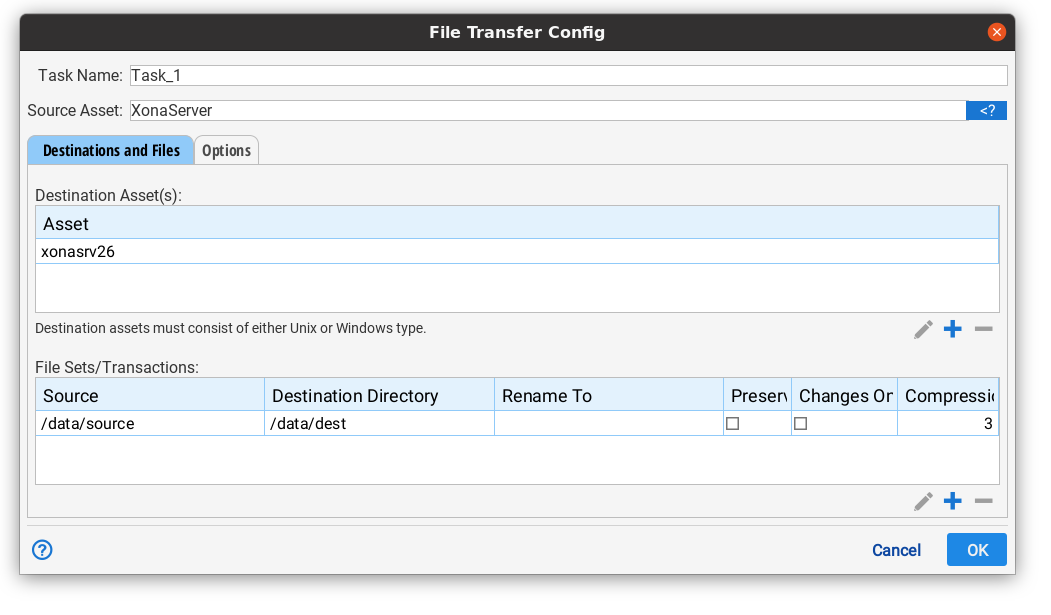
Source Asset
The asset that containing the source of the transfer.
Destination Assets
Situate allows you to copy files from one source to one or more destinations. Each destination should be added to the destination asset table.
File Sets/Transactions
Situate allows you to have one or more file transfer transactions. Each transaction represents a set of files to be copied along with many file transfer options specific to each transaction.
To edit transactions use the buttons below the table
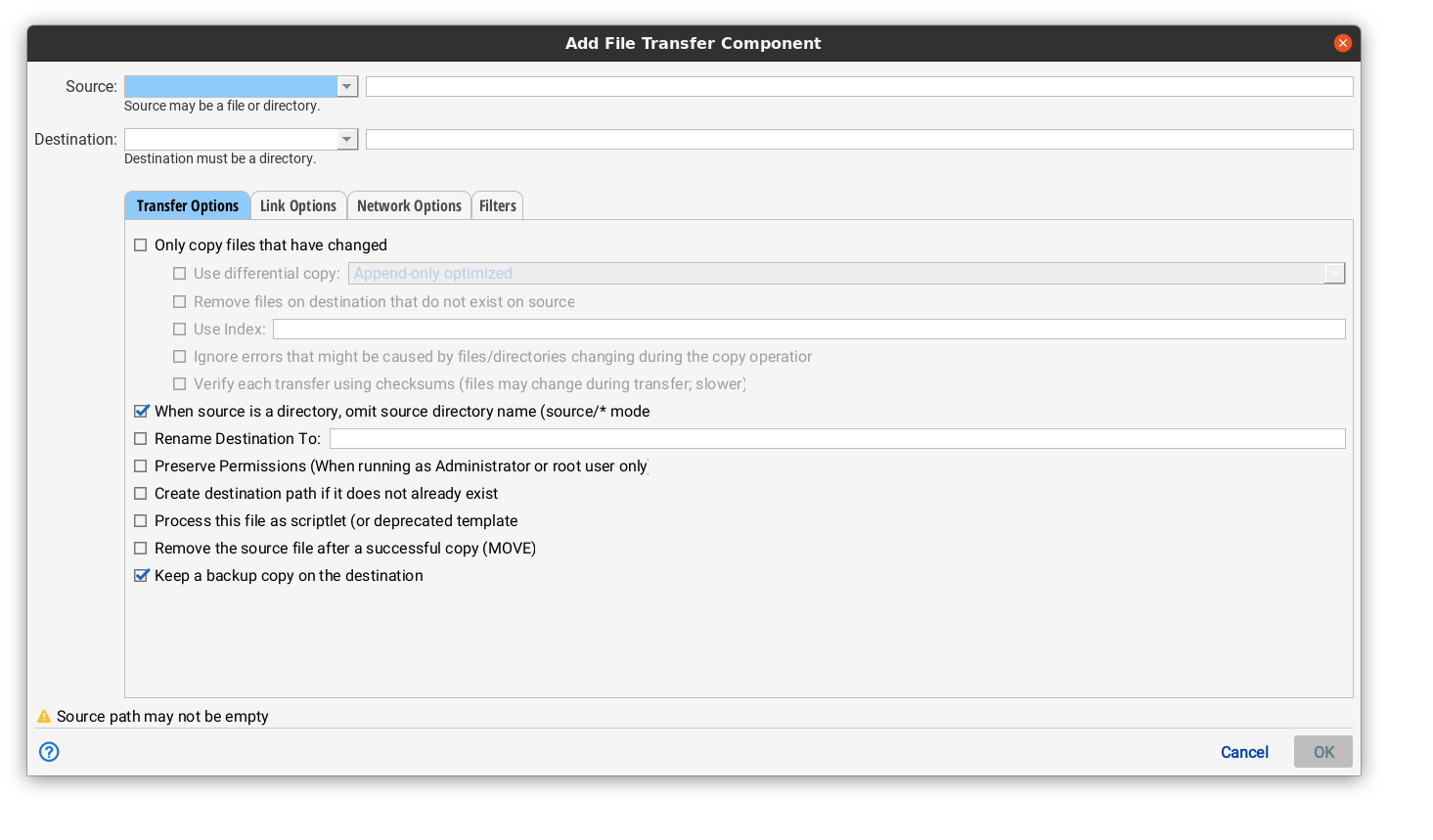
Source
The source field expands to the source file or directory to be copied. You must either put in a fully path or use the drop down to help build a relative path. On Linux, ${HOME} may be selected to mean that the path in the text box is relative to the home directory of the user executing the copy. On Windows, there are a lot of options that are all special directories such as APPDIR, etc. When a special location is selected in the drop down, the path in the text box is a relative path that may not being with a / or .
Destination
This path must expand to the directory the source is to be transferred into. Like the Source, the drop down can be used to specify a relative path. Otherwise, the destination must be a full path.
Transfer Options
Only copy files that have changed
If this option is selected, Situate will operate much like rsync in that it will only move files that have changed. If unchecked, all files will be copied.
The "Use differential copy" drop down box allows you to specify different kinds of differential copy algorithms. Currently, there is the default that works like rsync and another called "Append-only Optimized". Append-only Optimized works well for files that are being added to at the end such as a log file.
"Remove Files on destination that do not exist on source". If selected, this option will cause files on the destination not found on the source to be removed.
"Use Index". If you the destination does not change other than the Situate sync behavior (maybe it's like a backup), you can specify the an index file. This must be a full-path. Situate will use this file to "remember" what was on the destination instead of re-indexing the destination for each transfer. This saves a lot of bandwidth when the sync is run often. A best practice for using this would in a backup scenario would be to perform a single daily or weekly backup with this option disabled to take care of any alterations of the backup that happened outside of situate. Remove the index file. Then run each of the intra-day or intra-week backups with the index file in place.
"Ignore Errors that might be caused by files/directories changing during the copy operation". Check this box it it's OK to have errors caused by files being changed in the file system while the copy is being performed. If this is not OK, uncheck the box. Situate will fail if one of the files or directories it is copying changes while it is copying it.
"Verify each transfer using checksums". If this box is checked, Situate will go back and double check each file after the file transfer to make sure the source and destinations are the same based on a MD5 checksum.
When source is a directory, omit source directory name
By default, Situate will copy the source directory to the destination such that if source is "/a/b" and the destination is "/x/y", the destination will contain "/x/y/b" after the transfer. If instead, this box is checked, "/x/y" will contain the contents of "/a/b" instead. In Linux speak, if this box is unchecked, it is equivalent to running "cp /a/b /x/y". With this box checked, it's equivalent to running "cp /a/b/* /x/y".
Rename Destination To
Situate will rename the file or directory it copies to the value specified.
Preserve Permissions
Situate will preserve the permissions (user, group and access mode) of each file as it moves them. This option requires the workflow to run as root or an admin user that has permission to do so.
Create Destination Path
If selected, Situate will attempt to create any missing component of the destination path.
Process This File as a Scriptlet
Deprecated. Do not use.
Remove the source file after a successful transfer
If selected, Situate will remove the source file or directory after it has been successfully transferred to the destination.
Keep a backup copy on the destination
The original files or directories will be found in a directory named "..old" If this directory already exists, it will deleted.
Link Options
The link options tab tells the transfer task how to deal with Linux links"
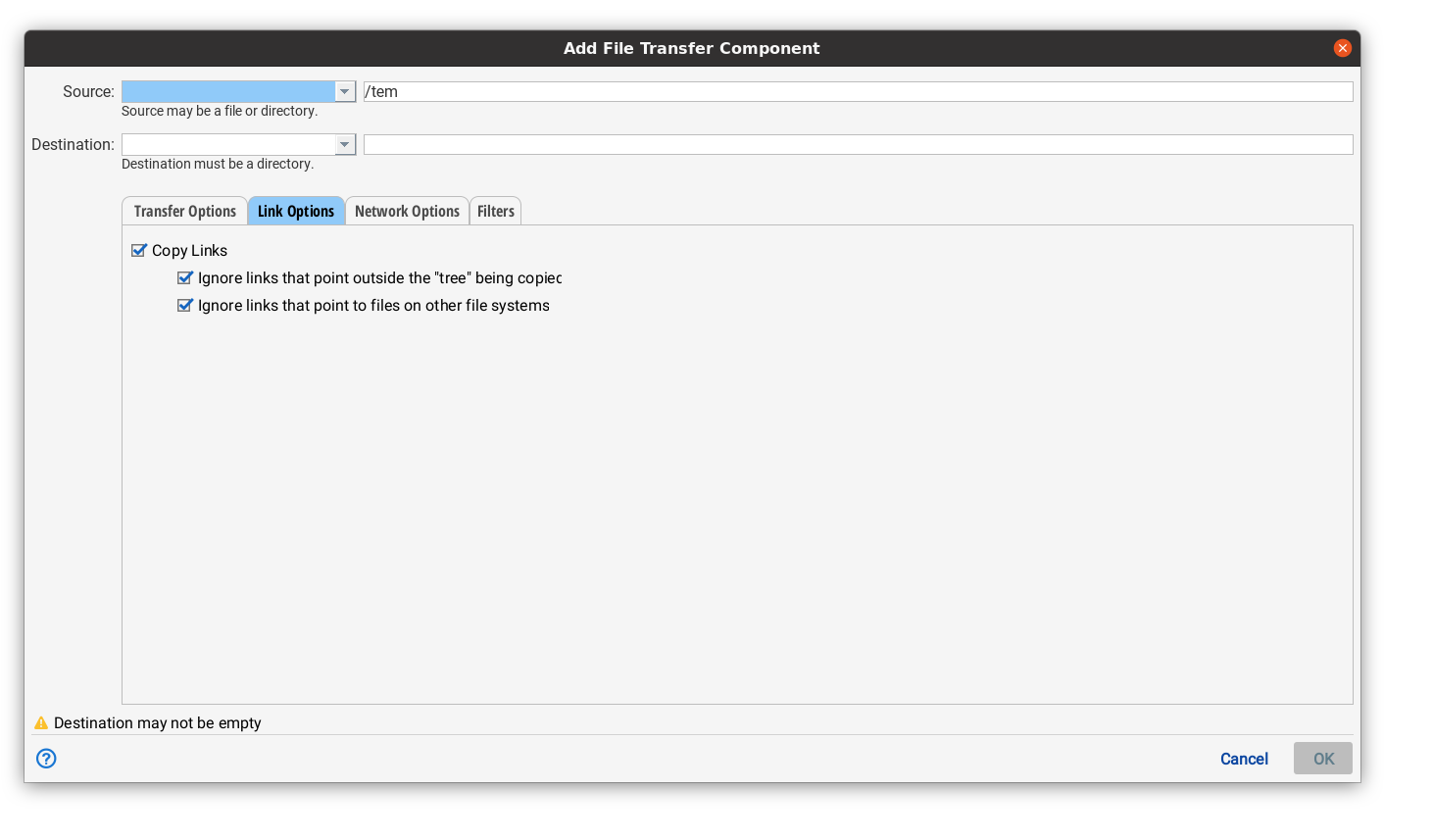
If "Copy Links" not selected, links are not copied. If "Copy Links" is selected, links are copied. If "Ignore links that point outside the "tree" being copied", is selected any link that points outside the source directory will be ignored. If "Ignore links that point to files on other file systems" is selected, then any link whose target is on a different file system or share will not be copied.
Network Options
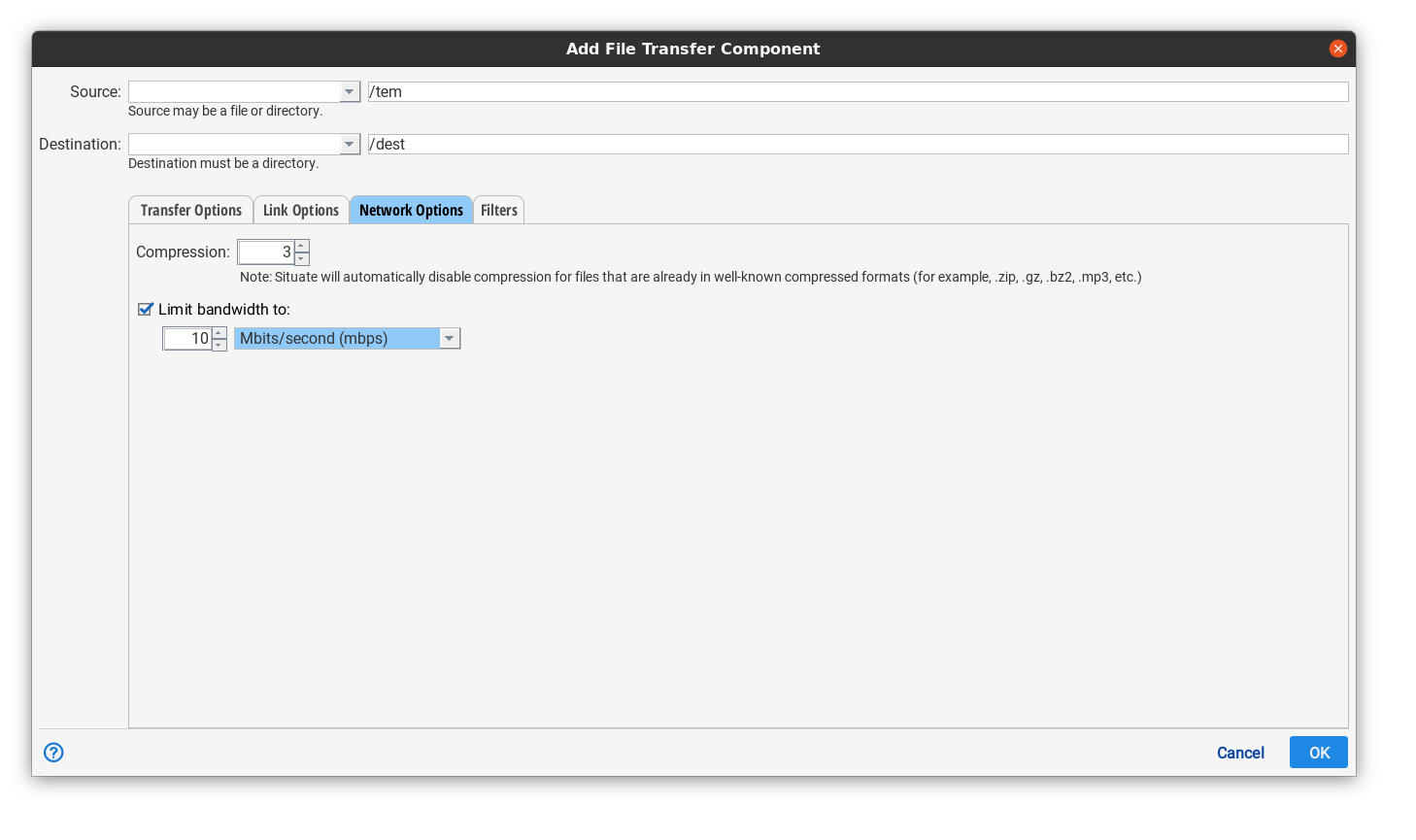
Compression may be controlled on a per-transaction basis. By default a level of "3" is specified. Higher compression may preserve bandwidth at the cost of more CPU to compress and uncompress. There are some files that Situate will not compress at all. These include files that are already in compressed format such as .zip files, .gzip files, .mp3, etc.
Bandwidth limitations may also be put in place to control the maximum rate of file transfer.
Filters
Filters allow you to control how certain files and/or directories are handled by the file transfer. Each filter has a "type" and "pattern". The type controls how the filter behaves and the pattern is used to match certain files and/or directories.
Filters can be applied to items by first clicking the "add or +" button to add a filter. Then, you may apply filter patterns. Items can be rearranged by selecting the item you would like to move and pressing the up and down arrows opposite the "add or + "minus" and "edit" buttons.
Include and Exclude
Filters are processed in order. Each file or directory transferred is tested against the filters. If the particular file first matches an include filter, the file/directory is transferred. If a file/directory first matches an "exclude" filter, the file/directory is not transferred. If the end of the filter list is reached and there are no matches, the file is transferred.
Protect
When using the rsync-like copy to move only changed files, it is possible to check the "Remove files from destination not found on source. Files/directories matching the protect filters are NOT removed from the destination.
Patterns
Patterns follow the following rules:
If a pattern starts with a leading "/", the pattern is matched from the beginning of the path. If there is no leading slash, then the pattern is matched against the end of the path.
The path being copied is the full path name minus the "source" of the file transfer. For example, if you specify a source of /home/mike, then the file transfer might copy "/home/mike/situate/packages". In this case, the path is "/situate/packages".
Therefore, if you want to exclude the "packages" directory, the pattern would be "/situate/packages/". Note: the leading slash causes the path to be matched from the beginning.
If you want to exclude all files ending in .shar from any directory, you would write ".*.shar". Note: the lack of a leading slash causes the end of the path to be matched.
If a pattern ends in a trailing "/", then it only matches directories. If a pattern does not end in a "/", then only files are matched. If a pattern ends in "/***", then both files and directories are matched.
For example, if you want to match the situate/packages directory, then your pattern must end in a trailing "/". If you want to match all text files, you would use ".**.txt" with no trailing slash.
Two asterisks between slashes ("//") means one or more sub-directories. For example, "/situate//.*.class" would match situate/a/foo.class, situate/a/b/foo.class but not situate/foo.class". Note: ** must match at least ONE sub-directory.
Except for the rules above, regular expressions are expected between "/" characters. (Note: rsync does not use regular expressions). So, for example, to match files ending in ".so", one would write ".*.so".
Situate uses standard GNU regular expressions. For information on GNU regular expressions, see GNU Regular Expressions.