
Appearance
Accessing Workflow Logs in Situate
The Situate viewer can view, search and manage the workflow logs associated with any server it connects to.
Finding Past Workflows
The Situate viewer can index and view the results of past workflows. Select "View" then "Search Scheduled Workflows" from the top menu to open the scheduled workflows search panel.
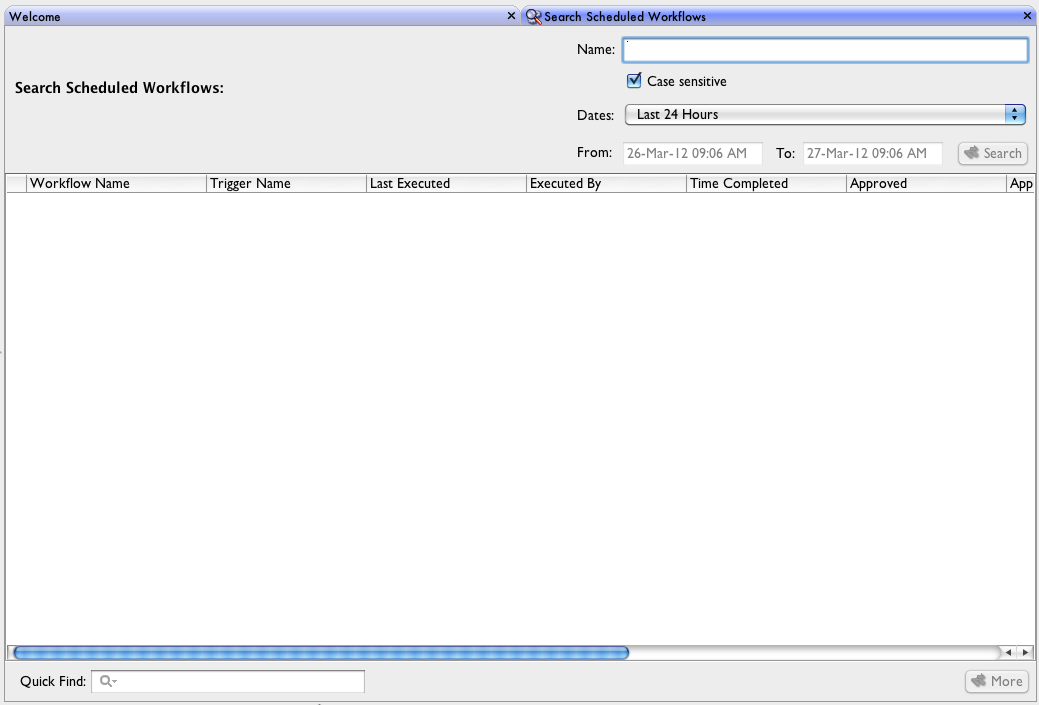
The scheduled workflows panel shows all past workflows executed with logs on the Server. Because Situate environments often execute large numbers of workflows in short periods of time, the scheduled workflows panel only displays workflow logs in regard to a string-matching search of workflow names and descriptions.
Search Options
The following options can be used to refine a search:
Case Sensitive
Whether to match the case of the search.
Date Selection
Restrict the dates of workflow executions to show.
Custom Date Selection
Define a more complex date range.
Once all search parameters are defined, clicking the "Search" button will show any matching workflow logs in the table.
By default, the search results table will contain no more than 100 entries per search. If the result set has more than 100 entries it will truncate the list, and further results must be accessed with the "More" button. The bottom right-hand corner of the search panel will display a status bar with the total number of entries that matched the search, and how many are being currently shown in the table.
Each column of the search table may be sorted. To sort search results, click on a header to organise results by its contents, or hold control and click multiple headers to sort by each header sequentially by the order of selection.
The "Quick Find" text field further organises searches by filtering results and only showing workflows with a match to the "Quick Find" string.