
Appearance
Schedule Analyzer
The Schedule Analyzer provides views to see upcoming scheduled workflows.
Opening the Schedule Anaylzer
Like many of the other views in Situate™ you can open the Schedule Analyzer by finding the system menu at the top and select View Schedule Analyzer".
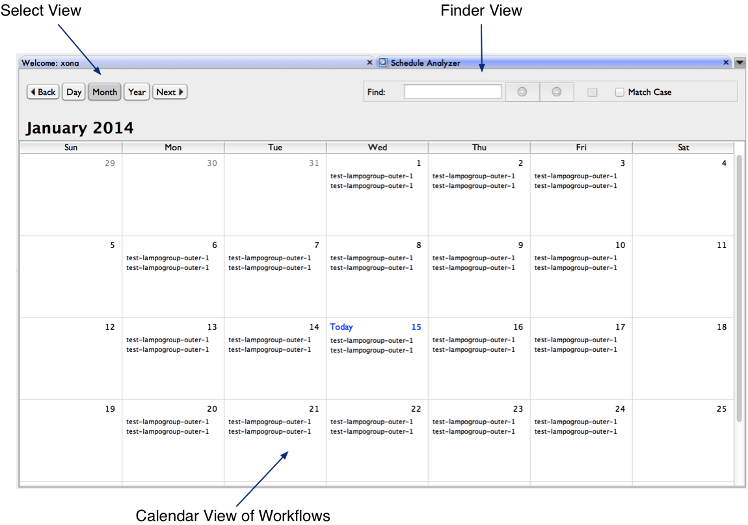
This will open a new tab panel in the right-hand pane of the Situate UI. By default, the initial view will always present to the user a monthly view as seen in the image here.
Day View
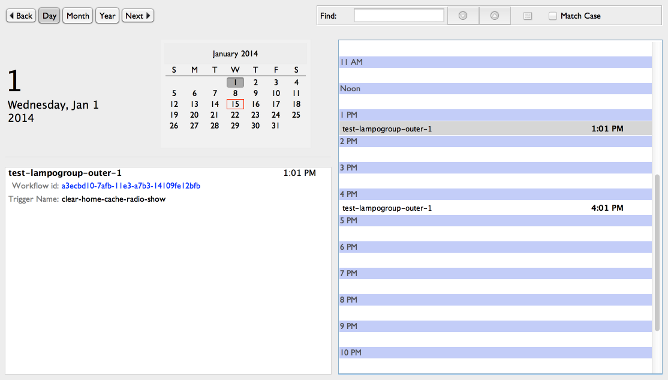
The Schedule Analyzer can be show upcoming workflow schedules for a single day. From the Monthly view simply double-click on any day of the month or select the Day button in the in the upper-right corner of the panel.
In the day view, an list of workflow by hour is dislayed. By selecting any of the entries in the hourly list will display detailed information about the workflow in the panel to the left. The detail view shows the workflow name, id and trigger.
Year View
Finally, it is possible to see a yearly view of schedule workflows. Selecting the Year button in the upper left will change the display to year view as seen below.
The year view displays information as a heat map. The heat map will categorize each day by its frequency of workflows run. There are three levels of frequency levels: low, medium and high. Hovering over any day will popup a tooltip that will display the estimated number of times the workflow will un on that day.
Select the Month
Selecting a month in the year view will take you to that months view.
Select the Day
Selecting a day within a month will take you to that days view.