
Appearance
Installing Situate on Windows
The agent install package consists of the base agent and all the modules required to perform the basic automation and deployer functions.
Installing a Situate server involves installing the base agent followed by the server package. That will be discussed after the base package installation.
Installing the Base Agent
Because the base agent is installed on many computers, we kept the work you need to do to a minimum. The installer is designed to be an non-interactive MSI package.
In order to install the agent, you must be logged on as a local administrator and must run the installer with Administrative privileges.
First, download the agent MSI package from our website. The website will contain instructions to help you choose the correct package.
Then run the package either from the command line...
> agent-windows-i386.msior double click on it from the file browser. The agent will silently install, started, and readied for use.
Installing the Situate Server
To install the sever, you must first install the agent as described above. Then, download and run the server installer either from the command line or by clicking on it from the file browser.
> server-windows-i386.msiThe installer will then guide you through the installation process.
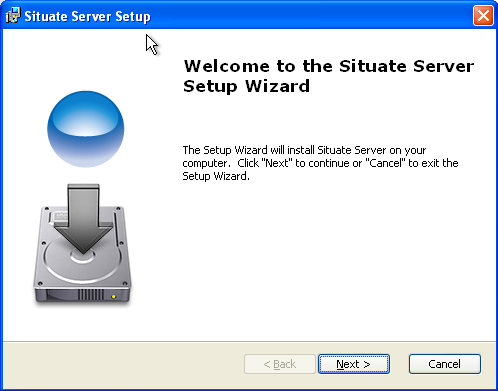
Simply click next
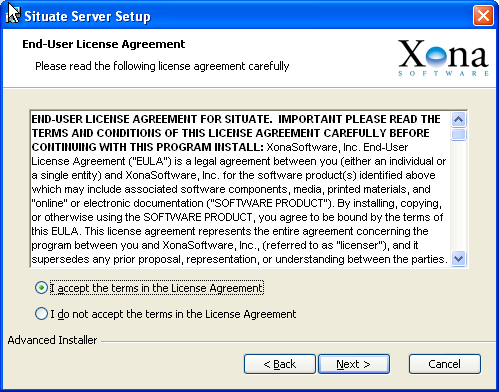
Then, accept the terms of the license agreement and press Next
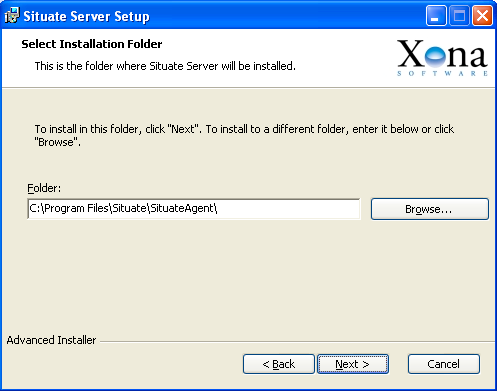
Select the installation path and press Next
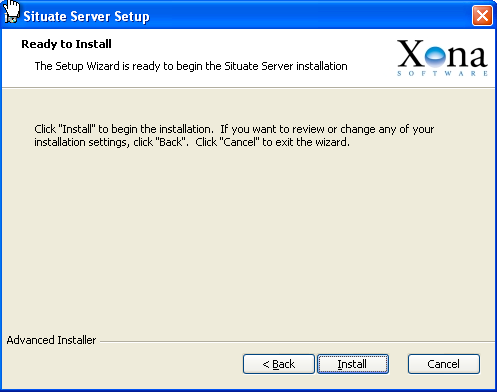
The installer will then perform the installation steps. At the end of this process, the installer will lauch the server configuration tool to further guide you through the installation process.

Simply press "Next" to get started
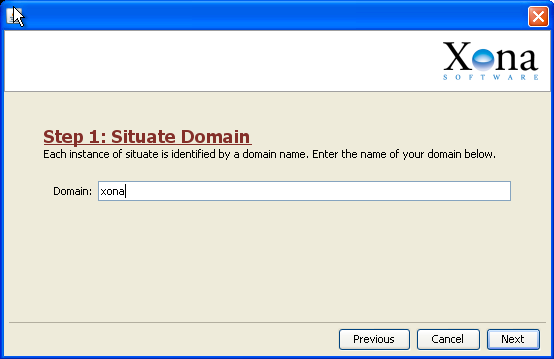
Enter the name of the Situate domain you want to create.
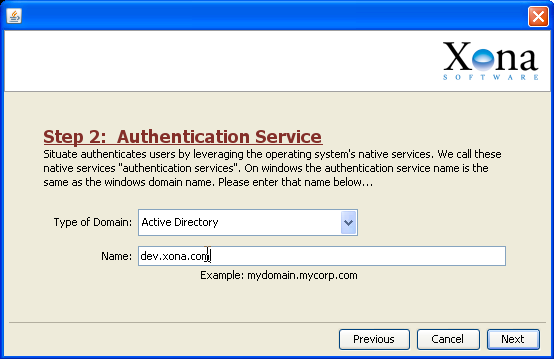
Next, setup the authentication service that is to be used to authenticate users. In this case, “dev.xona.com” is the name of our Active Directory domain.
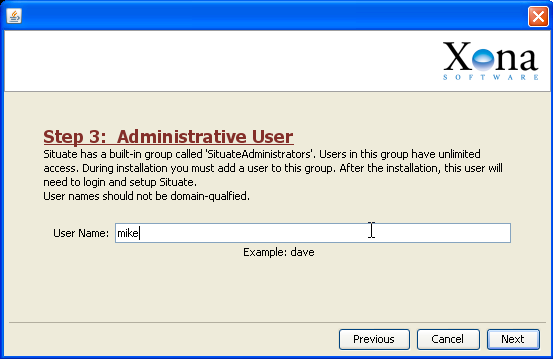
A user who will become the administrative user. When the domain is created, this user will be added to the “SituateAdministrators” group and will be the only user who can login and update the security policy.
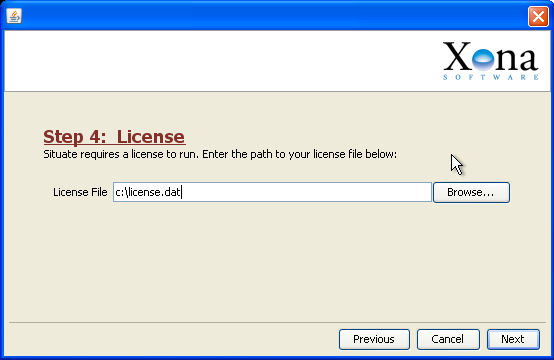
Finally, enter the path to the license file.
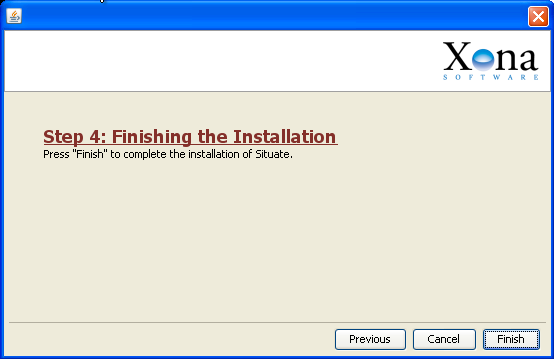
Then, the situate configuration tool will complete the installation and start your server. You can now login using the Situate GUI.