
Appearance
Viewing Logs in Situate
Using the Situate Viewer a user can search for and examine past workflows and audit entries.
Searching for Past Workflows
Situate Viewer gives you the ability to search for and easily view past workflows. Select View | Search Scheduled Workflows from the top menu items. A new panel will appear in the right hand pane and the Name textfield will get the focus to allow you to start typing the text to search.
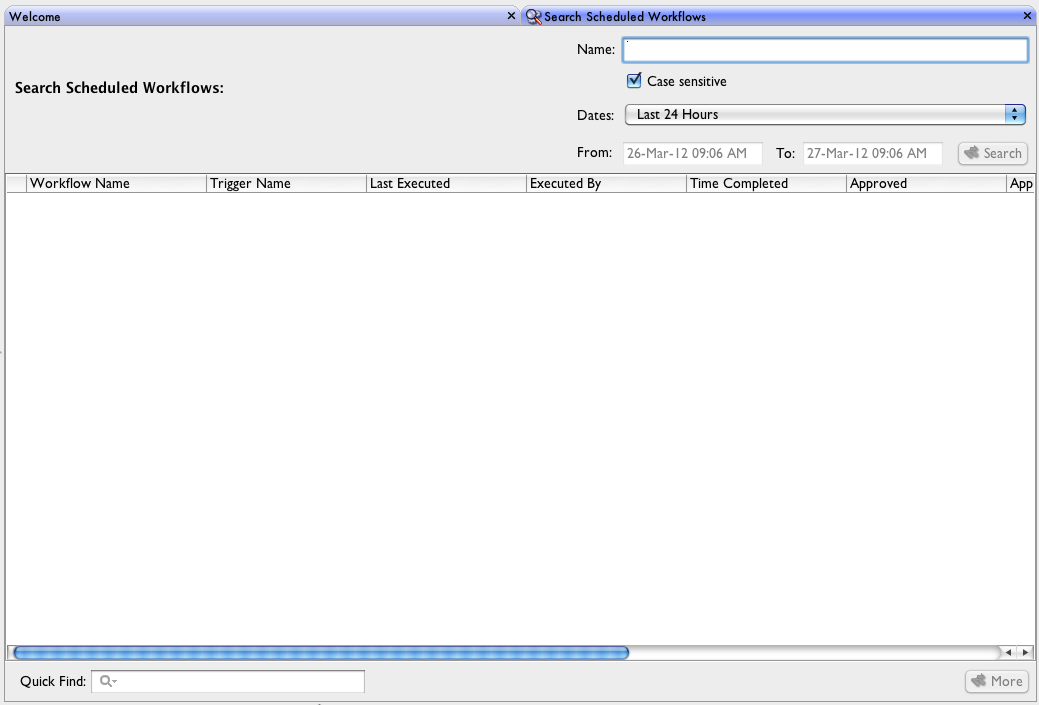
Search Panel Options
Let's examine each search option.
Name or Search Text
At the top of the search panel is a name field. This where you will provide the text to search for past workflows based on a name.
Case Sensitive
Using the case sensitive check-box you can indicate to either search with case sensitivity or not. By default a search will be case sensitive.
Date Selection
Using the Date selection combo box you can select any one of the predefined date search ranges.
Custom Date Selection
The last date selection entry in the date combo-box is called "Custom Dates". Selecting this item will enable the custom date textfields allowing a user to define a date range of their own.
Once all options have been selected the search button will become enabled. Selecting the search button will initiate the search based on the options selected. The results of the search will be displayed in the table below the options as can be seen in the figure below.
To provide the quickest response to a search, the result set will return no more than 100 entries per search. If the result set has more than 100 entries it will truncate the list. To see more results simply hit the search button again. The search will return and append the next 100 entries in the table. In the bottom right-hand corner of the search panel there will be a status bar indicating how many total entries the search found and how many are being currently shown in the table.
Occasionally, you will have result sets that are very large. This can make it hard to find exactly what you might need from the list of enteries in the result table. There are two options to help refine a search. First, all columns can be sorted and you can even sort by multiple columns by simply clicking on the column headers. To include multiple columns in the sort, select the column headers using the CTRL-click. As can be seen in this example of sorting first on the Workflow Name and secondly on the Last Execute time.
If sorting columns is not enough to help find your particular entries a quick find textfield allows for paring down the view. Simply type in the text into the Quick Find textfield and the table will adjust showing only those results that match the filter. In the following image the view is filtered by the text "mikema" which has filtered out all but 3 entries.