
Appearance
Configuring the Line of Business
The "Line of Business" or domain level is found in the object browser directly under the Enterprise. While small companies may have only one situate domain, larger companies my elect to setup a Situate domain for each business unit or each line of business. Security is established at this level.
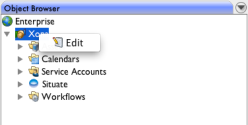
If you are a member of the Situate "Administrators" group, you can edit the LOB configuration. Use the right-click on the LOB entry in the Object Browser to select "Edit".
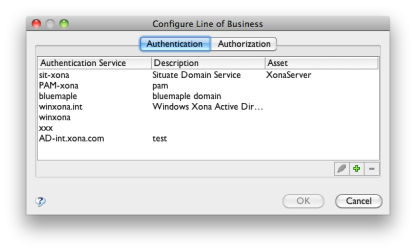
Authentication Services
An authentication service is any system, service or mechanism that authenticates users. Each authentication service typically has a set of usernames and passwords, but not always. Some may use certificates or other schemes.
It is important to understand how Situate interacts with all the various security services because ultimately system objects such as files, processes, services, etc. may all be acted upon by situate. For these actions to be successful, the underlying security must allow the operation.
Agents and Security Services
When the Situate agent interacts with the operating system upon which it runs, it's actions are subject to the operating system's security.
On a Windows computer, each agent typically interacts with two security services: A local security service for local accounts and an Active Directory domain for domain accounts (or perhaps, an older Windows NT domain). Each of these mechanisms is an authentication service.
On a UNIX computer, each computer also typically interacts with two services: the local password file maintains local accounts, while NIS or LDAP are used to manage a network-wide space.
Of course, there are always machines that for whatever reason (usually security) stand alone only using local accounts.
Naming Authentication Services
Several conventions are used to name authentication services. They consist of using a prefix that represents the kind of authentication service followed by a hyphen and then a name that represents the specific service. For example, "AD-int.xona.com" represents an active directory domain named "int.xona.com".
Active Directory
An active directory authentication service name is formed by placing "AD-" in front of the active directory domain name. For example, if your active directory domain is “prd.myco.com”, the corresponding Situate authentication service name will be “AD-prd.myco.com”.
Older Windows NT Domains
A windows domain that does not use active directory is described by placing "WinNT-" in front of the windows domain name. For example, “WinNT-prd”.
UNIX Domains
On UNIX, the PAM (Pluggable Authentication Modules) are used to validate logins. On the backend, PAM typically uses NIS or LDAP but may use virtually any kind of system or even more than one system.
If you are using LDAP that is actually pointed to a Windows active directory service, then you will want to use "AD-" followed by the active directory domain so it is clear that it's the same service used on windows. Otherwise, "PAM-" is prepended to whatever the UNIX command domainname returns. So, for example, if you are running NIS with the domain name "prd", "PAM-prd" becomes the authentication domain.
Local Computer
Both Windows machines as well as UNIX machines have local authentication systems. Situate prepends "H-" to the computer name to form the name of a local authentication service. For example, "xonadev1" will have a local authentication service called "H-xonadev1".
While all other authentication services need to be specifically created, local computer services do not.
The Situate built-in service
Situate also has a built-in authentication service. This service manages situate groups used to manage security within situate. These groups have nothing to do with and are never used to interact with an operating system. The Situate service is always named "SIT-your-situate-domain.
Adding Authentication Services
In order for Situate to seamlessly interact with all your security services, they must first all be added.
This done by pressing the "+" button at the bottom of the table.
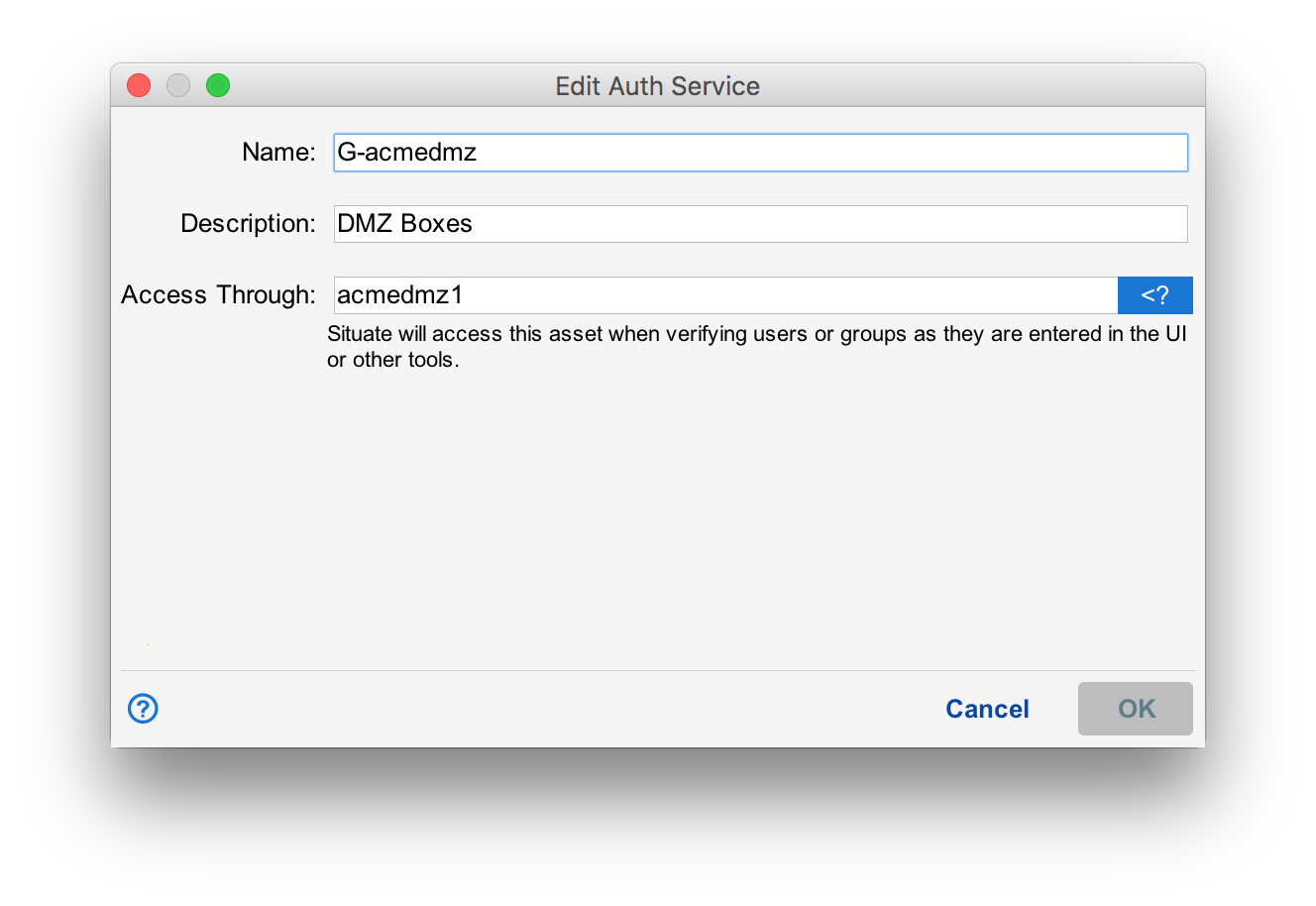
Name the authentication service according to the proper naming convention as discussed above. A short description might also be useful. For now, leave the "Asset Name" set to "XonaServer".
Removing and Updating Authentication Services
Authentication service information may be edited or deleted using the pencil or "-" icon as needed.
Authentication
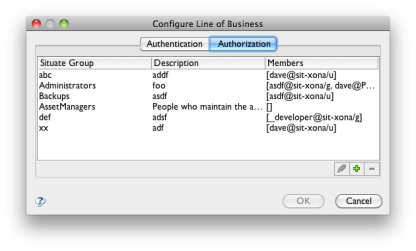
Situate has its own authentication service that manages a set of groups. These groups give users the rights to perform certain functions within Situate.
Situate Groups
Though you may create your own groups to use as you need, there are some built-in groups that have special meaning:
Administrators
Members of this group can change anything. This group is analogous to local or domain admin on Windows or root on a UNIX box.
You must be a member of Administrators to update the LOB information.
AssetManagers
Members of this group can add, update or remove assets. Situate administrators may wish to grant the ability to manage assets to other individuals. For example, you may have individuals responsible for installing, moving, or removing computers, and you may want those individuals to be update the asset information as part of that jobs.
CalendarManagers
Calendar managers can create, edit or update calendars.
ProjectAdministrators
Project Managers have administrator-like ability to change anything related to deployment projects. Typically, Project Managers will create new top-level projects, then adjust security on those projects as needed.
Custom Groups
Your Situate administrator may elect to create one or more custom groups as well. Custom groups can be used in ACLs to protect various Situate resources.
Changing Group Membership
To edit a Situate group's members, select the group and press the pencil or edit button.
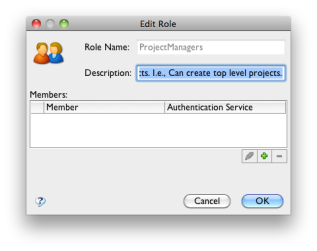
This brings up the detail for that specific group. Use the "+" or "-" button to add or remove users or groups.
Groups Vs. Users
When changing Situate group members, you can add either